The Welcome Table on a Session Night
St. Francis of Assisi Catholic Church · Faith FormationHow to add a visiting teen at the Welcome Table iPad, and what happens to the family's information next.
You work the Youth Ministry Welcome Table on a session night. You greet each visiting teen and enter them on the parish iPad.
A postcard sits in a drawer. An entry on the Welcome Table becomes a real guest record the office can see the same night — the parent's contact information, the teen's grade, and why they came. The office can follow up, and a teen who wants to sign up gets a link to finish registration.
What you will do, in one sentence
Ask the family three things, type them in, save, and pick the small group for the night.
Last verified against the staging system on 2026-10-20. Screens shown are the staging system (an isolated copy). The guest family shown is an invented training record, made and removed for this guide. Prepared 20 October 2026.
1. Open the Welcome Table page
- Open the parish iPad.
- Sign in with the Welcome Table login the office gave you.
- Go to
<your parish app address>/faith-formation/welcome-table.
The page opens on a blank New Guest Family form, with Today's Guests below it.
The page asks for a sign-in the same way every parish admin screen does. If the iPad shows a sign-in screen you do not recognize, ask the Youth Ministry office for the Welcome Table login before the first family arrives.
2. Greet the family and ask three things
Before you type anything, ask the teen and the parent:
- The teen's first and last name, and their grade.
- A way to reach a parent — a first name, a last name, and an email or a cell phone.
- Why are you here tonight? — read the three choices out loud: Visitor, "I want to sign up!", or Other.
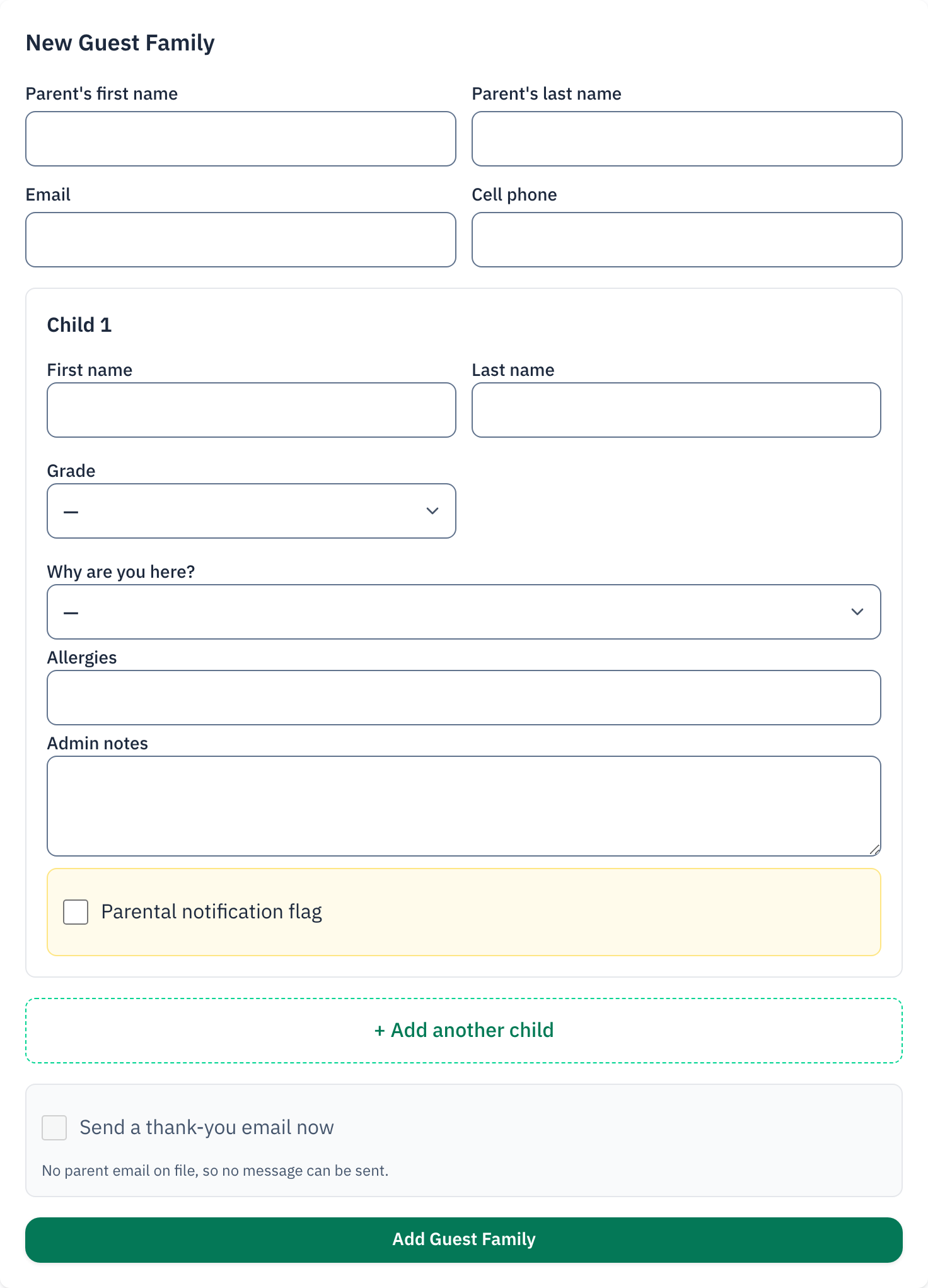
3. Fill in the form
The teen
- Type the teen's First name and Last name.
- Pick their Grade from the list.
- For grade 6 and up, a Gender field appears. Fill it in only if the teen tells you.
The parent
- Type the Parent's first name and Parent's last name.
- Type an Email, a Cell phone, or both — the office uses whichever one you enter.
Why are you here?
Pick the answer the family gave you:
| Answer | What it means |
|---|---|
| Visitor | The teen is checking out a session. No follow-up email with a link. |
| I want to sign up! | The teen wants to register. The office's thank-you email carries the registration link. |
| Other | Anything else the family tells you — write the detail in the notes box. |
Notes
Use the Admin notes box for anything the office should know — allergies go in their own Allergies box, and a safety concern goes in the amber Parental notification flag box at the bottom, with a note explaining why.
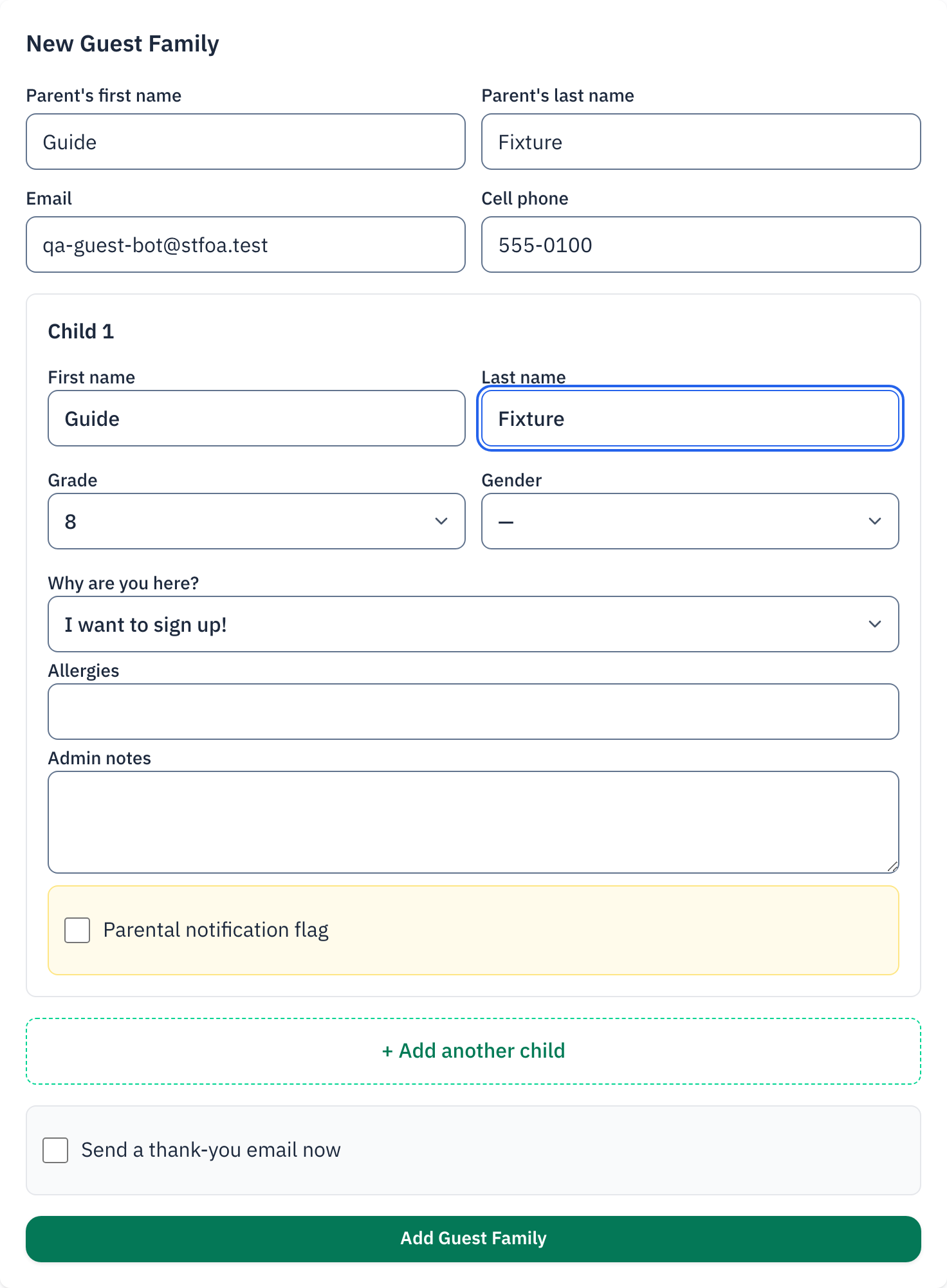
The amber flag is for a real safety concern the office must know about before the family leaves, not a routine note. Use the plain Admin notes box for anything else.
Send a thank-you email now
A checkbox sits just above the Add Guest Family button: Send a thank-you email now. It starts unticked.
- Leave it unticked, and no message goes out when you save. The office sends the thank-you later.
- Tick it, and the parish sends the thank-you the moment you save. It is the same message the office would send, and the "Why are you here?" answer decides which one each teen gets — a teen who said "I want to sign up!" gets the registration link, a Visitor or Other gets a plain thank-you.
The checkbox is greyed out when you entered no parent email. It then reads "No parent email on file, so no message can be sent."
Tick it only when the parent is standing in front of you and expects to hear from the parish. If you are not sure, leave it unticked. The office can still send the message from its own screen afterwards, and nothing is lost.
4. Save, then pick tonight's small group
- Tap Add Guest Family at the bottom of the form.
- The guest appears at the top of Today's Guests, and the form clears for the next family.
- In the guest's row, open Select a group… and pick tonight's small group.
- Tap Assign.
If the teen's name and the parent's email or cell phone already match someone on this year's list, the page does not add a second row. It attaches to the record that is already there and shows "Existing record found and attached. No duplicate was created." This is normal — it means the office already knows this family, so nothing more is needed from you.
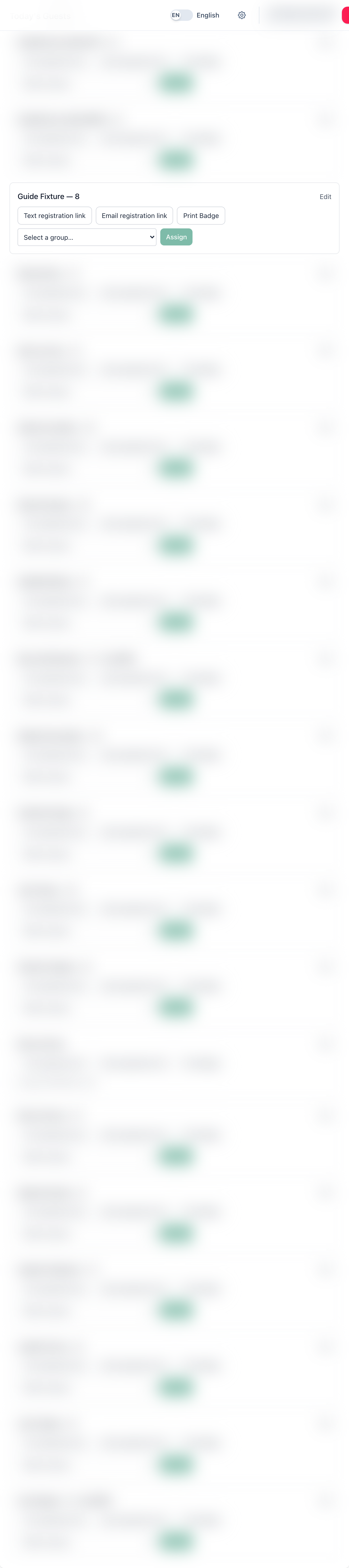
The same row also has Text registration link, Email registration link, and Print Badge, if the family wants one of those before they head in.
5. What the family should expect next
- The office already sees the guest. The moment you tap Add Guest Family, the entry is on the Faith Formation office's guest list.
- A thank-you email may follow, sent by the office. A teen who said "I want to sign up!" gets a message with the registration link; a Visitor or Other gets a plain thank-you.
- A message leaves this page only when you ask for one. That means one of three things: you ticked Send a thank-you email now before you saved, or you tapped Text registration link, or you tapped Email registration link in the guest's row.
Quick reference card
The whole thing, in six lines
- Ask the teen's name and grade, a parent contact, and why they came.
- Fill in the form. Leave Send a thank-you email now unticked unless the parent expects a message today.
- Tap Add Guest Family.
- Pick the small group for tonight in the guest's row and tap Assign.
- The office already sees the guest — you do not need to tell anyone.
- A thank-you email follows, either because you ticked the box or because the office sends it.
Two things to check before you add a new guest
Look in Today's Guests before you add them again — it lists every guest for the whole program year, not only tonight. If the teen is already there from an earlier night, use their existing row: pick tonight's small group there instead of creating a second entry.
An enrolled teen does not appear in Today's Guests — this list is walk-up guests only. Do not add a new guest entry for a family that tells you they already registered. Creating one makes a second, duplicate record for that teen. Ask the family to check in with the office instead.
Thank you for welcoming every teen who walks up to the table. What you type in tonight is how the office follows up tomorrow.