Checking In Your Child at the Door
St. Francis of Assisi Catholic Church · Faith FormationHow to check your child in for tonight's Faith Formation session using the door code and their Student ID.
You are a parent or guardian dropping a child off at a Faith Formation class, retreat, or session. You do not need a parish login — the door code and your child's Student ID are enough.
The parish keeps a record of who is at each Faith Formation session. It tells the catechist who showed up tonight, and it counts toward a child's sacrament-preparation record when the session is one of those.
What you will do, in one sentence
Scan the door code, pick tonight's session if you're asked, type your child's Student ID and last name, and tap Check In.
Last verified against the staging system on 2026-10-09. Screens shown are the staging system (an isolated copy). The child and session shown are invented QA fixtures, made and removed for this guide. Prepared 9 October 2026.
1. Scanning the door QR code
- At the Faith Formation door, find the printed QR code.
- Open your phone's camera and point it at the code.
- Tap the link that appears.
The page opens to Parent Session Check-In. You do not sign in — this page works for anyone with the code. A small language switch sits in the top corner if you need Spanish.
Ask a Faith Formation volunteer at the door. They can open the same page for you.
2. Picking tonight's session
What you see next depends on what is running right now.
- One session running. Its name, time, and location are already shown. You do not need to pick anything.
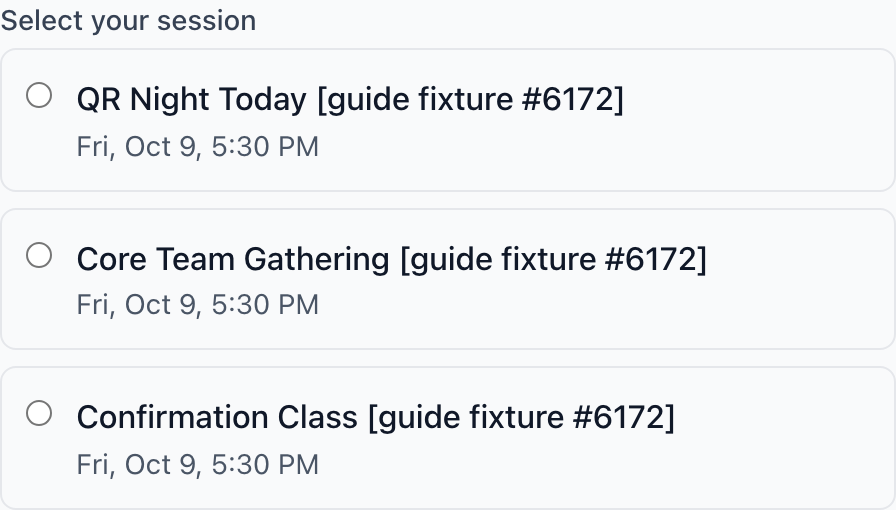
- More than one session running. The page lists each one under Select your session, with a round button next to it. Tap the one you're here for.
- Nothing running yet. You see a message instead of a form.
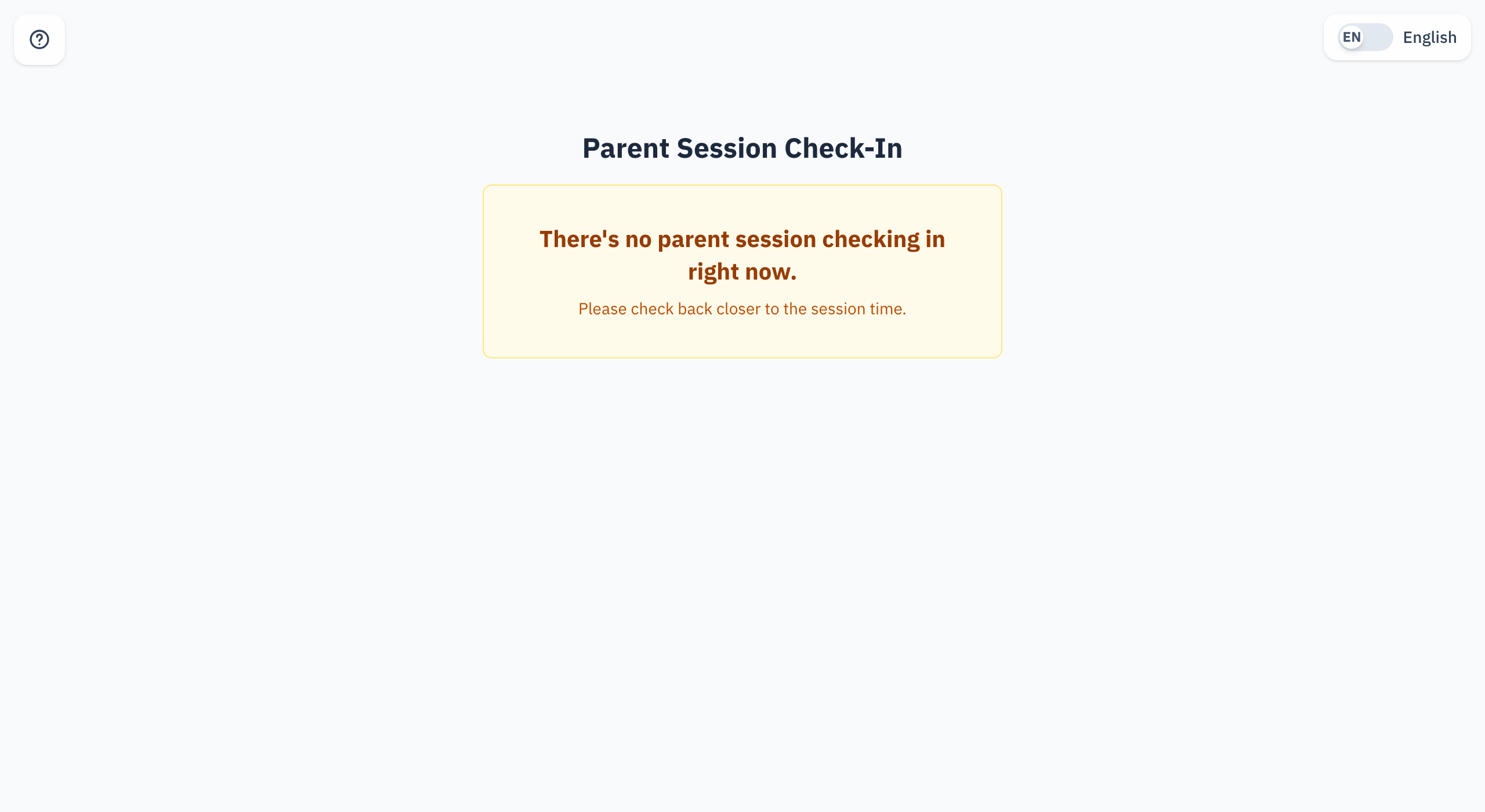
Check-in opens 1 hour before a session starts and stays open until 30 minutes after it ends. Outside that window, the page has nothing to check in to — that's expected, not an error.
3. Entering your child's Student ID
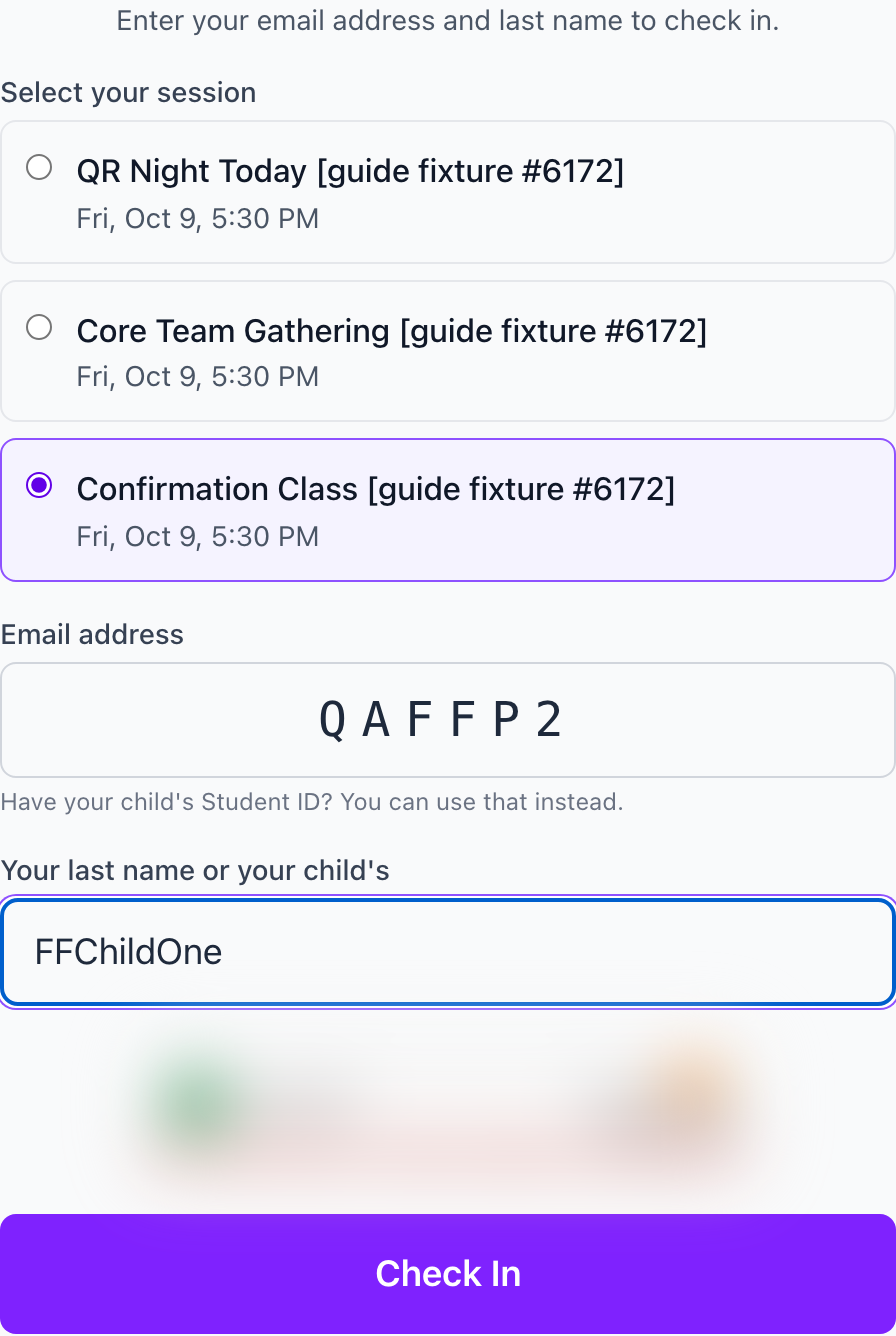
Below the session, you see two boxes. The first box is labeled Email address. A line under it reads "Have your child's Student ID? You can use that instead." The second box is labeled Your last name or your child's.
- Type your child's Student ID in the first box. This is the short code from their registration card or a text from the parish. Upper or lower case both work. The box shows an ID in capitals.
- Type your child's last name in the second box.
- Wait for the small security check below the boxes to finish, then tap Check In.
The same box takes either one. Type your email address or mobile number instead of an ID, and type your last name in the second box. Use this only if you have no child in Faith Formation — a catechist, a core-team volunteer, or a sponsor checking in on their own.
Two more screens can appear. Which one are you? lists the people that match, and you tap your own name. We don't have you on file yet. asks for your first name, and the page then checks you in.
You'll see: "We couldn't find a student with that ID and last name — please check the card or see a volunteer." The message is the same whether the ID or the last name is the one that's off, so double-check both before you try again.
Type any one last name that the family uses: your child's, your own, or the other parent's. Accents, capital letters and apostrophes do not matter. With two last names (for example "García López"), type one of them or both. Words such as "de", "del" and "la" do not matter.
Look for a small security check box beneath it. If nothing appears there after a few seconds, it likely could not load — a school Wi-Fi filter or an ad blocker is the usual cause. Try your mobile data instead, or ask a volunteer.
4. Checking in another child
Once your child is found, you see a green You're checked in! screen with their first name.
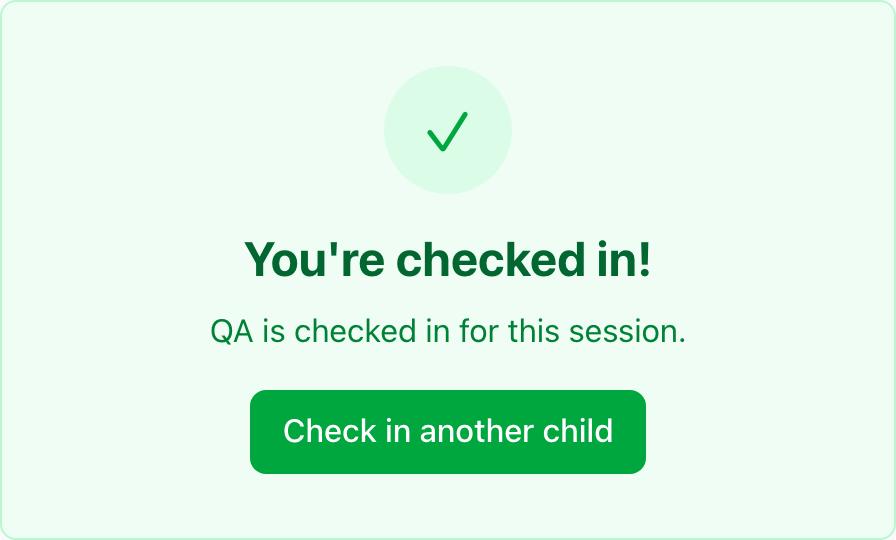
- Tap Check in another child.
- The session stays selected — you don't need to pick it again.
- Enter the next child's Student ID and last name, the same as before.
Repeat for every child you're checking in tonight.
If your child is already checked in for this session, you see "[Name] was already checked in — you're all set." Nothing is duplicated — it's safe to scan the same card twice.
5. Quick reference card
The whole thing, in five lines
- Scan the door QR code — no login needed.
- Pick tonight's session, if you're asked to.
- Type your child's Student ID and last name.
- Wait for the security check, then tap Check In.
- Tap Check in another child to do a sibling, right away.
When to stop and ask
- The ID and last name don't match, and you're sure both are right.
- The page says no session is running, but you can see one starting soon.
- The security check never appears, on any network you try.
A Faith Formation volunteer at the door — they can look your child up by hand.
Thank you for checking your child in. It only takes a moment, and it's how the parish knows who's in the room tonight.