Registering as a Guest
St. Francis of Assisi Catholic Church · Guest RegistrationHow to create a guest account so you can sign up for a parish event without becoming a full parishioner.
You want to sign up for something at the parish — like Vacation Bible School — and you are not yet a registered parishioner. This guide is for you.
We ask for your name and a way to reach you so we can follow up about the event you're signing up for. If you add your children, we can also tell you which programs — like Camper, Teen Volunteer, or Childcare — they may be old enough for.
What you will do, in one sentence
Verify your email, tell us a bit about your family, and your guest account is ready.
Last verified against the staging system on 2026-10-20. Screens shown are the staging system (an isolated copy). Only the first screen is shown. It holds no names or records. Prepared 20 October 2026.
1. Before you start
A guest account lets you sign up for a parish event — like Vacation Bible School — and tells us which programs your children may be old enough for, without joining the parish as a registered member.
You need:
- An email address you can check right away. The code we send expires quickly.
- A browser that allows the security check on the first screen to load — most ad blockers and script blockers can interfere with it.
This page is for guests only. If you already have a parish account, select Log in on the first screen instead of registering again.
2. Verifying your email
- Open the guest registration page from your invitation or event link.
- Type your address into Email Address.
- Complete the security check box below it.
- Select Send Verification Code.
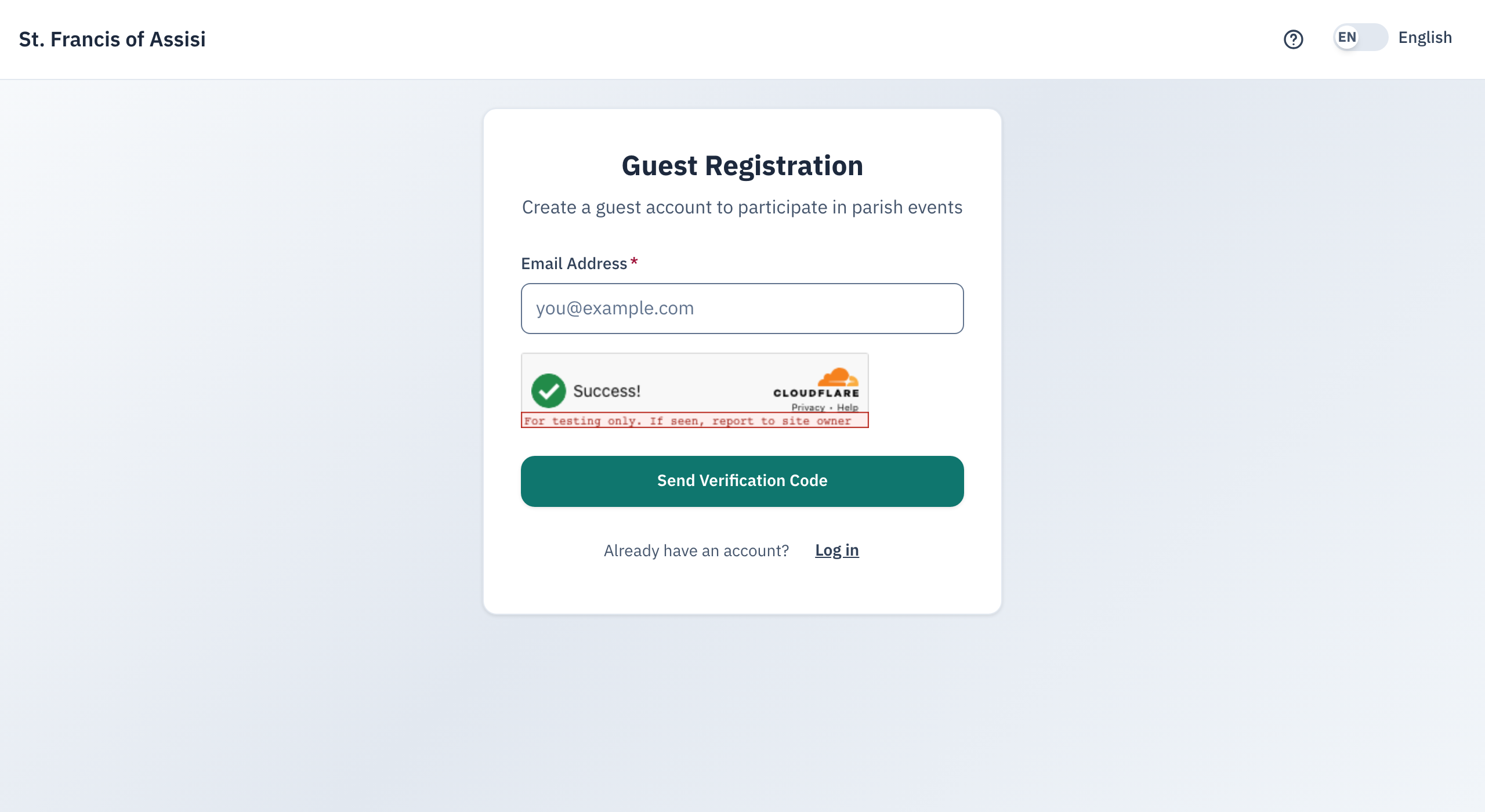
The button stays greyed out until the security check finishes.
If you see a message saying the security check couldn't load, check your internet connection or turn off any ad or script blocker, then refresh the page.
The page checks your email as soon as you select Send Verification Code. If it already belongs to a parishioner account, you'll see a message with a Go to member login button instead of a code screen.
- Check your email for the code, and type it into Verification Code.
- Select Verify.
| Rule | What it means |
|---|---|
| Code lifetime | Each code expires 10 minutes after it's sent. |
| Attempts | You get 5 tries at one code before you must request a new one. |
| Resending | Request a new code is available every 30 seconds, up to 3 times total. |
Verifying takes you straight to the finished screen in "Finishing up" below — you won't see the family details or children steps again.
3. Telling us about your family
If this is your first time registering with this email, verifying the code takes you to a short form.
- Fill in First Name and Last Name (at least 2 letters each — both are required).
- Add your Phone Number if you'd like us to be able to call or text you.
- Add your Street Address, City, State, and ZIP if you'd like — none of these are required.
- Add your Home Faith Community if you attend a parish elsewhere (for example, "St. Joseph Catholic Church, Richardson").
- Select Next: Add Children.
State must be a 2-letter code (like TX). ZIP must be 5 digits, or 5 digits plus a 4-digit extension (like 75080-1234). The page tells you if either doesn't match.
Next, add your children so we can check which programs they may qualify for. This step is optional — you can skip it and add children later.
- Select + Add Child for each child (up to 15).
- For each child, fill in First name and Last name. If you leave a child's last name blank, we use your own last name for them.
- Select a Gender — Male or Female. This is required once you type a first name.
- Add a Date of Birth if you know it. A short note appears below it showing which program the age may qualify for.
- Add a Cell Phone if the child has one.
- Select the × in the corner of a child's card to remove that child.
If you need to fix something in the family details step, select ← Back to profile.
| Age on the day you register | What the hint says |
|---|---|
| 0–4 | May be eligible for Childcare |
| 5–12 | May be eligible as a VBS Camper |
| 13–17 | May be eligible as a Teen Volunteer |
| 18 and up | Age 18+ — adult registration |
The age hint only tells you which program a child's age usually fits. It doesn't sign your child up for anything, and staff still confirm eligibility separately.
If you type a first name for a child but don't pick a Gender, the page stops you and asks you to choose one before you can finish.
If you added a child card but never typed a first name for it, finishing asks you to confirm that it's fine to leave that child out. Fill in a name for every child you want saved.
4. Finishing up
Once your children (or lack of them) look right, select the button at the bottom of the Children step. It reads Skip — no children to add if you have none, or Complete Registration if you've added at least one.
The parish never creates a second, separate guest profile for someone who's already a parishioner. If your email or a child's phone number matches an existing parishioner record, you'll see the same Go to member login message from section 2 instead of finishing.
Sometimes the last name and a child's name you typed match a parish record that went inactive. Instead of creating a new guest profile, you'll see a screen asking "Is this your household?"
- Yes, reactivate my household — brings your old parish record back to life instead of starting a new one, and emails you a link to set a password.
- No, continue as a new family — ignores the match and finishes as a brand-new guest profile.
Choose carefully: reactivating merges you into that older record rather than creating a fresh one.
When everything succeeds, you'll see the finished screen:
Select Continue to move on to what you were signing up for.
On rare occasions one child's record fails to save while the rest of your registration succeeds. If that happens, the finished screen lists which child by name and lets you know you can add them later from your profile.
If verifying your email or confirming "Is this your household?" reactivated an existing parish record, you'll see a Welcome back! screen instead of the one above, with a Go to login button. Check your email for a link to set a password first — that's how you finish signing in. You won't need to repeat the family details or children steps.
5. Quick reference card
The whole thing, in five lines
- Enter your email and pass the security check.
- Enter the code we email you.
- Tell us your name and how to reach you.
- Add your children if you'd like their eligibility checked.
- Select Complete Registration (or Skip) to finish.
When to stop and ask
- The code never arrives, even after requesting it three times.
- The page says your email already belongs to a parishioner, and you're sure that's wrong.
- You're not sure whether to answer "yes" or "no" to "Is this your household?"
Parish office — ask for the person who sent you the link to this registration page.
Two rules
- Use an email you can check right away — your code expires in 10 minutes.
- If you already have a parishioner login, select Log in instead of registering again.
Thank you for taking a moment to register — we look forward to seeing your family at the parish.