Viewing and Replying to Your Help Requests
St. Francis of Assisi Catholic Church · Help & SupportHow to see your own help requests, read what staff wrote back, and send a reply.
You are signed in to the parish portal and already sent at least one help request. Use this page any time you want to check on it or add to the conversation.
You already told the parish office what is wrong. Replies on the same request stay in one place, so staff see the whole exchange and answer faster than if you started a new one each time.
What you will do, in one sentence
Open your list of help requests, expand the one you want, read every message on it, and send a reply.
Last verified against the staging system on 2026-10-20. Screens shown are the staging system (an isolated copy). The help requests shown belong to the QA test account. Prepared 20 October 2026.
1. Where to go
You reach this page in one of two ways:
- Right after you submit a new request, select View My Requests on the confirmation screen.
- Open Help & Support from the sidebar, then select Track it here next to "Already submitted a request?". If you are signed in, that page also shows a My Help Requests panel with a View all my requests link.
Either way, you land on My Help Requests — your own list of every request you sent.
2. Reading your request list
Each request on the list shows:
| What you see | What it means |
|---|---|
| Tracking number | The code you were given when you sent the request. |
| Status badge | Where the request stands right now — see the table below. |
| Subject | The one-line summary you gave it. |
| Category and date | What kind of request it is, and the day you sent it. |
Your newest request is always at the top.
The status badge tells you what to expect next:
| Status | What it means |
|---|---|
| New | The parish office has your request and has not started yet. |
| In Progress | Someone is working on it. |
| Awaiting User | Staff wrote back and is waiting on your answer. |
| Resolved | Staff considers the request finished. |
| Closed | The request is finished, and closed to replies. |
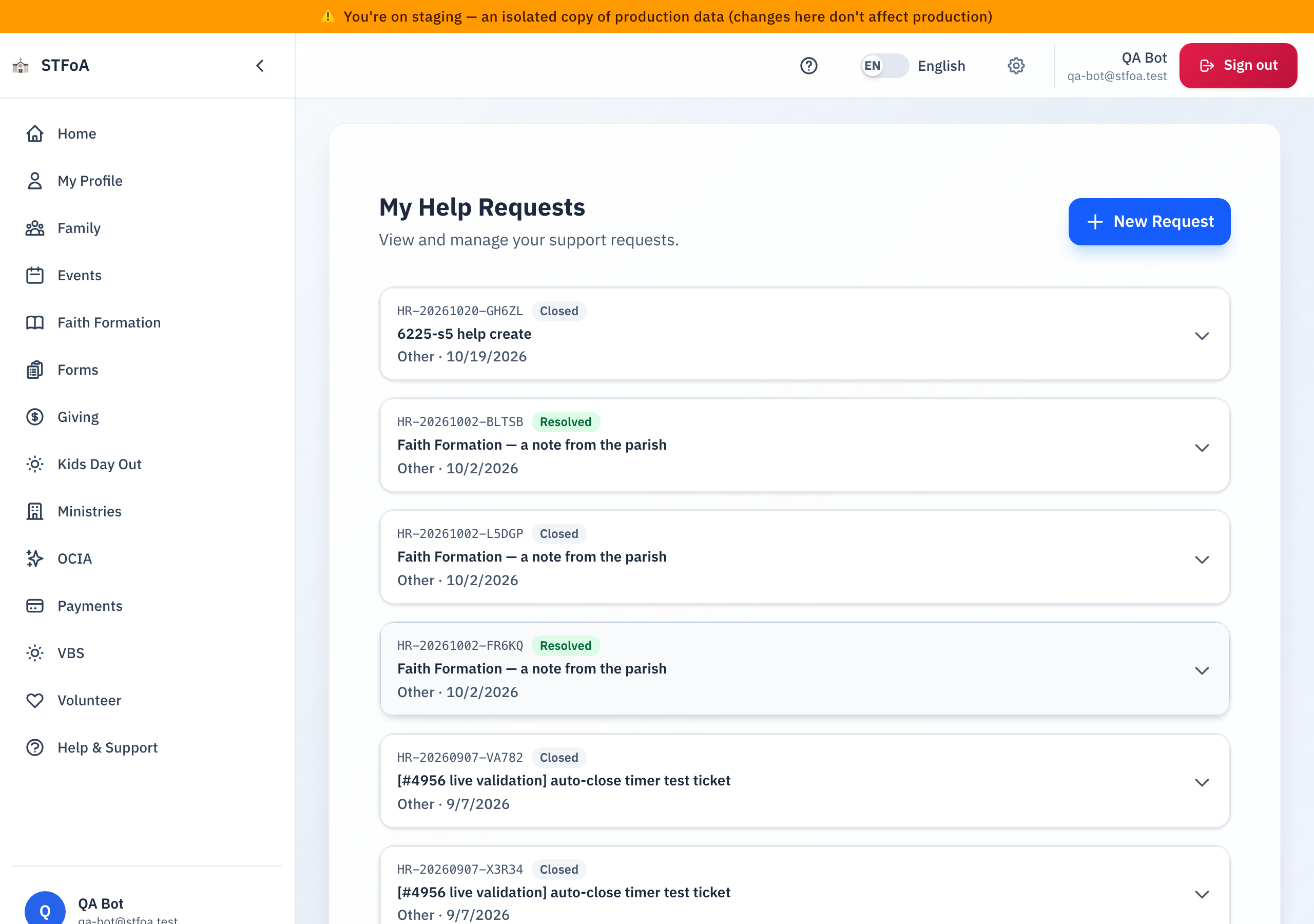
A New Request link, top right, always opens the same form you used to send your first request. If you never sent a request, the list says No Help Requests instead, with the same link. If the list fails to load, the page tells you that instead of showing an empty list.
3. Opening a request and replying
Select any request to open it. Select it again — or select a different request — to close it. Only one request is open at a time.
Opening a request shows, in order:
- Your original message, exactly as you wrote it.
- The conversation — every reply on the request, staff and yours, oldest first.
- A box to add a follow-up, unless the request is Closed.
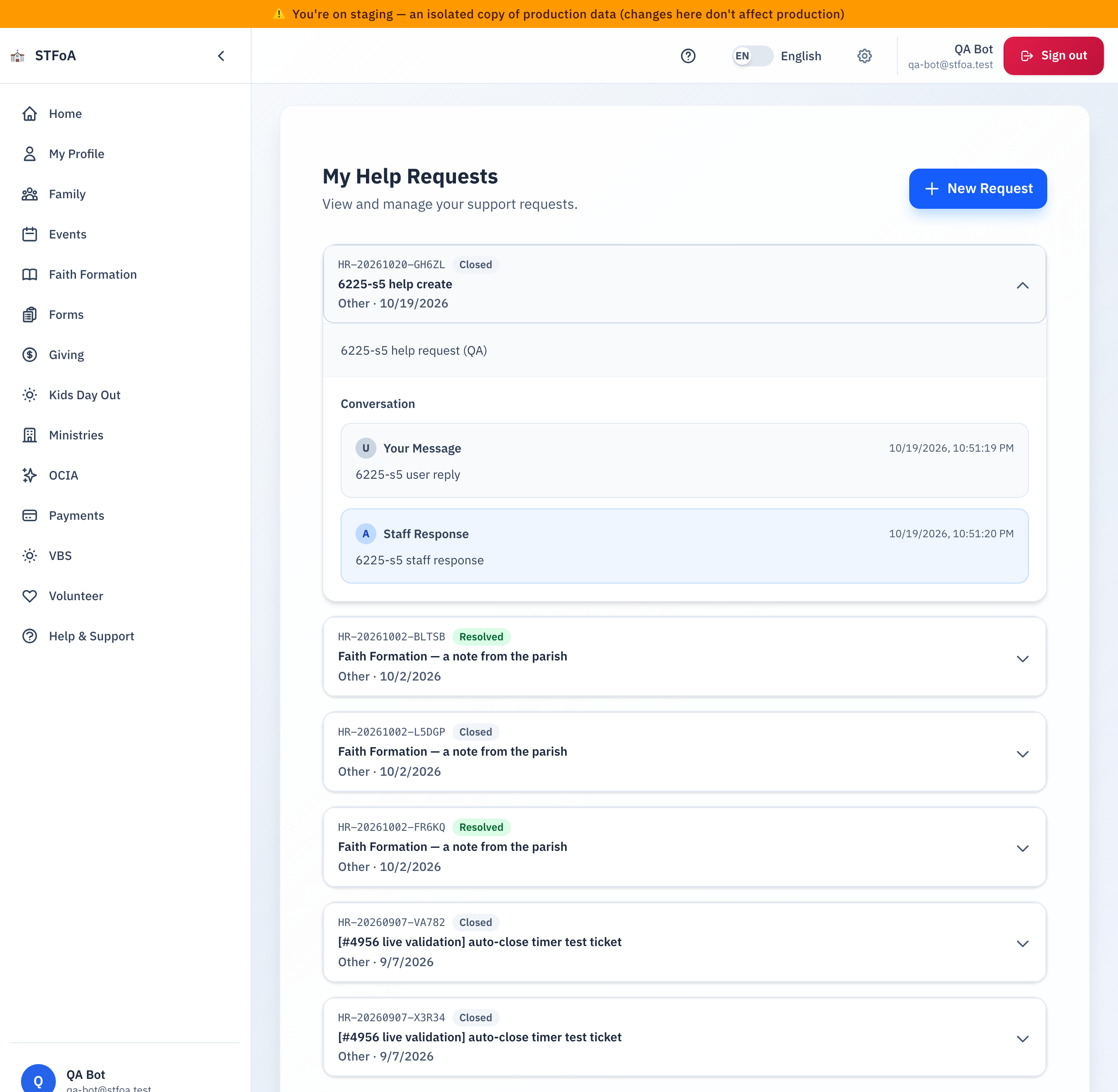
The conversation labels each message Staff Response or Your Message, with the date and time it was sent. If nobody replied yet, it says so and asks you to wait. While it loads, you see a small spinner; if it fails to load, it asks you to try again later.
Once staff closes a request, you cannot reply to it here. Send a new request instead — its confirmation screen links back to this list, so you can still find the old one.
To send a follow-up:
- Type your message in Add a Follow-Up. You have up to 4,000 characters.
- Select Send.
If the request was Awaiting User or Resolved, your reply moves it back to New. That is what tells the parish office you still need help — it is not a mistake.
The moment you send a reply, the parish office gets an email about it. You do not also need to call or send a separate email.
If your reply does not go through, an error message appears above the box explaining what to try, and your typed message stays in the box so you do not need to retype it.
4. Quick reference card
The whole thing, in four lines
- Open Help & Support, then find My Help Requests.
- Select a request to read your original message and the conversation.
- Add a follow-up any time, unless the request is Closed.
- A reply to an Awaiting User or Resolved request moves it back to New.
When to stop and ask
- You do not see a request you know you sent.
- Your reply did not seem to send.
- A staff reply does not make sense to you.
Parish office — call or email the parish office and reference your tracking number.
Before you reply
- Read the whole conversation first. The answer may already be there.
- Say exactly what you need. Staff see the whole conversation, not just your last message.
Thank you for keeping your part of the conversation in one place. It helps the parish office get you an answer faster.