Reviewing the Devices Signed In to Your Account
St. Francis of Assisi Catholic Church · AccountHow to see which devices are signed in with "Remember me," and how to remove one you don't recognize.
You have a sign-in you use more than once. This page is for any parishioner or staff account. A guest account — a one-time sign-up for something like Vacation Bible School — has no Account Settings page.
Checking "Remember me" keeps you signed in on one device without typing your password every time. This list shows every device that is doing that right now, so you can spot one you do not recognize and cut it off before someone else keeps using your account from it.
What you will do, in one sentence
Open your devices list, and remove any device you don't recognize.
Last verified against the staging system on 2026-10-20. Screens shown are the staging system (an isolated copy). The devices shown are the demo account's own test sign-ins, added for this guide — not a real parishioner's devices. Prepared 20 October 2026.
1. Where to go
- Select the gear icon in the top navigation bar. It opens Account Settings.
- Select the Devices tab.
The other tabs are Security, Email, and Notifications. This guide covers Devices only.
2. Reading your devices list
The card is titled Trusted devices. Each row is one device that is currently signed in with Remember me.
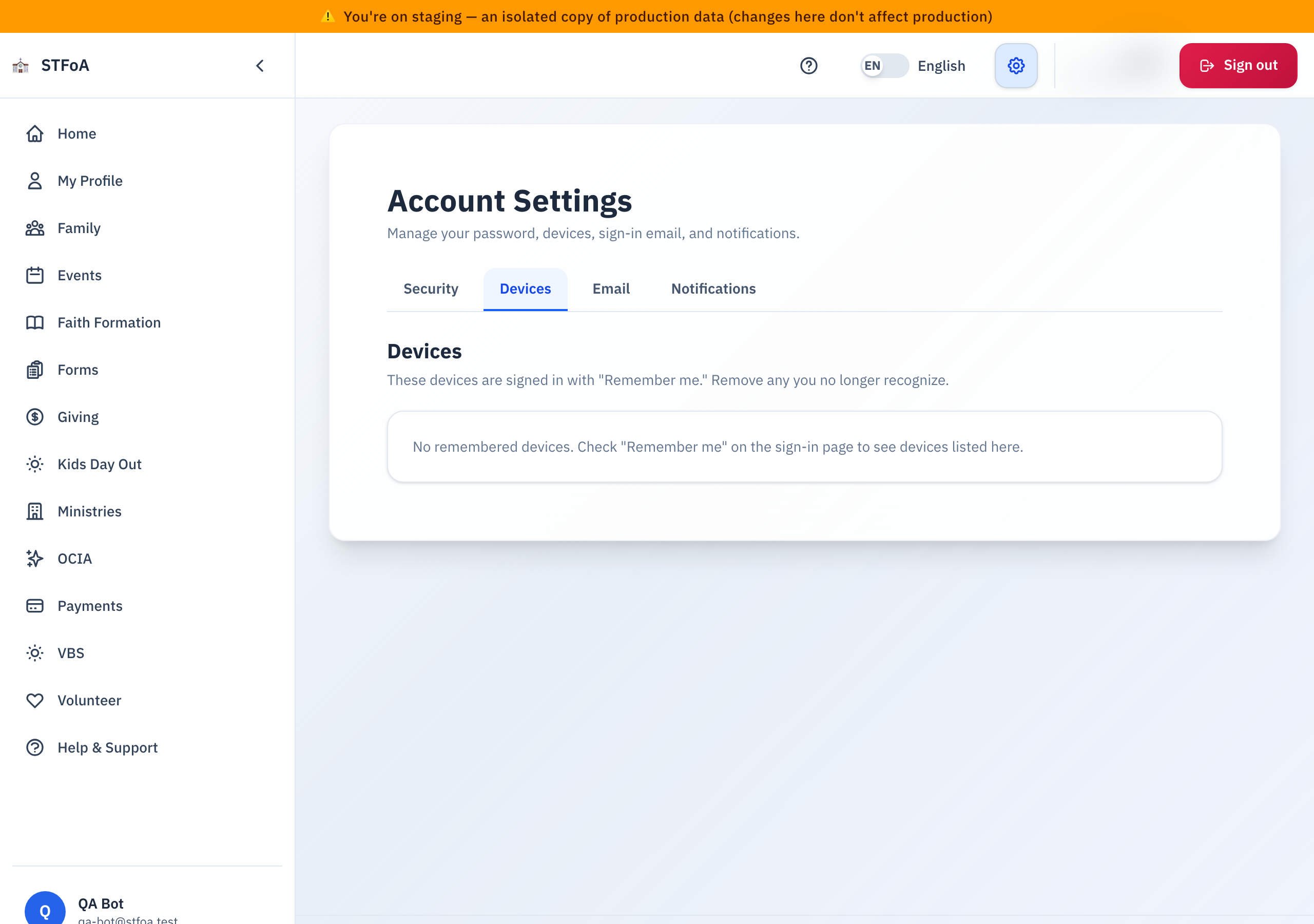
Each row shows:
- The device, described by its browser and operating system (for example, "Chrome on macOS"). If the app cannot tell, the row says Unknown device.
- Last used, with the date it last connected.
- A Remove button.
This list is not every place you have ever signed in — it is only the devices where you checked Remember me. A device you signed into without checking that box never appears here, because it was never remembered in the first place.
Nothing on the screen marks your current device. If two rows look alike, use the browser name and the Last used date to tell them apart. When you are not sure, treat an unfamiliar-looking row as one to remove.
While the list is loading, the card shows Loading devices…. If it cannot load, the card shows Unable to load device list. — refresh the page to try again.
A remembered device stops appearing here on its own after 14 days of no use. The list also keeps at most 10 devices — if you add an 11th, the one used longest ago drops off automatically. You do not need to clean the list up yourself.
3. Removing a device you don't recognize
- Find the row for the device.
- Select Remove on that row.
The button changes to Removing…, then the row disappears. There is no confirmation step.
Removing a device stops it from staying signed in automatically — it does not end an active session on that device right now. If someone is actively using it, they keep working until their current session naturally expires. After that, the device needs your password again instead of picking back up on its own.
If you've been signed in for a while, removing a device can open a Confirm your identity box asking for your password, or a one-time code emailed to you. Complete it, and the removal finishes on its own.
Once you have two or more devices listed, a Sign out of all devices link appears at the top of the card, next to the title.
This ends every remembered session on every device, including the one you are using this instant. You will need to sign in again before you can do anything else. Use Remove instead if you only want to drop one specific device.
The Security tab has its own Sign out everywhere button that does the exact same thing. Use whichever tab you happen to be on.
4. If the list is empty
The card is replaced by one line: No remembered devices. Check "Remember me" on the sign-in page to see devices listed here.
This is not an error. It means you have never checked Remember me when signing in — or every device you had was removed or expired. To add one, check Remember me the next time you sign in.
5. Quick reference card
The whole thing, in four lines
- Open Account Settings from the gear icon, then the Devices tab.
- Each row is one device that is signed in with Remember me — the browser, the last-used date, and a Remove button.
- Remove stops that device from staying signed in on its own; it doesn't end an active session on it right this second.
- Sign out of all devices ends every session everywhere, including yours, right now.
When to stop and ask
- A device you don't recognize is on the list and Remove doesn't make it go away.
- The list won't load, even after you refresh.
- You selected Sign out of all devices by mistake and are locked out of something urgent.
Parish office — ask for whoever helped set up your account.
Two rules
- Only check Remember me on your own device, never a shared or public one.
- If you don't recognize a device, remove it first and ask questions after.
Thank you for keeping an eye on your own account. A quick look here now and then is the easiest way to catch a device that shouldn't be there.