Managing Your Family's Information
St. Francis of Assisi Catholic Church · FamilyHow to view, edit, and add to your family's information in the parish app.
You are the Primary Contact or the Spouse for your family in the parish app. Only these two roles can change family information.
Faith Formation, VBS, and Kids Day Out registrations all read a family member's contact details and emergency contact from this one record. Keeping it current here means nobody re-types it every season.
What you will do, in one sentence
Open a family member's card, change a field, and it saves the moment you click away — or add a new person to your family from the same page.
Last verified against the staging system on 2026-10-11. Screens shown are the staging system (an isolated copy of production). The family shown is the parish's own QA test family — every member's name starts with "QA" — not real parishioners. Prepared 11 October 2026.
1. Who can manage the family
Only two people in a household can view and change family information here: the Primary Contact and the Spouse.
If your account is neither, this page tells you so and stops there — you will not see anyone's information, not even your own.
A Child or an Other family member sees "Family Management Unavailable" instead of the family list. If you need this role, ask your family's Primary Contact or Spouse — or your parish office — to sort out who should have it.
If your own account is not linked to a family record at all, you see "No Family Linked" instead. Contact the parish office to set one up.
To remove a family member, open their card and select Remove Member at the bottom — see section 3.
2. Viewing your family list
Once you are on this page, every current member of your family shows as its own card: your own card first, then your Spouse if you have one, then everyone else.
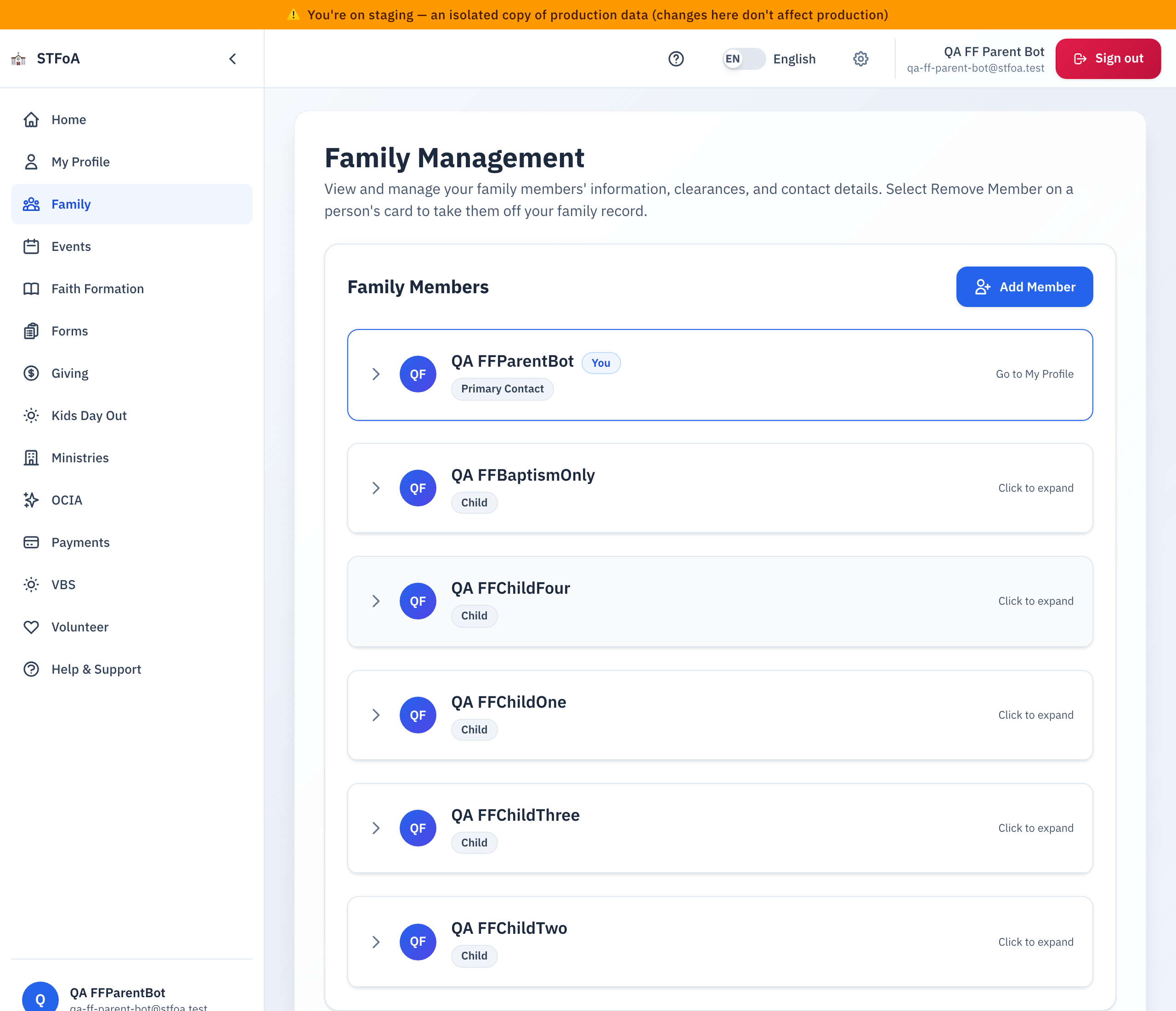
Each card shows:
- A colored circle with the person's first initial.
- Their name, with a You badge on your own card.
- Their role — Primary Contact, Spouse, Child, or Other.
- An arrow on the left that points right when the card is closed and down when it is open. On a wider screen, a hint on the right says Go to My Profile, Click to expand, or Click to collapse.
- Select your own card to go to My Profile — you edit your own information there, not here.
- Select anyone else's card to open or close their details in place.
If a family member is no longer active, they drop off this list. An Inactive people bar appears below it, showing how many. Select the bar to see them, and select Reactivate next to anyone who should be back on your active family list.
3. Editing a family member
Select any card besides your own to open it. Every field inside saves the same way.
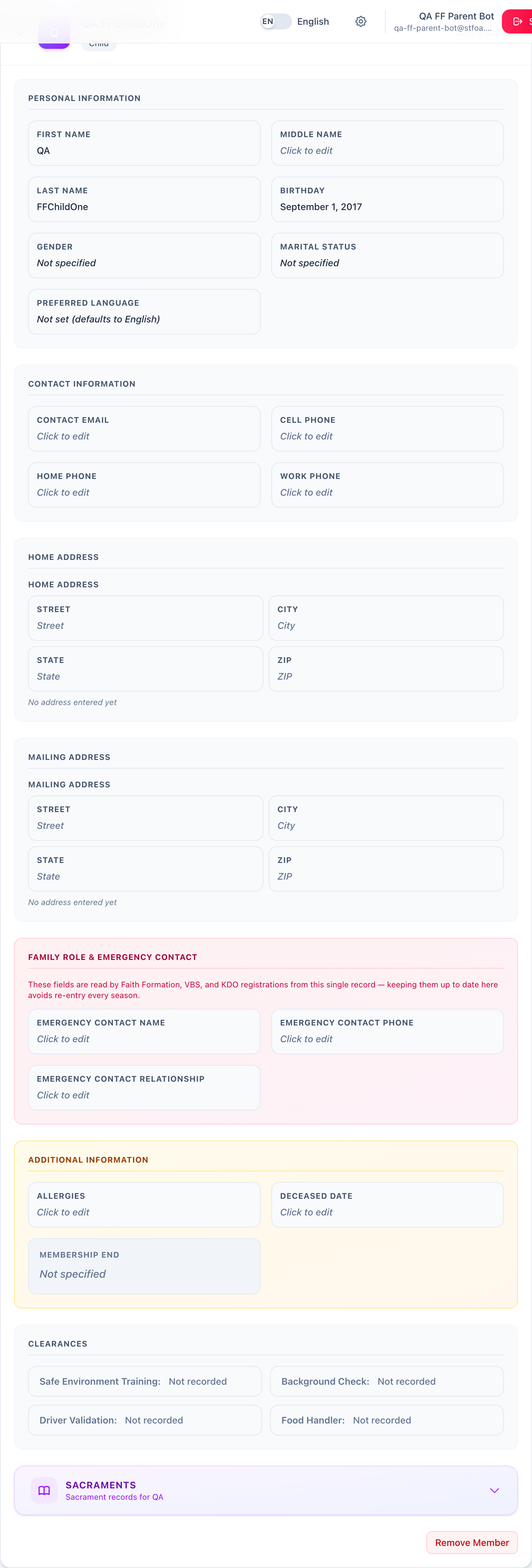
- Select a field — for example, Cell Phone.
- Type the new value.
- Select anywhere else on the page, or press Enter. The field saves right then.
Every field saves the moment you click away or press Enter — there is no confirmation step and no undo. Press Escape instead of clicking away to back out of a change without saving it.
A small green checkmark, and a "✓ Field saved" note in the corner of the screen, confirm a save. If a value cannot be saved — a phone number missing digits, for example — a red message explains what to fix, and your change is not kept until you fix it.
The open card is grouped into:
| Group | What is in it |
|---|---|
| Personal Information | First, Middle, and Last Name; Birthday; Gender; Marital Status. |
| Contact Information | Contact Email; Cell, Home, and Work Phone. |
| Home Address and Mailing Address | Street, City, State, ZIP — each line saves on its own. |
| Family Role & Emergency Contact | Emergency Contact Name, Phone, and Relationship. Faith Formation, VBS, and Kids Day Out registrations all read this same contact, so keeping it current here means nobody re-enters it later. |
| Additional Information | Allergies (free text). Deceased Date is editable here too; Membership End is shown for reference only and cannot be changed on this page. |
| Clearances | Read-only — see the next section. |
| Sacraments | Select the Sacraments bar inside the card to view or add a sacrament record for this family member. |
Removing a family member
Select Remove Member, at the bottom of their open card, to take someone off your family record.
- Choose why they are leaving: Moved out, Duplicate or entered by mistake, or Another reason.
- Select Remove {{name}} to confirm.
What happens next depends on the reason you chose:
| Reason | What happens |
|---|---|
| Moved out | They stay an active parishioner. The parish office finishes moving them to a new household. |
| Duplicate or entered by mistake | The parish deactivates this record — it is not a real, separate person. |
| Another reason | Nothing changes yet. A staff member contacts you about the request. |
Only Duplicate or entered by mistake deactivates the record right away. Ask the parish office if you are not sure which reason fits.
4. Adding a family member
Select Add Member, next to the Family Members heading.
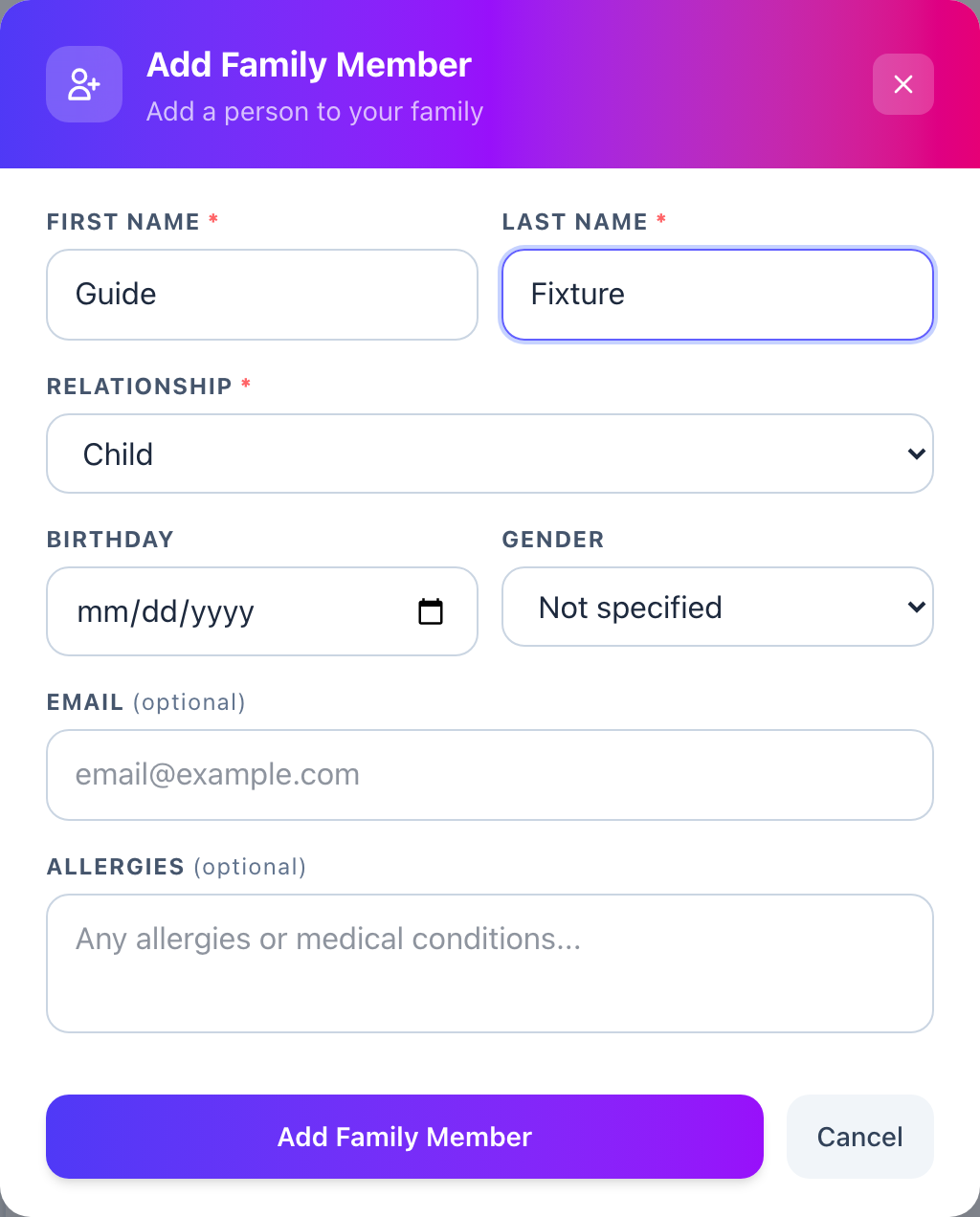
- Enter First Name and Last Name — both are required.
- Choose Relationship: Primary Contact, Spouse, Child, or Other. It defaults to Child.
- Fill in Birthday, Gender, Email, and Allergies if you know them — all four are optional.
- Select Add Family Member.
A short "Family member added!" message shows, and the new person appears on your family list a moment later.
If your family already has a Primary Contact or a Spouse, that option is greyed out in the list, marked "already added." A family can only have one of each.
Adding a family member creates a real, permanent record in the parish's membership system, the same as if the parish office had entered it. If you add someone by mistake, open their card and select Remove Member — choose Duplicate or entered by mistake as the reason.
If the name you enter matches someone already on your family list, the form tells you so and does not create a second record — check "My Profile" first if you are not sure whether that person is already there.
If your own account is a Child or an Other, the form refuses the add and offers a Request access link instead, which opens a pre-filled help request asking for the right role.
5. Reading a clearance status
Open any family member's card to see their Clearances — four kinds the parish tracks: Safe Environment Training, Background Check, Driver Validation, and Food Handler.
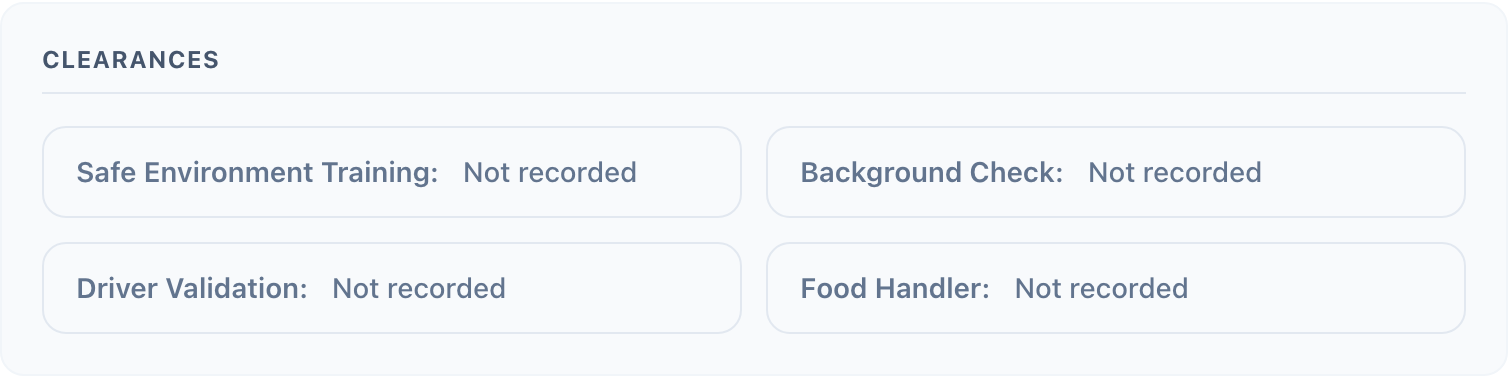
Each one shows a date and a color:
| Color | What it means |
|---|---|
| Green | Current — more than 30 days from expiring. |
| Amber | Expiring soon — 30 days or less from expiring. |
| Red | Expired. |
| Grey | Not recorded — no date is on file. |
There is no field here you can select or change. A clearance is set by the parish office, not by a family member. If a date is wrong, or a clearance you completed is missing, contact the parish office.
6. Quick reference card
The whole thing, in five lines
- Only your family's Primary Contact or Spouse can open this page.
- Select anyone but yourself to open their card and edit their fields — each one saves the moment you click away.
- Select Add Member to add a new person to your family.
- Select Remove Member, at the bottom of their open card, to take someone off your family record.
- Clearances are colored by how close they are to expiring; you cannot change them here — contact the parish office to fix one.
When to stop and ask
- Your account shows "Family Management Unavailable" and you believe it should not.
- You chose the wrong reason when removing a family member.
- A clearance shows the wrong date, or Expired, and you don't know why.
Parish office — ask for the person who gave you the Primary Contact or Spouse role.
Clearance colors at a glance
- Green = current. Amber = expiring within 30 days. Red = expired. Grey = no date on file.
Thank you for keeping your family's information current. It is what lets the parish reach the right person, and register the right child, without asking your family to type it in twice.