Viewing and Paying What You Owe
St. Francis of Assisi Catholic Church · PaymentsHow to open your Payments page, read what you owe, pay it online, and find a payment you already made.
You are signed in to the parish portal. This page is yours as soon as you sign in — you do not need any special role to see it.
Your parish wants every family to see what it owes and what it paid, in one place, without waiting for a mailed statement. Paying here also removes the chance a check gets lost in the mail.
What you will do, in one sentence
Open Payments, read what is due, pay it in full or on a plan, and find a payment you already made.
Last verified against the staging system on 2026-10-20. Screens shown are the staging system (an isolated copy). The payment items and payment records shown are invented training records tagged [guide fixture]. Prepared 20 October 2026.
1. Opening your Payments page
- Sign in to the parish portal.
- Open Payments in the sidebar.
Payments checks your session as soon as the page opens. If your session is not valid, the page sends you back to the home page instead of showing an error. Sign in again. Then open Payments once more.
The page shows Loading Payments... for a moment while it fetches your items and your history. When it is ready you see:
- A header with the page title and a Refresh button. Refresh reloads both your outstanding items and your history. Use it after you pay somewhere else and want the latest numbers here.
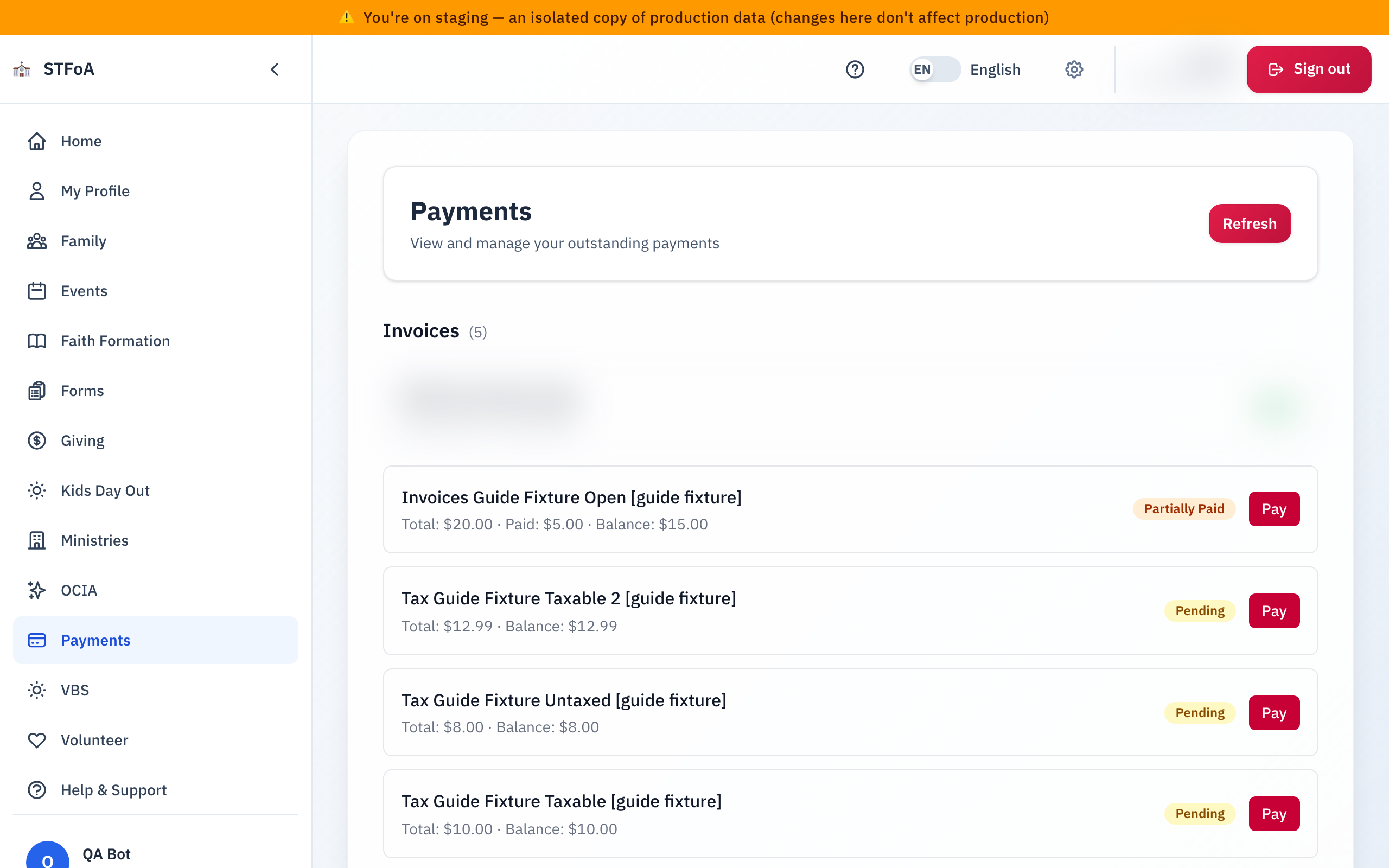
- An Invoices section, only when you have an invoice (for example, a sacrament fee). The section does not appear at all when you have none.
- An Outstanding Payments section — what you still owe.
- A Payment History section — what you already paid.
2. Reading your outstanding balance
Each thing you owe is its own item under Outstanding Payments. The count next to the heading is how many items you have.
Every item shows:
| What you see | What it means |
|---|---|
| Description | What the payment is for. |
| Program name | Which parish program it belongs to (for example, Faith Formation, VBS). |
| Amount | The amount due for this item. |
| Due date | When it is due, if it has a due date. |
| Status badge | Pending, Overdue, Plan Active, Partially Paid, Paid, or Cancelled. |
If your outstanding items come from more than one program, the list adds a small heading above each program's group. With only one program, there is no group heading. The item still shows the module name.
An item turns Overdue and shows a red warning once its due date passes while it is still unpaid. Pay it as soon as you can.
When you owe nothing, the section shows a green checkmark and All caught up! instead of any items.
If you have an invoice too
An invoice (for example, a sacrament fee) is a different kind of record from the items above. It gets its own Invoices section, above Outstanding Payments. Each invoice row shows the total, the amount you paid so far, your remaining balance, a status badge, and — while a balance remains — a Pay button that opens that invoice's own pay page.
If a payment is a plan or an open amount
Two items look different from the plain kind above:
- Plan Active — a blue box under the item shows how many of your installments are paid, this month's amount, the total, your next payment date, and the plan's own status (Active, Completed, Cancelled, or Past Due).
- Open amount — some items let you choose how much to pay instead of one fixed amount. That item shows a progress bar toward the full balance and a box to enter your own payment amount. The next section explains how to use it.
3. Paying online, in full or on a plan
An item that is not yet paid, not cancelled, and not already on an active plan shows one or two buttons:
- Pay Now — pays the full amount shown, in one payment.
- Pay in 2 Installments or Pay in 4 Installments — only on an item that offers it. It splits the amount into 2 or 4 monthly payments. A short note under the buttons says the plan charges today and then each month.
The installment button charges your card today for the first payment. It charges the same card again automatically, once a month, until the plan ends. Nobody asks you to confirm each month's charge.
Either button takes you to Stripe's secure checkout to enter your card. You leave the parish site for a moment. You come back automatically when you finish.
If the item shows Cash or check also accepted, you may pay it in person at the parish office instead, during business hours. The two online buttons above still work if you would rather pay online.
If you click a Pay button again within about two minutes, the page shows this message instead of starting a second checkout: "A recent payment for this item is still being verified. Please wait a moment." This is normal. It keeps you from paying twice while Stripe confirms your first payment.
Paying an open amount
On an item with a progress bar instead of Pay Now:
- Enter an amount in the box.
- Select Make Payment.
A few rules apply:
- Some items set a minimum first payment (a deposit). Your first payment on that item must reach the deposit amount.
- You may not enter more than the balance shown.
- The page tells you if your amount is missing, too small, or too large before it lets you continue.
After you pay
When you return from Stripe, the page shows a green banner: "Payment successful! Your payment has been received — it may take a moment to appear in your history below." If you cancel at Stripe instead, an amber banner tells you the item is still listed and you can try again. Either banner clears the next time you load the page.
Stripe confirms your payment first. Then the parish system records it here. If a paid item still shows as outstanding after a few seconds, select Refresh.
4. Finding a past payment
Payment History lists every payment: completed, refunded, or cancelled — most recent first.
| Column | What it shows |
|---|---|
| Date | When the payment happened. |
| Description | What you paid for. |
| Module | Which parish module it belongs to. |
| Amount | What you paid. A refund shows as a negative amount, in red. |
| Status | Completed, Refunded, Partial Refund, Withdrawn / Cancelled, Installment, or Failed. |
| Type | One-time, Installment, or Refund. |
A partial refund also prints the refunded amount below its status badge. You see how much came back without doing the subtraction yourself.
Before your first payment, this section reads No payment history — Your completed payments will appear here.
5. Quick reference card
The whole thing, in four lines
- Open Payments to see what you owe and what you already paid.
- Select Pay Now for one payment, or Pay in 2 Installments or Pay in 4 Installments where the item offers it.
- Installments charge your card automatically every month until the plan ends.
- Check Payment History any time for a record of what you paid.
When to stop and ask
- A payment you made does not show up after a few minutes and a Refresh.
- You do not recognize a charge in your history.
- You need a receipt, or a refund.
Parish office — ask about a payment, a receipt, or a charge you don't recognize.
Two things worth knowing
- Installments mean a monthly auto-charge, not a one-time payment.
- The item itself tells you when cash or check works too.
Thank you for keeping your account current. Every payment you make online is one less check the office has to open and record by hand.