Paying an Invoice
St. Francis of Assisi Catholic Church · PaymentsHow to open an invoice link the parish sent you, read what it is for, and pay it.
You received an invoice link from your parish — in an email, or from a staff member. You do not need to be signed in.
An invoice link lets you see exactly what you owe and pay it online in one step, without waiting for a mailed statement or calling the office.
What you will do, in one sentence
Open the link, read the total, and pay now or set up a payment plan.
Last verified against the staging system on 2026-10-20. Screens shown are the staging system (an isolated copy). The invoice shown is an invented training record tagged [guide fixture]. Prepared 20 October 2026.
1. Opening your invoice
Select the link the parish sent you, or type the address a staff member gave you. The page opens without signing in.
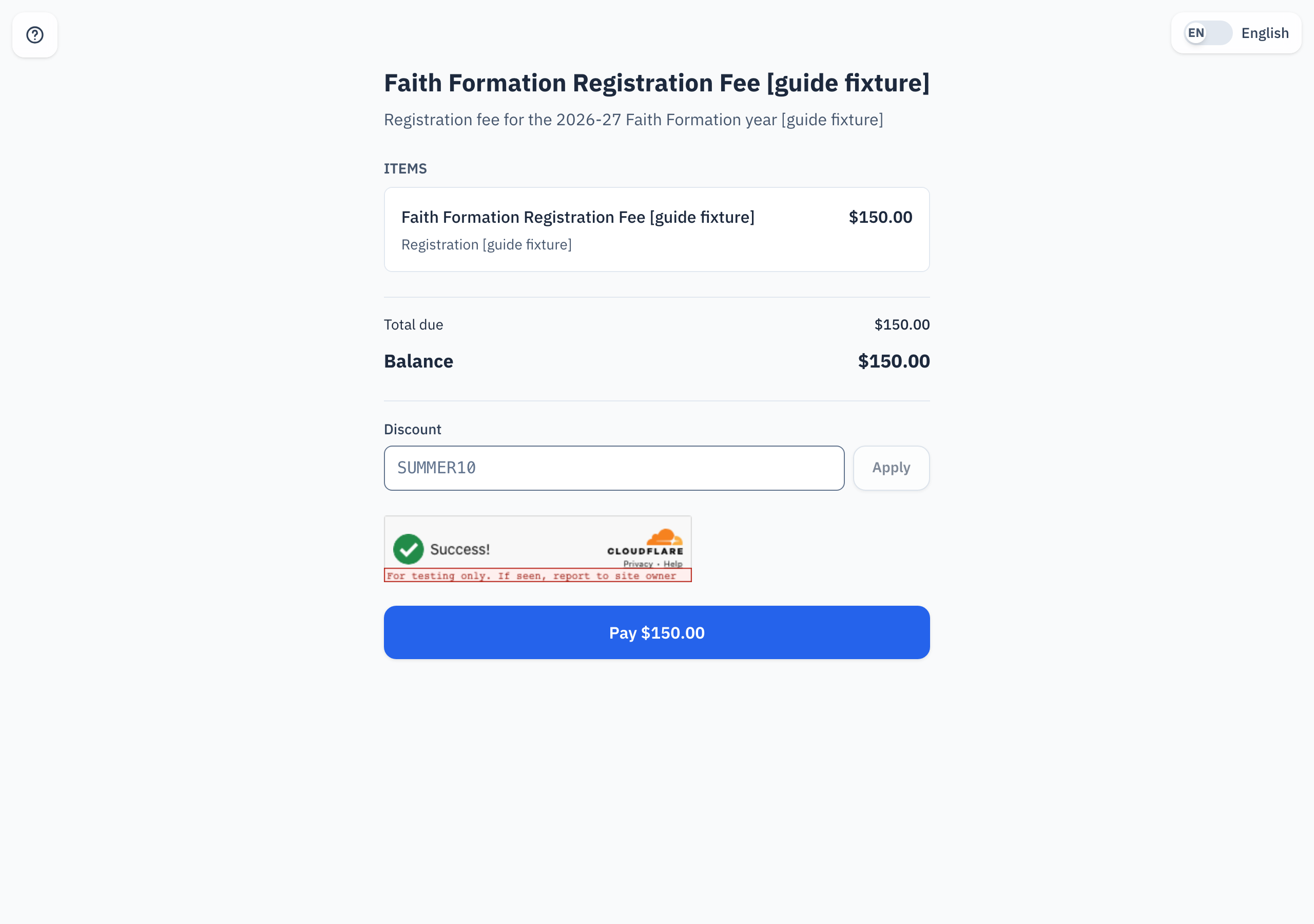
At the top you see:
- The invoice's name and, below it, what it is for.
- A note from the parish office, if one was added — for example, a payment deadline.
If the invoice was already paid, cancelled, or expired, the page shows that status instead of a way to pay. Contact the parish office if you believe this is wrong.
2. Reading the total
| Line | What it means |
|---|---|
| Items | Each thing the invoice charges for, with its quantity and price. |
| Discount | Only shown when a discount code applied — how much it took off. |
| Sales tax | Only shown on taxable items. |
| Total due | The full invoice amount. |
| Already paid | What you (or someone else) already paid toward this invoice, if any. |
| Balance | What is still owed — this is the amount the Pay button charges. |
If you have a discount code
Enter it in the Discount box and select Apply. The page re-checks the balance as soon as the code is valid.
3. Paying
Wait for the security check above the button to finish. Then select Pay {amount}. You leave the parish site for a moment to enter your card, then come back automatically when you finish.
A few invoices ask for an amount instead of charging the full balance in one step — for example, a deposit. The page tells you the smallest amount it will accept; you may always pay more, up to the full balance.
Paying over time
When the invoice allows it, and nothing has been paid yet, the page offers Or pay over time with two buttons: 2 or 4 monthly payments. Selecting one starts a payment plan at that monthly amount instead of a single charge.
Once you start a plan, the parish charges the same card again automatically each month until the plan ends. Nobody asks you to confirm each month's charge.
4. Quick reference card
The whole thing, in three lines
- Open the invoice link — no sign-in needed.
- Read Total due and Balance, then select Pay (or a payment-plan option, where offered).
- You return to this page automatically after you pay.
When to stop and ask
- The invoice shows the wrong amount or the wrong items.
- You already paid and the page still shows a balance.
- The link says the invoice is no longer accepting payments.
Parish office — ask about an invoice, a charge, or a receipt.
Thank you for paying online. It reaches the parish office faster than a check in the mail, and it is recorded automatically.