Filling Out and Submitting a Parish Form
St. Francis of Assisi Catholic Church · FormsHow to open a parish form from a link, answer its questions, and submit it — including any waiver or fee it asks for.
You received a link to a parish form — a sign-up, a registration, a request for information — by email, text, bulletin, or from a staff member. You do not need a parish account to fill out most forms. If you sign in first, you save some typing.
The parish builds every sign-up, registration, and request on the same page, with the same rules for waivers and payments. Learn this page once and you can fill out any parish form. The form enforces waivers and payments here, before your answers reach a staff member, so a submission the parish receives is already complete.
What you will do, in one sentence
Open the link, answer what the form asks, check any required waiver, and select Complete — a form with a fee sends you to pay before your submission is finished.
Last verified against the staging system on 2026-10-20. Screens shown are the staging system (an isolated copy). The name, email, and answers shown are invented QA fixture data, not a real parishioner. Prepared 20 October 2026.
1. Opening the form
Open the link the parish sent you. It leads straight to the form — you do not sign in first unless the form requires it.
The form's title and instructions load at the top of the page. If you are not signed in, a language toggle sits in the top-right corner; select it to switch the whole form between English and Spanish, at any time.
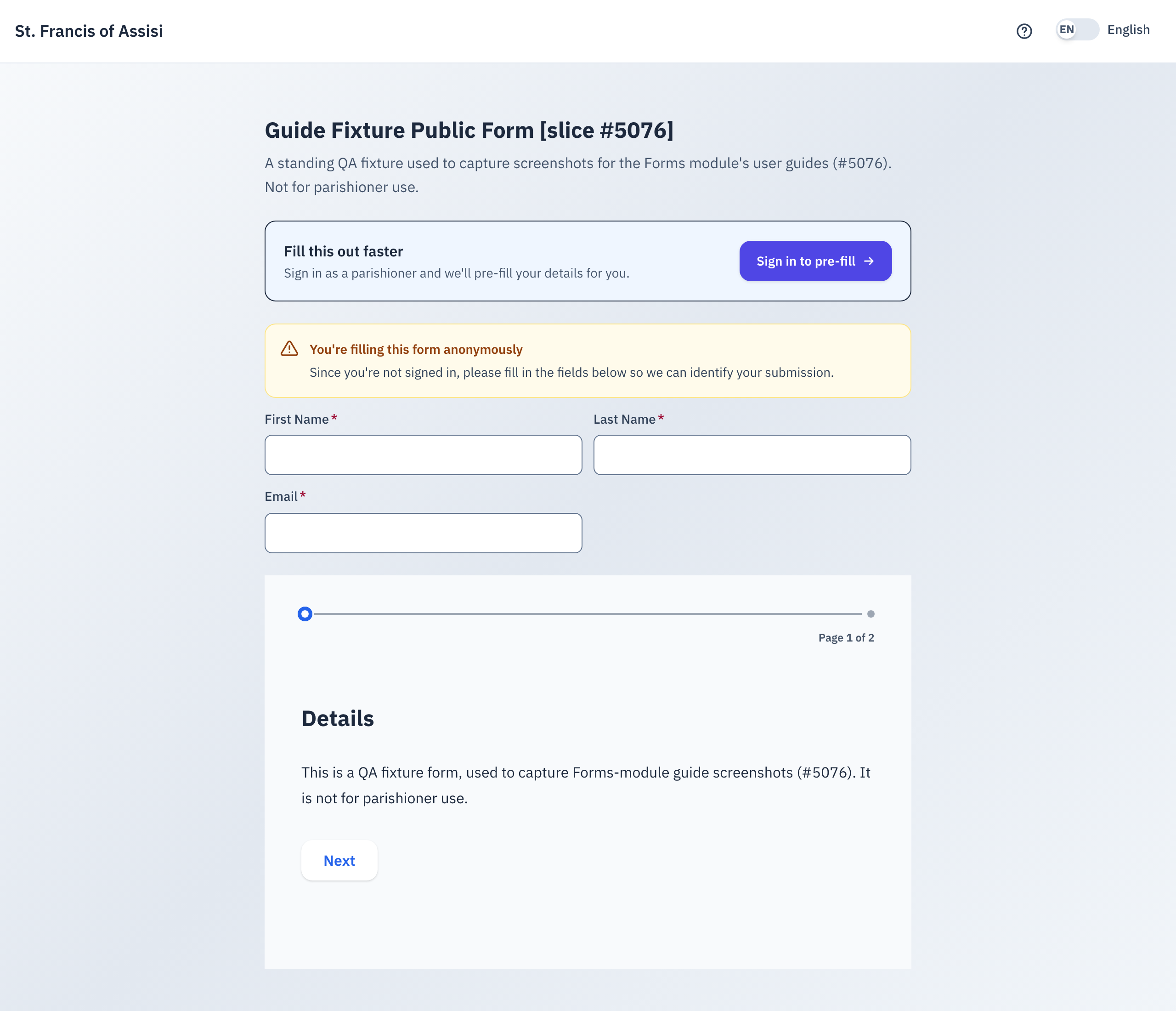
If you are not signed in
A box near the top invites you to Sign in to pre-fill your details. This is optional — every parish form also works as a guest.
If you continue as a guest, and the form asks for contact information, you will see plain fields for it — First Name, Email, and so on — marked with a red * where an answer is required. Fill these in yourself; the parish uses them to reach you about this submission.
If you are signed in
The form does not ask you to retype your details. Instead, it shows a blue notice listing which of your parish profile fields it will attach automatically — "We'll include some details from your account." You do not need to enter them again.
Some forms also copy each answer to a parish list that staff use. On such a form, the parish adds your name, email and phone from your parish profile to that list.
If the form is for your child
Some forms — like a class sign-up — ask which child the submission is for.
- Signed in: a box near the top asks "Who is this submission for?" Pick your child from the list. Once you pick one, that child's name and birthdate appear pre-filled further down the form, in a light blue box with a small caption underneath — you can still correct them if anything is wrong.
- A guest: there is no picker. Instead, the child's name and birthdate are ordinary questions later in the form. Fill them in yourself.
If the picker shows no children to choose from, the parish's system could not find any on your account. Contact the parish office rather than guessing at another family's information.
If spots are limited
Some forms hold only a set number of spots. If this one does, a banner near the top counts down how long the form holds your spot for you — usually several minutes. Leave the page, and your held spot goes back to everyone else.
The banner turns red and reads "Your reservation has expired. Please start over." Reload the page to take a new spot, if one is still open.
If every spot is already taken the moment the page loads, you see a message that no spots are available instead of the form.
2. If the form is closed or has moved
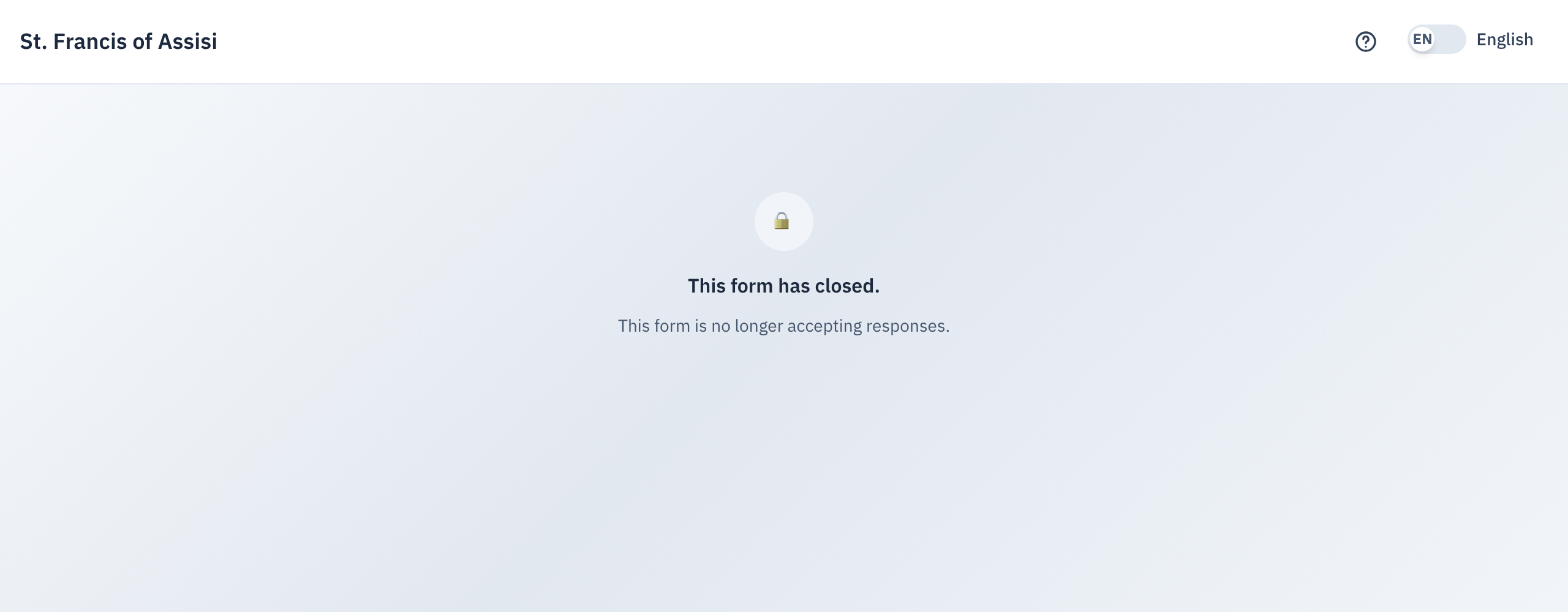
A few things can stop you from filling out a form the way you expect:
| What you see | What it means |
|---|---|
| "Form not found" | The link is wrong, or the parish removed the form. Check the link, or ask whoever sent it to you. |
| "This form has closed." | The form's deadline passed, or the parish closed it early. It no longer accepts submissions through this link. |
| A message that you are not eligible | The parish set rules on who may fill this out, and your account does not qualify. The message underneath names the reason. |
If a staff member gave you a link that includes /override/ in the address, use it exactly as given. It lets you submit even though the same form shows as closed to everyone else. The link stops working once the parish removes the form. You then see "Form not found".
A form scheduled to open later shows and fills in normally. You only learn it is not open yet when you select Complete and see a message saying the form does not accept submissions yet. If that happens on a form you were told to fill out today, check with whoever sent you the link before you try again.
3. Answering the questions
A short form is a single page. A longer one shows a progress bar at the top and moves between pages with Next and Previous buttons.
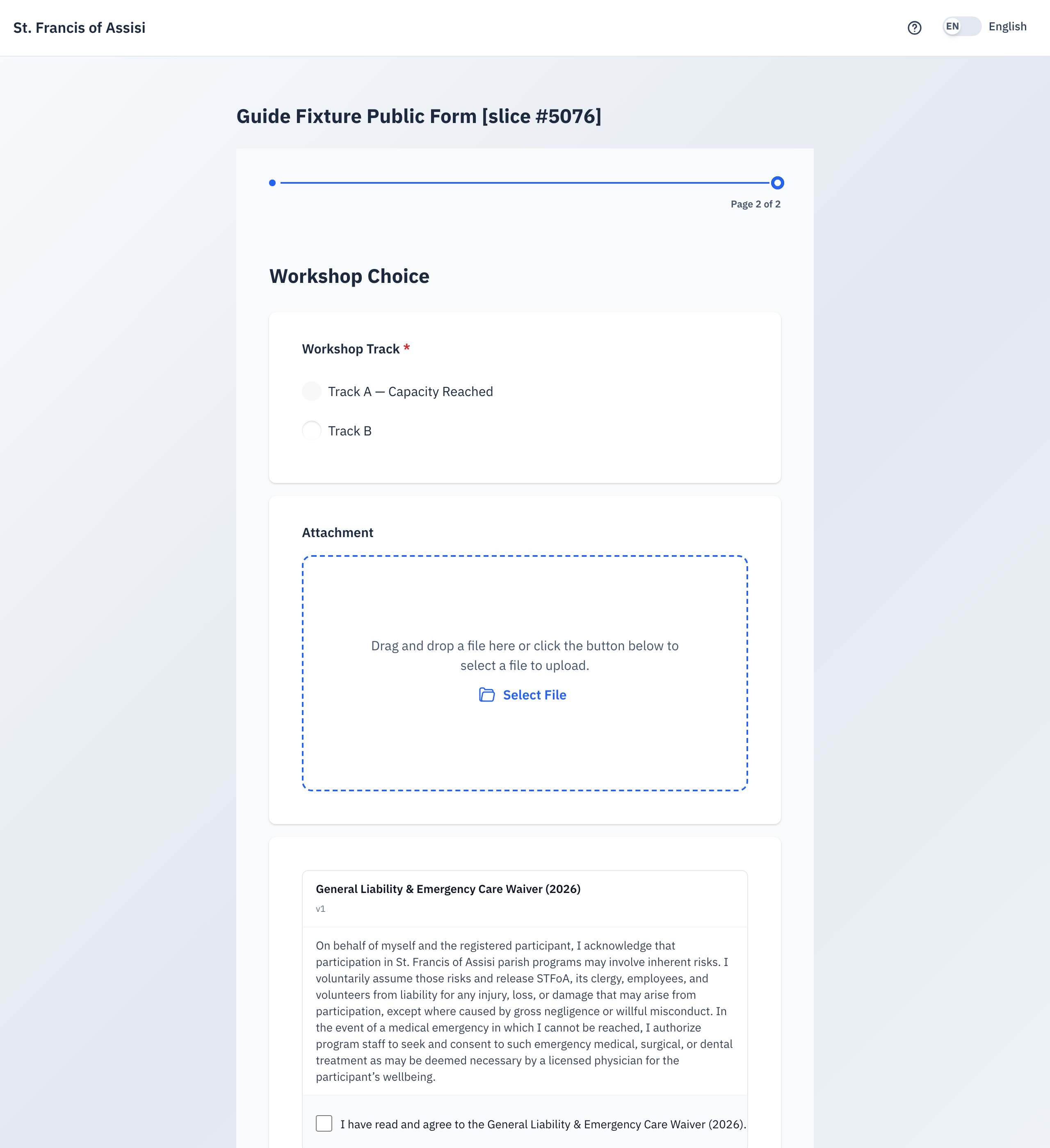
Every required question carries a red * next to its label. You will see a mix of question types, depending on the form: plain text and longer paragraph boxes, yes/no toggles, drop-downs and multiple-choice picks, date pickers, and file uploads. Some pages hold only instructions or read-only information, with no question to answer.
If the page reloads while you type
Sometimes the form reloads its text while you fill it in. For example, the Spanish text can arrive late. The form keeps every answer you typed and stays on the same page. A question that depends on an earlier answer stays visible. You do not need to type your answers again.
A file-upload question
Select or drag in the file the question asks for. The parish's system checks what the file actually is, not just its file name. If you rename a disallowed file to look safe, the system still rejects it. The system also rejects a file that is too large, and names the size limit in its message.
A choice that has run out of room
A specific answer choice can reach its own limit — a workshop track that is full, for example. That one choice shows "— Capacity Reached", and you cannot select it. The rest of the question still works normally; pick a different answer.
If this form requires a waiver
Its full text appears on the page, in a box with a checkbox underneath reading "I have read and agree to the [waiver name]." Read it, then check the box.
The form blocks Complete until you check each required waiver's box. If a form has more than one, check every one of them.
4. After you submit
Select Complete once — that is enough. A fast second click on the same page counts as the same attempt, not a second submission.
A form with no fee
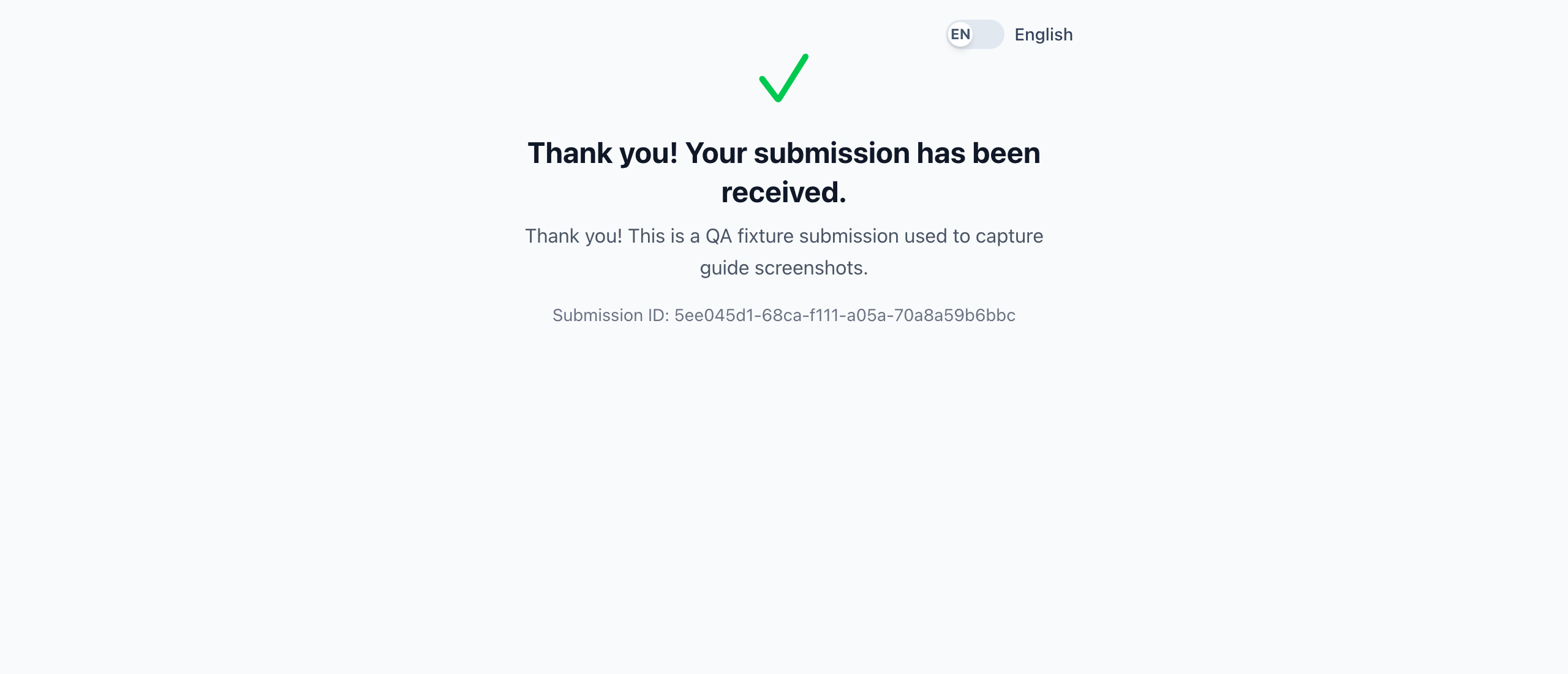
You land on a "Thank you! Your submission has been received." screen, followed by a short message from the parish about what happens next. Most forms also print a Submission ID in small grey text underneath — save it if you might need to refer to this submission later.
A form that asks you to confirm by email
Some forms change your household's record — for example, the Parent Session make-up. If you fill out one of these forms without signing in, the parish does not change the record right away. It sends a link to the email address on file for your household.
- Open the email "Please confirm your Parent Session".
- Select the link. A page opens with a Confirm button.
- Select Confirm. The page says that your Parent Session is recorded.
The link works once and expires after 7 days. If you sign in before you fill out the form, there is no email step: the parish records it at once.
A form with a fee
Select Complete, and the job is not done yet. The form sends you straight to a secure payment page. Pay there before your submission counts.
You land back on a blank copy of the form, with a notice that you did not finish paying, so the form did not submit your request. Fill the form out again from the start — it does not keep your earlier answers.
After you pay, you return to this page automatically. It shows "Confirming your payment…" for a few seconds while the parish checks with the card processor, then the same thank-you screen.
You already paid — the confirmation lags a little behind. Do not pay a second time.
A form with a deposit
Some forms ask for a deposit first. After you pay the deposit, the confirmation email carries a link to pay the balance. Open the link and pay on the Pay balance page. You do not need to sign in. The link expires after 30 days. If it expires, ask the parish office for a new link.
5. Quick reference card
The whole thing, in five lines
- Open the link the parish gave you.
- Fill in your (or your child's) information, and answer every question marked with a red *.
- Check the box for any required waiver.
- Select Complete. If the form has a fee, pay on the next page — your submission is not finished until you do.
- Save the Submission ID from the thank-you screen if you may need to refer to this submission later.
When to stop and ask
- The link says the form is closed or not found, and you believe it should be open.
- You paid but never saw the thank-you screen, or you are not sure the payment went through.
- A required waiver or question will not let you continue, and you do not understand why.
Parish office — contact them, or whoever sent you the form's link.
Thank you for taking the time to fill this out. The parish reads every submission that reaches it.