Choosing How the Parish Contacts You
St. Francis of Assisi Catholic Church · CommunicationsWhat each choice on the registration Communication Choices step does, which language the parish writes to you in, and how to change any of them later.
You are registering with the parish, or you already have a parish account and want to change what the parish sends you.
Texas and federal rules require clear, separate consent before the parish sends you a text message. The parish also wants every family to know, in plain terms, what each message channel is and how to turn it on or off.
What you will do, in one sentence
Pick your channels during registration, then change any of them later on the Communication Preferences page.
Last verified against the staging system on 2026-10-20. Screens shown are the staging system (an isolated copy of production). The family and account shown are invented QA test fixtures, not real parishioners. Prepared 20 October 2026.
1. The Communication Choices step
Near the end of parish registration, the wizard shows a step called Stay Plugged In. This step is step 7 of 8, right after Parish Involvement and before Review & Submit.
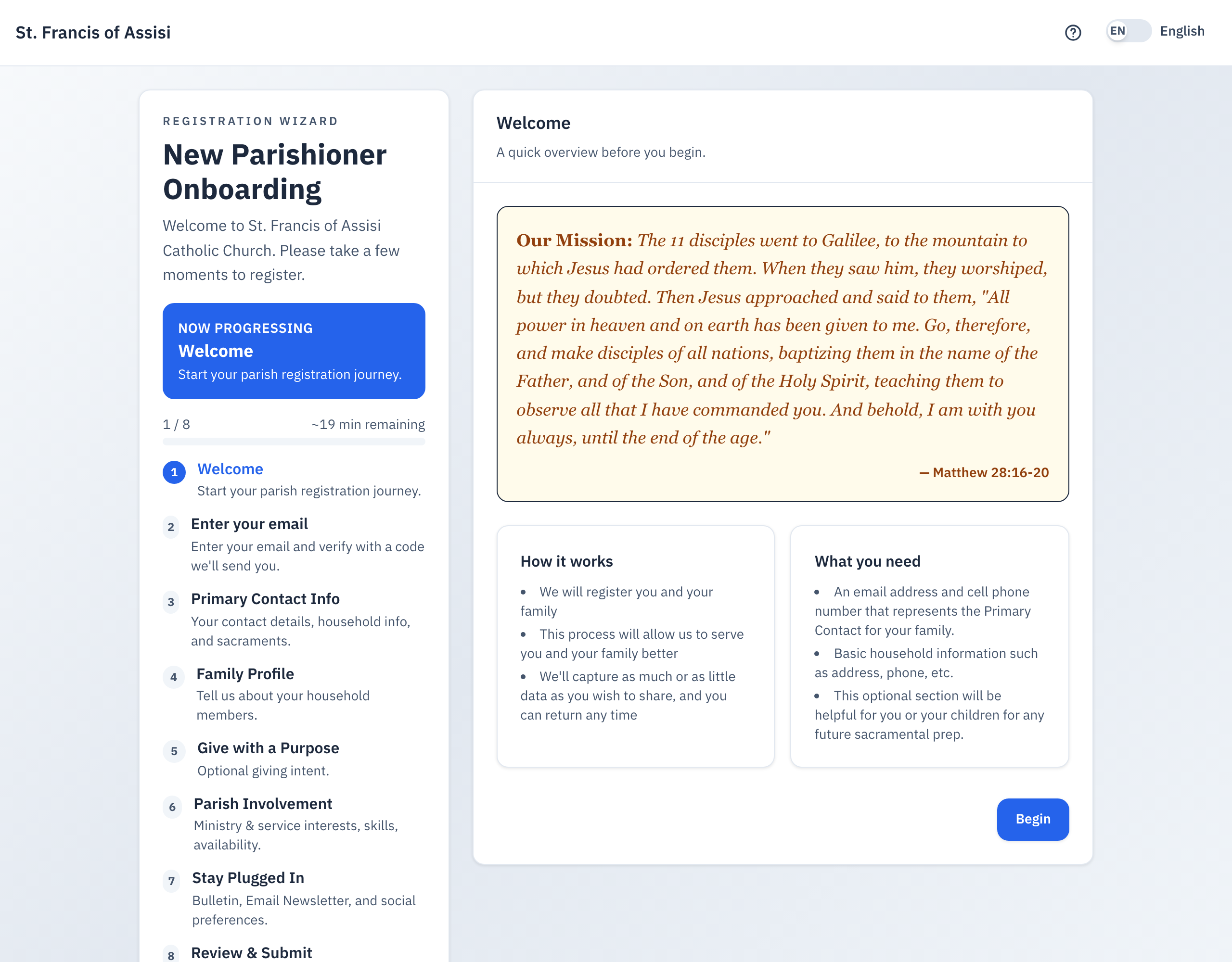
The step lists six choices. The first five are content topics, and they are checked by default:
| Choice | What it sends | Default |
|---|---|---|
| Weekly bulletin | The parish weekly bulletin. | Checked |
| Email Newsletter | The parish email newsletter. | Checked |
| Social media highlights | Highlights from parish social media. | Checked |
| Subscribe to Texas Catholic | The Texas Catholic diocesan newspaper. | Checked |
| Parish announcements by email | General parish announcements sent by email. | Checked |
| Parish announcements by text | General parish announcements sent by text message. | Unchecked |
The text-message choice starts unchecked. Check the box only if you want text messages. The step shows this notice next to the box:
"By checking this box, you give express consent to receive text messages from [the full name of your parish]. Message and data rates may apply. Message frequency varies. Reply STOP to opt out at any time."
- Read each choice.
- Check or uncheck any box to match what you want.
- Check Parish announcements by text only if you want to receive texts. Leave it unchecked if you do not.
- Select Continue to move to Review & Submit.
Messages about a programme your family joins — like Faith Formation or Vacation Bible School — go out regardless of these five choices. You control those messages separately, one programme at a time, once you are enrolled. Section 2 of this guide shows you where.
The step also links to the parish privacy policy. Select Read our privacy policy to open it in a new tab.
The wizard asks which language you want in a different step. Primary Contact Info, step 3 of 8, has a Preferred Language box beside Gender. Select English or Spanish there. Section 3 of this guide tells you what the parish does with it, and how to change it later.
2. Changing your choices later — the Communication Preferences page
Every choice from registration, and every programme you join afterward, can be changed at any time from your account. The screen that holds them all is called Communication Preferences, and it is part of your Account Settings.
Where to go
- Sign in to your parish account.
- Select the gear icon in the top right of any page.
- Select the Notifications tab.
- Scroll down. The tab starts with the Language card, then the Email and Text messages master switches. The Communication preferences section is below all three.
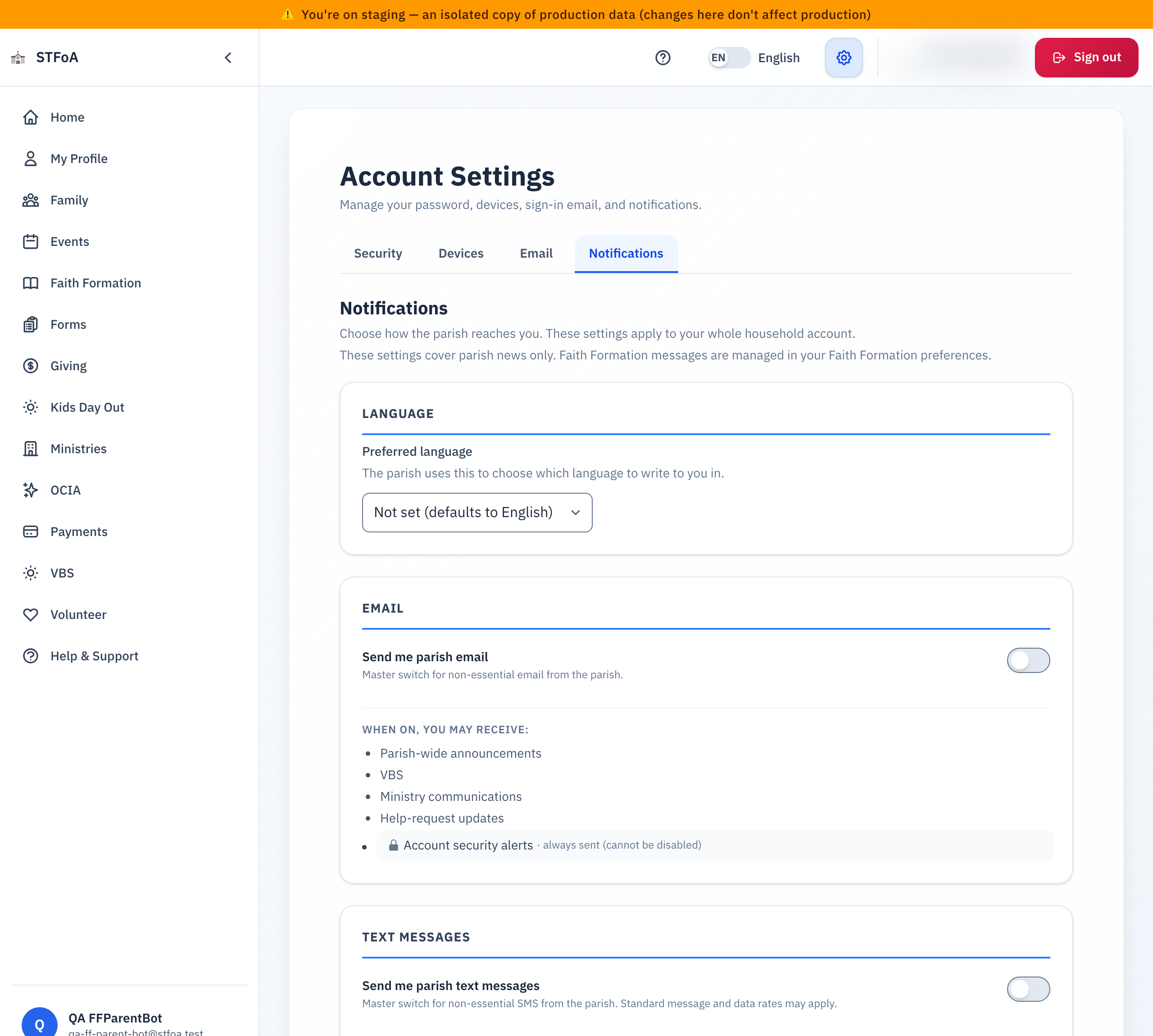
Three kinds of control
The Notifications tab holds three different kinds of control. Knowing the difference tells you which one to change.
| Kind | What it controls | Where it is |
|---|---|---|
| Preferred language | Which language the parish writes to you in. It does not turn any message on or off. | The Language card, at the top of the tab. |
| Parish-wide master switch | One switch each for parish Email and parish Text. Turns off ALL non-essential parish news at once. | Below the Language card. |
| Parish news, by topic | The same content topics from registration — bulletin, newsletter, social, Texas Catholic, announcements — each with its OWN Email column and Text column. | The Parish News card, under "Communication preferences". |
| Programme switches | One card per programme you belong to (Faith Formation, Vacation Bible School, Giving, and so on), each with its own list of message types. | Below Parish News, one card per programme. |
Every row in the Communication preferences section shows an Email column and a Text column side by side. Checking or unchecking one column never changes the other — you can keep the emails and drop the texts for the same topic, or the other way around.
A programme card looks the same, just with the programme's own message types. Here is the Faith Formation card as an example:
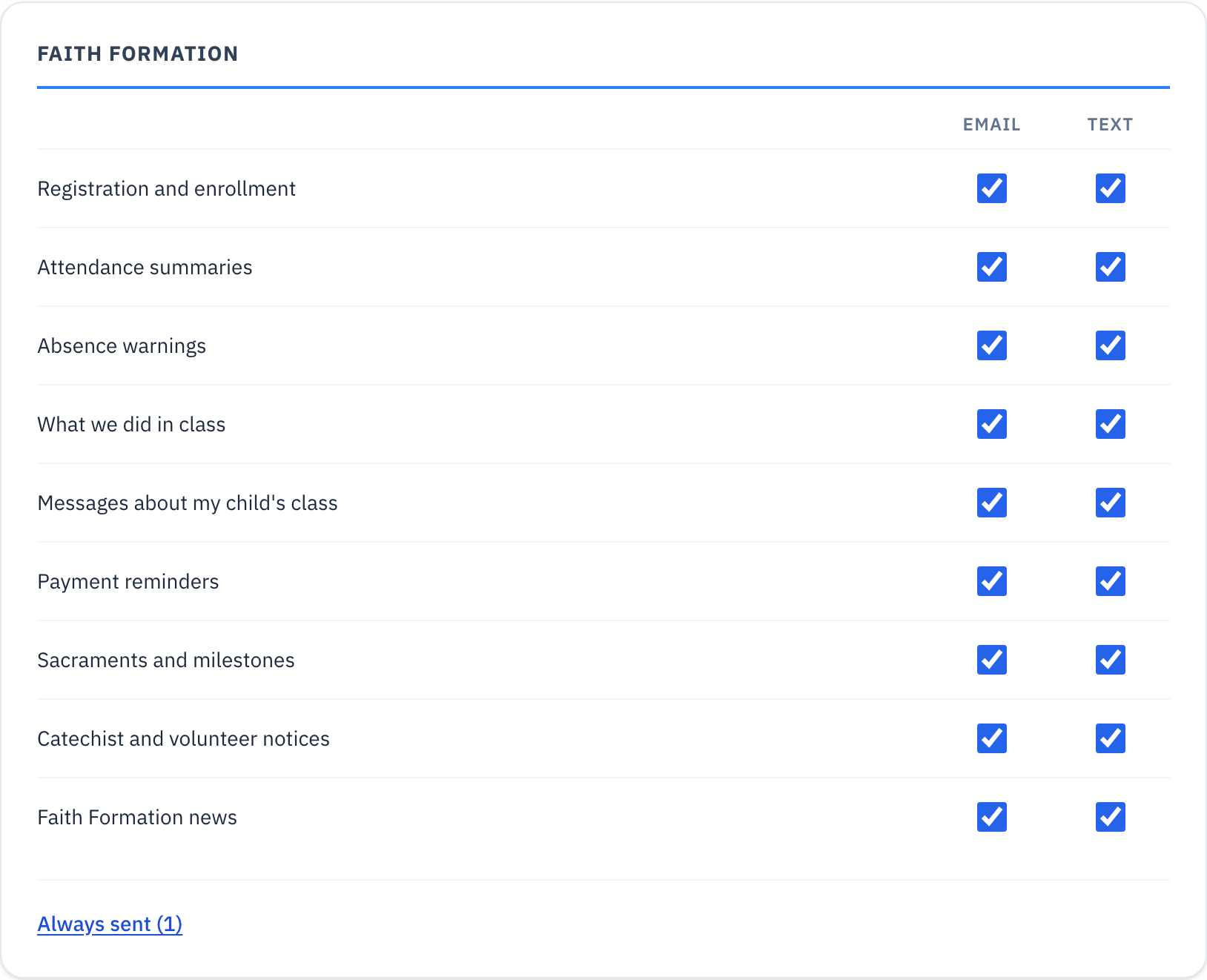
A few messages must always reach you, such as account security alerts. The screen shows them rather than hides them, so you always know what is still coming. You see them in two places:
- In the Email and Text messages cards, the "Account security alerts" line carries a small lock icon and the note "always sent (cannot be disabled)".
- At the bottom of a programme card, a grey Always sent (N) line. Select it to read which messages they are and why each one is locked.
Saving your changes
- Check or uncheck any box in any card.
- Select Save preferences at the bottom of the page.
- Wait for the green Preferences saved message next to the button.
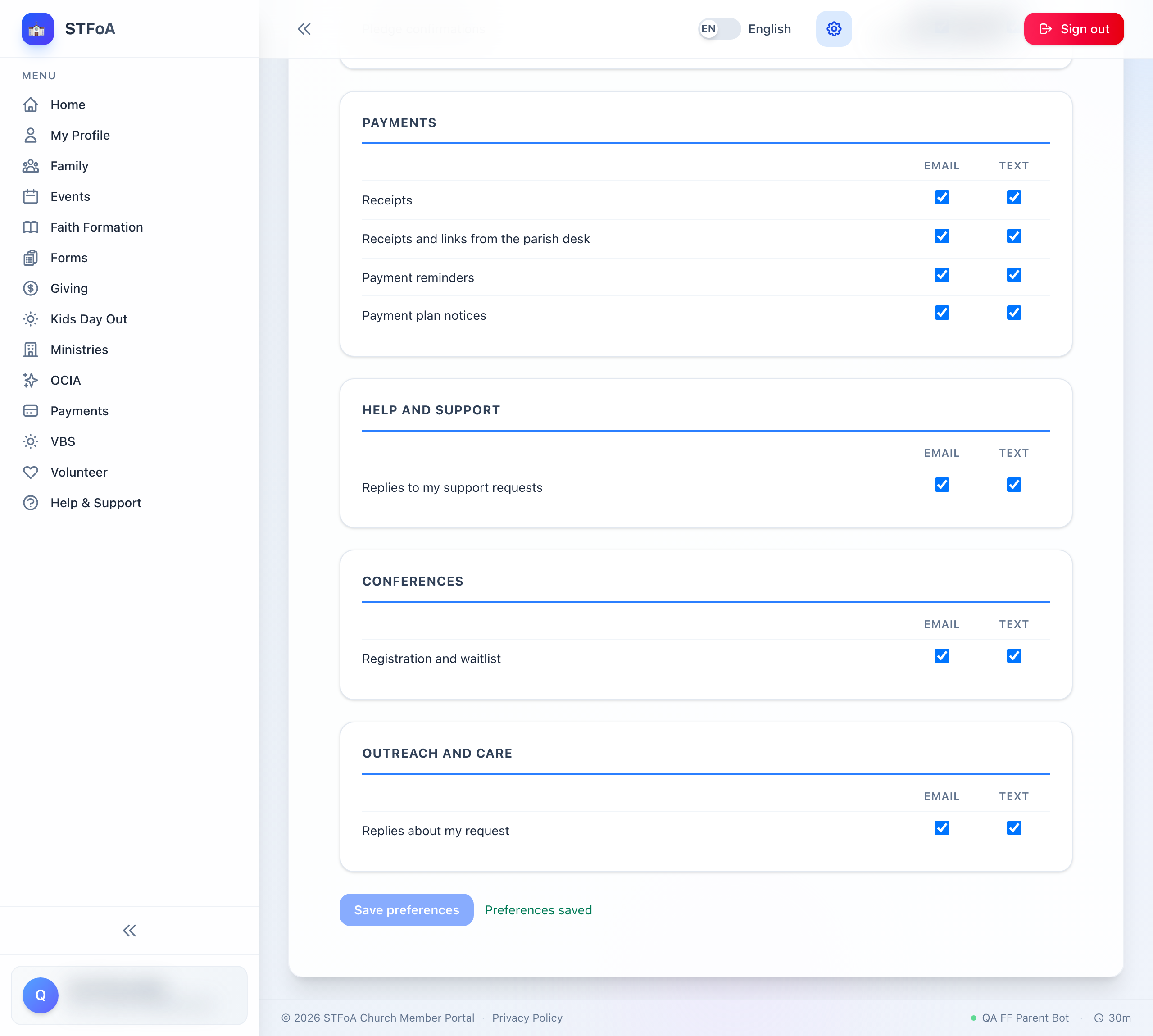
The Save preferences button stays greyed out until you change something, and the green confirmation is your proof the change went through. If you leave the page before you see it, your change is not saved.
3. Your preferred language
The Language card is the first card on the Notifications tab. It holds one box, Preferred language. The parish uses it to choose which language to write to you in.
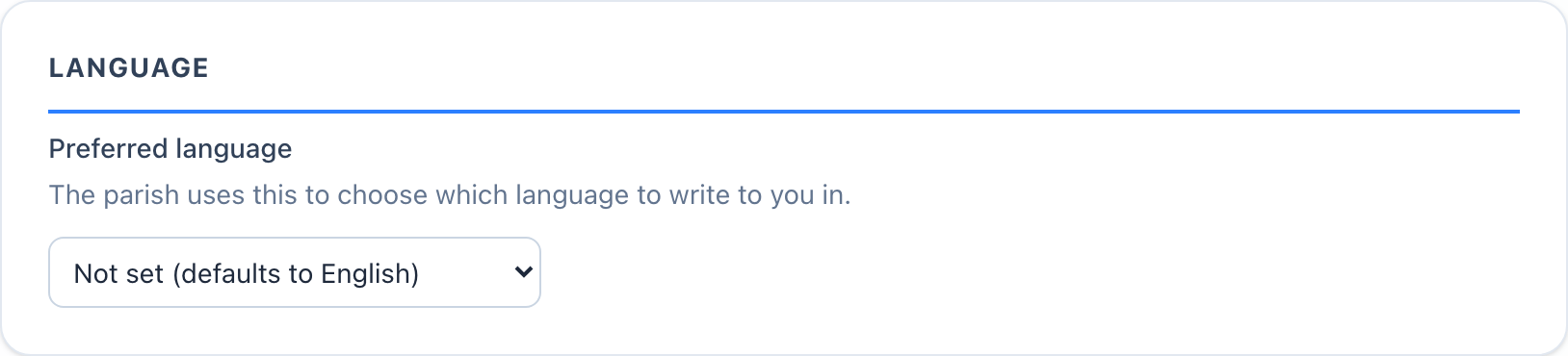
The box offers three values:
| Value | What the parish does |
|---|---|
| English | The parish writes to you in English. |
| Spanish | The parish writes to you in Spanish. |
| Not set (defaults to English) | You have made no choice. The parish writes to you in English. |
To change it:
- Open the Notifications tab of your Account Settings.
- Select a value in the Preferred language box.
- The choice saves as soon as you select it. There is no Save button for this box, and no confirmation message.
The box shows Not set (defaults to English) until you choose a language. It does not show English by default. The parish still writes to you in English while the box reads Not set — the table above says why — but the box never answers the question for you.
The Preferred language box only chooses the language of a message. It never turns a message on or off. To stop a message, use the Email and Text switches, or the checkboxes under Communication preferences.
4. Quick reference card
The whole thing, in five lines
- During registration, five content topics start checked and the text-message topic starts unchecked — check it only if you want texts.
- Registration asks for your language earlier, on the Primary Contact Info step. That box also starts on Not set — it does not pre-select English.
- A programme you join (Faith Formation, VBS, and so on) always sends its own messages, and you control those separately once you are enrolled.
- To change any choice later, select the gear icon, then Notifications, then scroll to Communication preferences.
- Every row has a separate Email and Text checkbox. Select Save preferences and wait for the green confirmation.
Three rules
- Checking the text box on any topic is your express consent to receive texts for that topic. Standard message and data rates may apply.
- A locked message cannot be turned off — it is a message the parish must always be able to send you.
- The Preferred language box saves on its own, as soon as you select a value. Every other choice on the page needs Save preferences.
Thank you for telling us how you want to hear from us. You can change your mind at any time from the Communication Preferences page.