Finding a Volunteer Opportunity
St. Francis of Assisi Catholic Church · VolunteerHow to search and filter the list of volunteer opportunities, and what an opportunity card tells you before you open it.
You want to serve the parish and are looking for a shift that fits your schedule. You do not need any special role — every signed-in parishioner can browse, search, and sign up.
The list shows every opportunity that is open to all parishioners, plus any that a ministry invited you to or that you already belong to. This keeps a shift meant for one small team from showing up to the whole parish, while still showing it to the people it is actually for.
What you will do, in one sentence
Search or filter the list, then open a card to see its shifts and sign up.
Last verified against the staging system on 2026-10-20. Screens shown are the staging system (an isolated copy of production). The opportunity shown is an invented QA test fixture, not a real parish ministry. Prepared 20 October 2026.
1. Opening the volunteer page
Sign in to your parish account, then select Volunteer in the sidebar. The page opens with the Upcoming date range and the Grid view already selected.
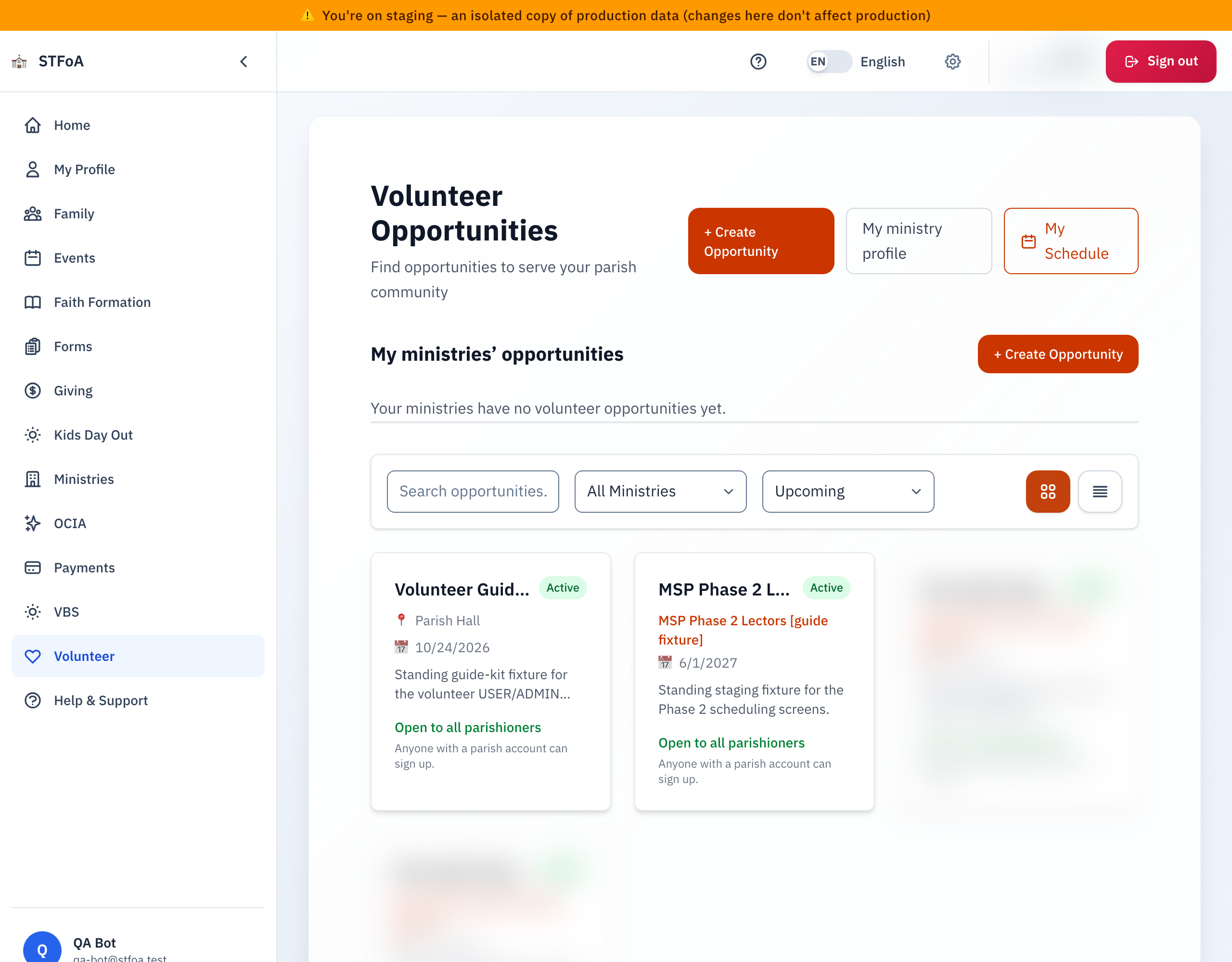
The page can also show you one of three other states instead of the card grid:
- Loading — a spinning circle, while the list is on its way.
- An error — a red message box, if the list failed to load.
- No opportunities — an icon and a short message, if nothing matches your filters yet.
- Select Grid view or List view, top right of the filter bar, to change the layout. Grid view shows each card's picture and description. List view shows the same cards in a tighter, one-line-per-card layout.
- Select My Schedule, top right, to see every shift you already signed up for.
If you hold the Volunteer Administration role, or the parish's top-level admin access, you also see a + Create Opportunity button here. A separate guide explains how to create and manage an opportunity.
2. Searching and filtering opportunities
Three controls narrow the list. Use any of them, in any combination.
| Control | What it does |
|---|---|
| Search opportunities... | Narrows the list, as you type, to opportunities whose title, description, ministry name, or location contains what you typed. |
| Filter by ministry (dropdown) | Lists every ministry that currently has an opportunity posted. |
| Date range (dropdown) | Upcoming (default) hides an opportunity that already started. All Dates shows every opportunity, regardless of date. |
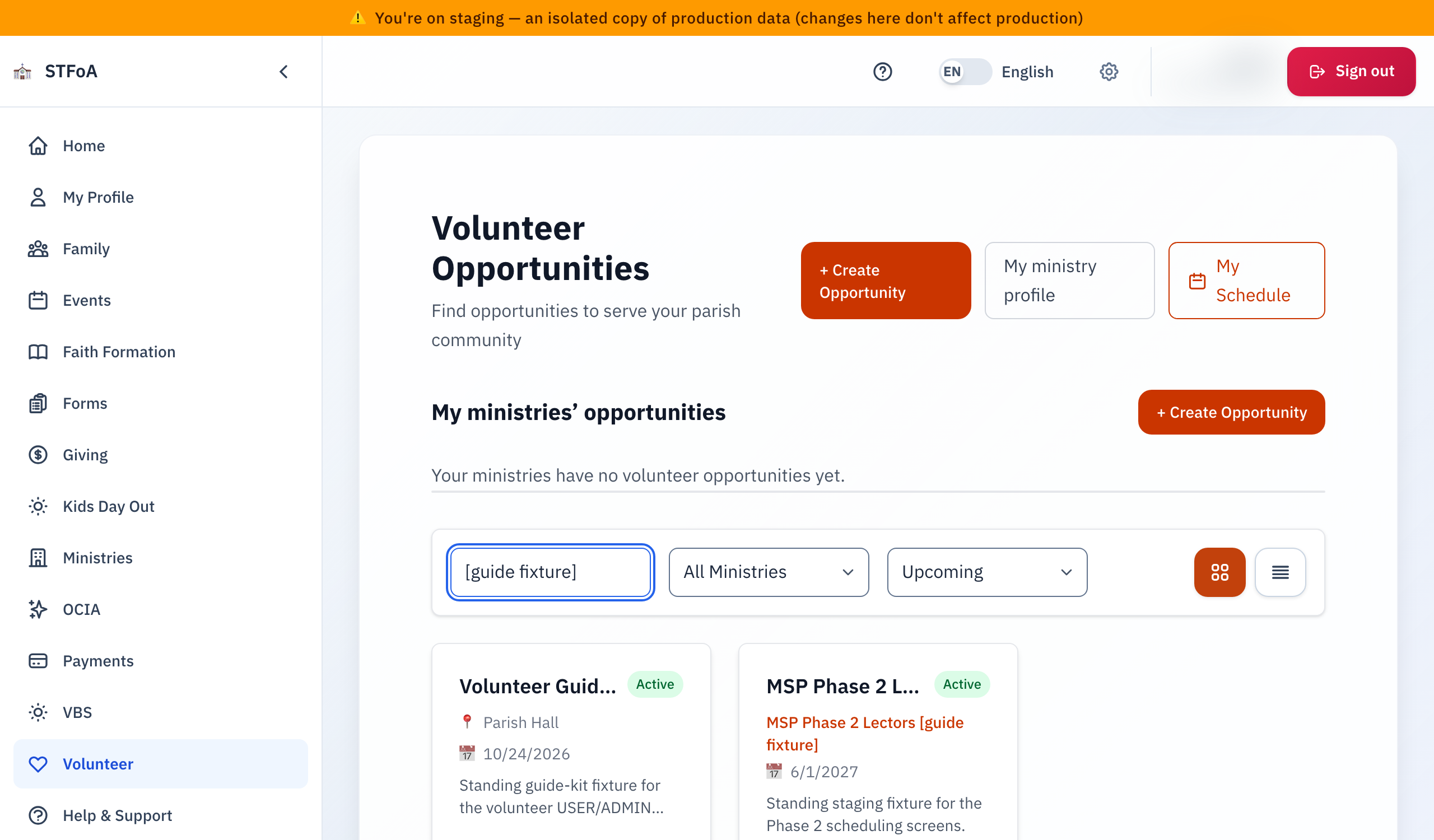
- Type into the Search opportunities... box. The list narrows right away — there is no search button to select.
- Clear the box to see the full list again.
Type the ministry's name into the Search opportunities... box instead of using the Filter by ministry dropdown. The dropdown shows an error message and leaves the list unfiltered.
A weekly or repeating opportunity stays in the Upcoming view even though its series started long ago. Only a one-time opportunity drops off Upcoming once its date is in the past.
3. Reading an opportunity card
Every card on the list tells you the same things, in the same order.
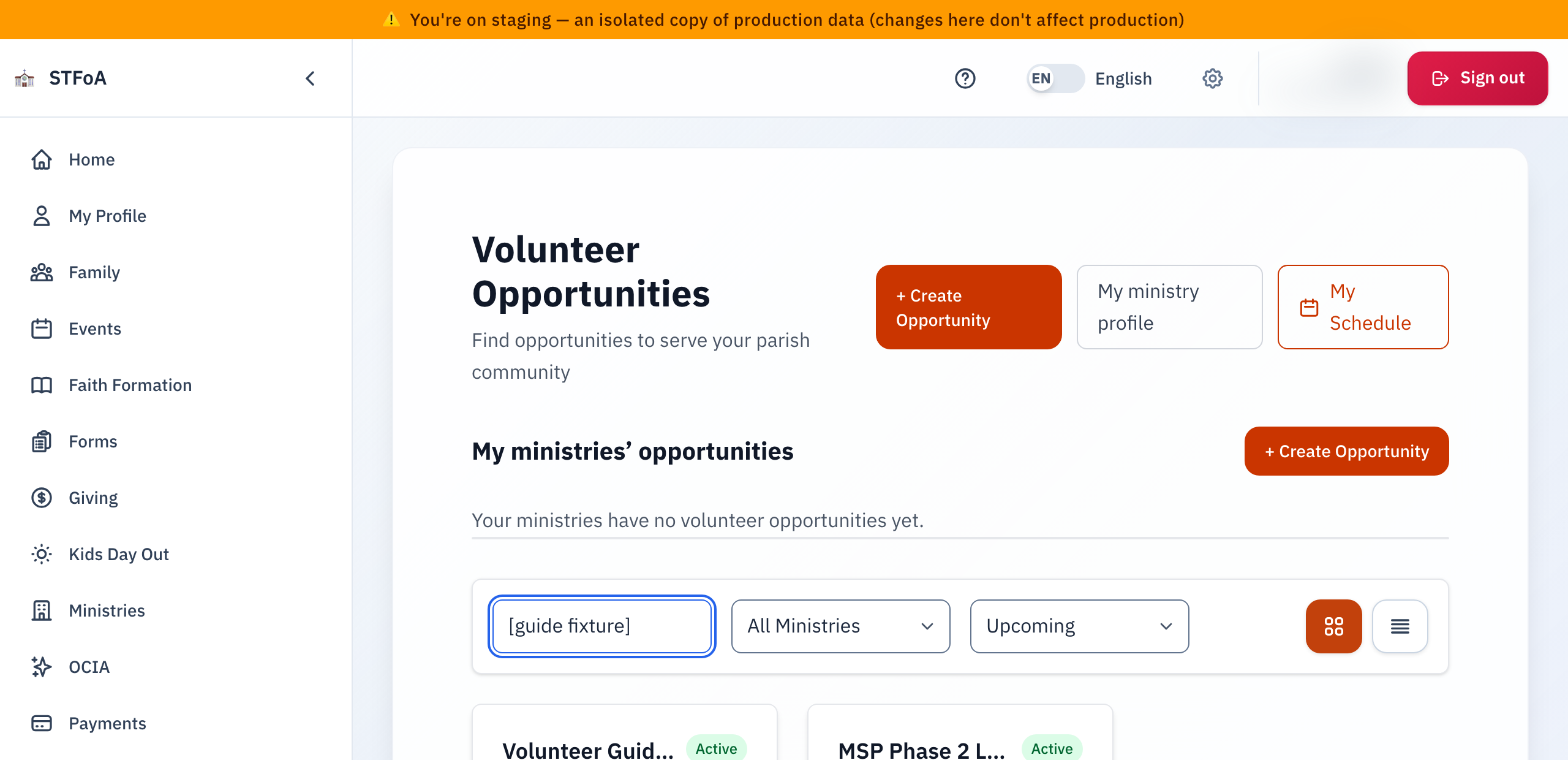
- Title, at the top, in bold.
- Status, the small pill next to the title. Every card here reads Active — the list only ever shows opportunities that are open for sign-ups.
- Ministry name, in orange, under the title, when the opportunity belongs to a ministry.
- Location, next to a 📍 pin, when one is set.
- Date, next to a 📅 calendar. A Recurring tag appears beside it if the opportunity repeats.
- Who it is open to — a coloured line near the bottom of the card, with a short explanation underneath it.
| You see | It means |
|---|---|
| Open to all parishioners (green) | Any signed-in parishioner can sign up. |
| Invitation only (amber) | Not listed to everyone — you see it because you were invited. |
| Ministry members only (grey) | Shown only to that ministry — you see it because you belong to it. |
If a card shows either of these labels, you can already sign up — the parish would not show it to you otherwise. Neither label means you need a separate invitation code before you continue.
Grid view also shows a picture, when the opportunity has one, and up to two lines of its description. List view drops both to keep each row short.
4. Where to go next
Select any card to open that opportunity's own page.
- Pick a date on the calendar.
- Read that day's shifts.
- Select Sign up on the shift you want.
If you follow a shared invite link without signing in, you can still look around. The page asks you to sign in only when you select Sign up.
My Schedule, the link at the top of this page, lists every shift you already signed up for. My ministry profile, next to it, is where you set your limits and blackout dates if you serve in a ministry that the parish schedules. See the guide "Setting Your Ministry Preferences and Swapping Shifts".
5. Quick reference card
The whole thing, in four lines
- Sign in and select Volunteer in the sidebar.
- Type into Search opportunities..., or set the date range, to narrow the list.
- Each card shows its ministry, location, date, and who it is open to.
- Select a card, pick a date, and select Sign up.
When to stop and ask
- The Filter by ministry dropdown shows an error. Use the search box instead — see Section 2.
- You know an opportunity was posted, but it never appears, even with All Dates selected.
- A shift you needed is now Full, or it is gone.
Parish office — ask for the person who manages Volunteer sign-ups.
Thank you for looking for a way to serve. Every shift you take is one the parish does not have to fill another way.