Managing Your Volunteer Shifts
St. Francis of Assisi Catholic Church · VolunteerHow to see your upcoming volunteer shifts, check in on shift day, and cancel or ask for a replacement.
You have signed up for at least one volunteer shift at your parish. Use this guide to see your shifts, check in on the day you serve, or make a change if you can't make it.
Your check-in tells your ministry leader you arrived, without anyone having to ask. Canceling early — instead of simply not showing up — frees your spot in time for someone else to take it.
What you will do, in one sentence
Open My Schedule to see your shifts, check in on the day you serve, and cancel or ask for a replacement if you can't make it.
Last verified against the staging system on 2026-10-11. Screens shown are the staging system (an isolated copy). The shifts shown are invented training records. Prepared 11 October 2026.
1. Finding your shifts
My Schedule lists every shift you signed up for. Open Volunteer from the sidebar, then select My Schedule.
The page has two tabs.
| Tab | What it shows |
|---|---|
| Upcoming | Shifts today or later. This is the tab you land on. |
| Past | Shifts before today. Neither tab shows a shift you unregistered from. |
Each shift is a card with the ministry name, the role, the date, the time, and the location. A colored badge shows its status.
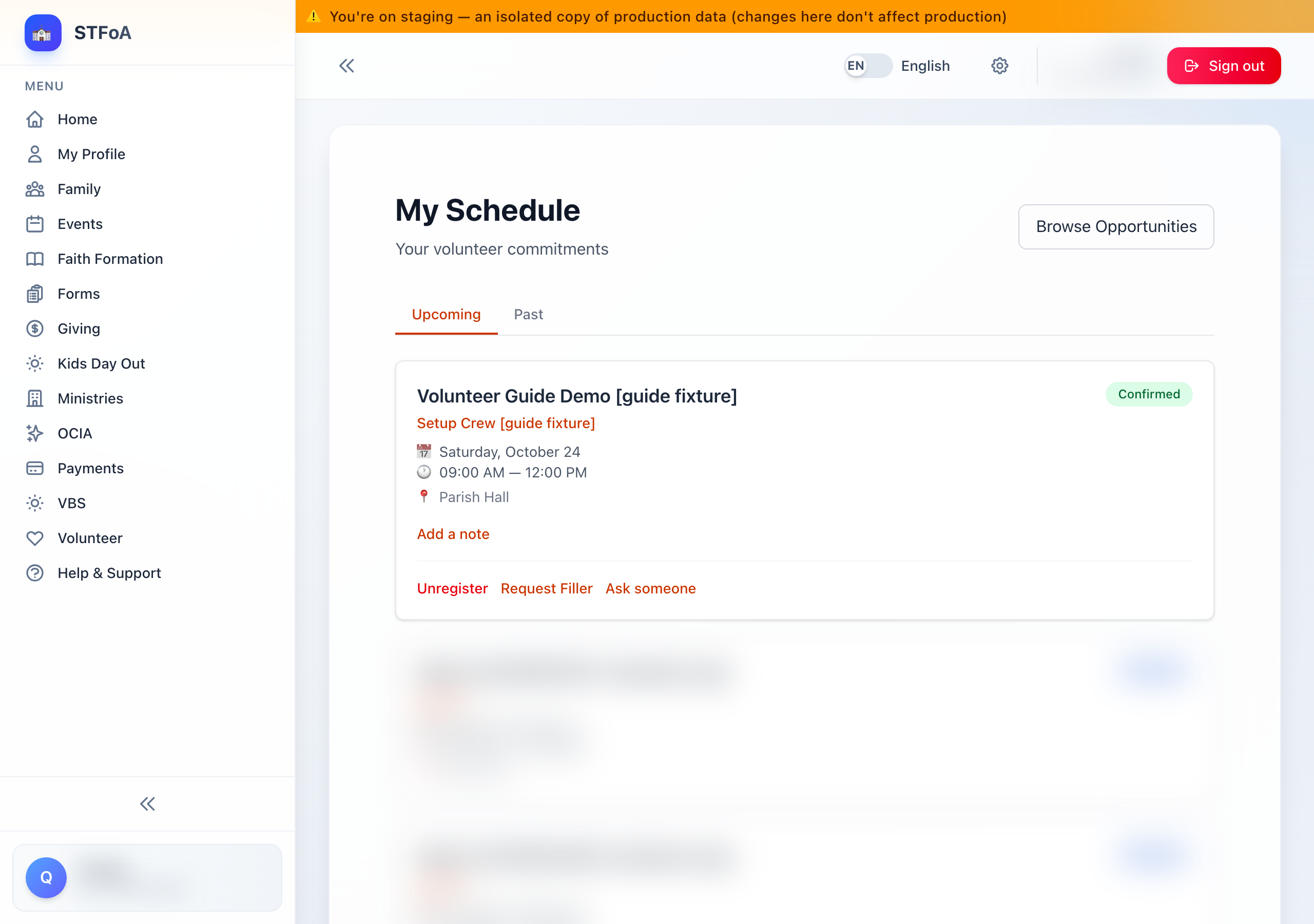
- Open Volunteer, then My Schedule.
- Stay on Upcoming to see what's ahead, or select Past to see what you already worked.
- Select Browse Opportunities to find and sign up for more shifts.
A shift can start out Pending if the role you signed up for needs a leader's approval first. You still see it here, and you can still cancel it. Once your leader approves it, the badge changes to Confirmed.
Neither tab lets you check in, cancel, or request a replacement for a past shift — those actions only show up on Upcoming.
2. Checking in on shift day
On the day of your shift, a Check in button appears on the card.
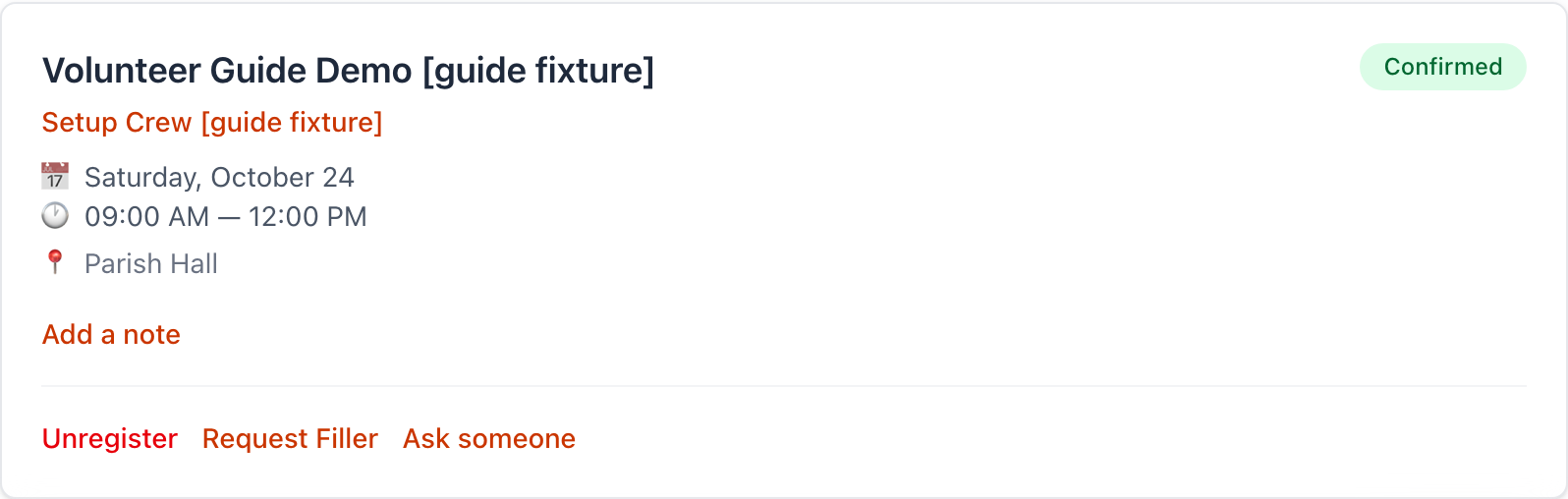
- Open My Schedule on the day you are due to serve.
- Find the shift and select Check in.
- Wait for the button to read Checking in..., then look for the green message You're checked in.
The Check in button shows up only once the shift's date is today, and only once your leader has confirmed the shift. If you don't see it yet, come back on the day.
Checking in yourself is not the only way your attendance gets recorded — your ministry leader can also mark you checked in from their side. Either way, the badge changes to Attended.
3. Canceling or requesting a replacement
Both actions sit at the bottom of the shift's card, next to Check in.
Canceling your shift
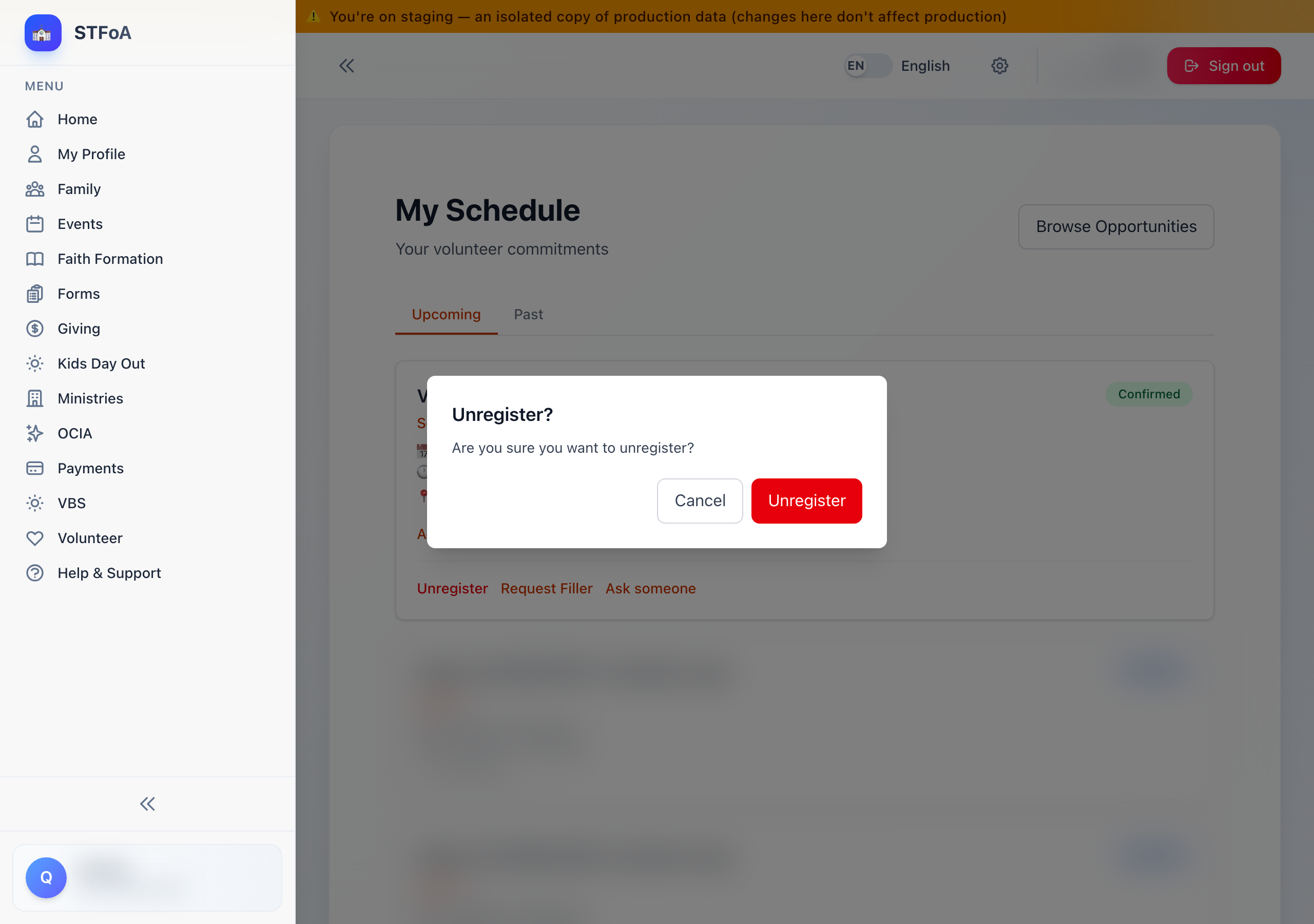
- Find the shift on Upcoming.
- Select Unregister.
- In the Unregister? dialog, select Unregister again to confirm, or Cancel to back out.
Once you confirm, the shift is gone for good. It will not show up under Past either — it simply disappears from My Schedule. To serve that shift after all, sign up again from Browse Opportunities, and only if a spot is still open.
Asking someone else to cover
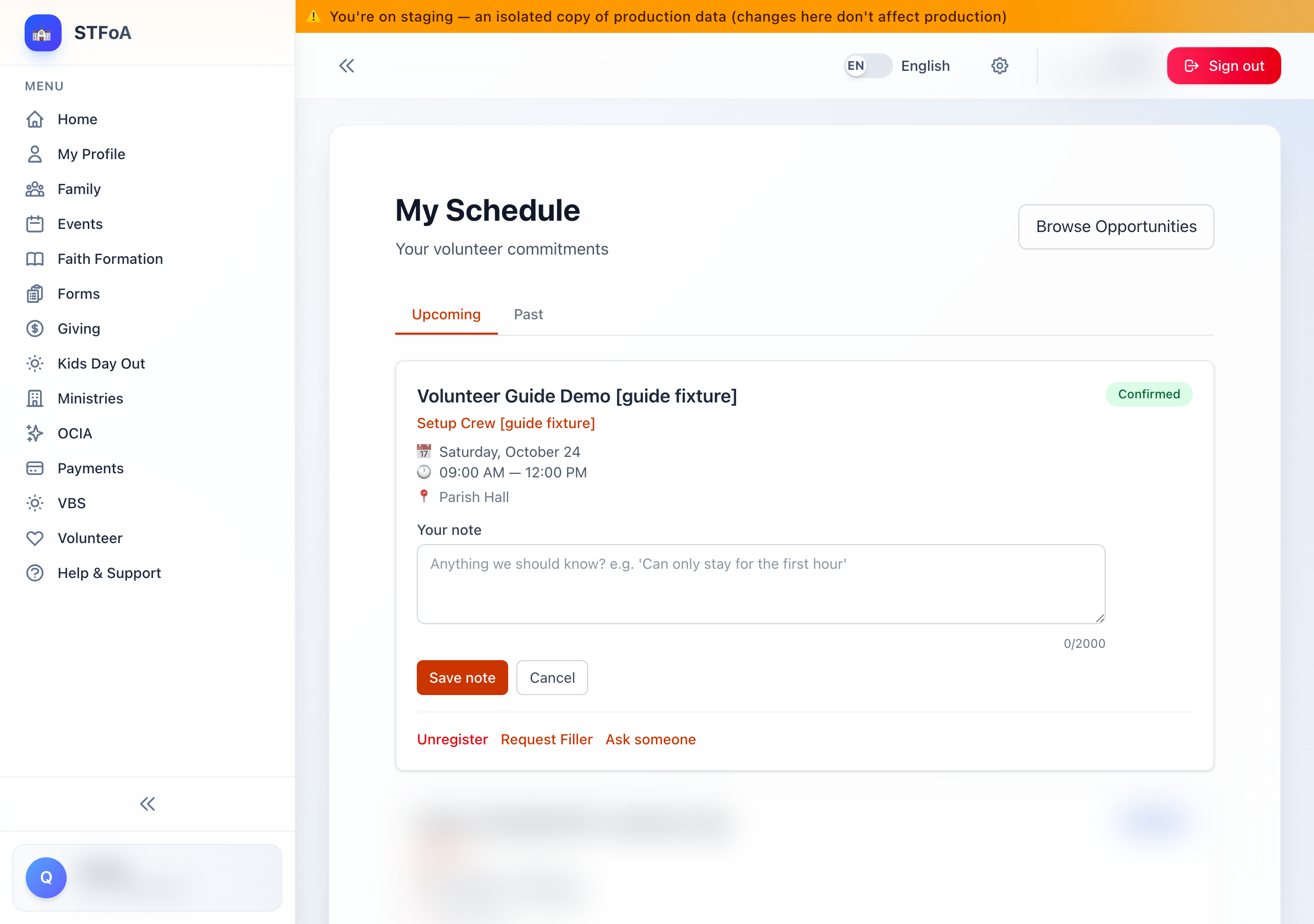
- Find the shift on Upcoming.
- Select Request Filler.
- In the Request replacement? dialog, select Request Filler again to confirm, or Cancel to back out.
If the badge still reads Pending, confirming Request Filler shows an error instead of asking for a replacement. Wait for your ministry leader to confirm the shift first, or select Unregister instead.
After you confirm, the badge changes to Filler Requested and the Unregister and Request Filler buttons disappear from that card. If you change your mind, contact your ministry leader — this screen has no way back.
Asking one named person
Use Ask someone when you want one person to cover or trade a Confirmed shift, not everyone.
- On the shift card, select Ask someone.
- Choose Someone to take my shift or To trade shifts with someone.
- Choose the person, then select Send request.
The shift stays yours until the person accepts. While you wait, Shift requests at the top of the page shows Waiting on the person, with a Withdraw button. If someone asks you, the same panel shows Accept and Decline. See the guide "Setting Your Ministry Preferences and Swapping Shifts" for the full steps.
4. Quick reference card
The whole thing, in four lines
- My Schedule lists every shift you signed up for, split into Upcoming and Past.
- Check in appears only on the day of your shift, once your leader has confirmed it.
- Unregister is final — the shift disappears from My Schedule, and you would need to sign up again.
- Request Filler asks someone else to cover. After you confirm it, only your ministry leader can undo it.
Two rules
- Only select Request Filler once your badge reads Confirmed — it fails while the shift is still Pending.
- Unregister as soon as you know you can't make it, so someone else has time to take the spot.
When to stop and ask
- Request Filler shows an error and the shift still reads Pending.
- You checked in, but the shift still shows the wrong status the next day.
- You need to undo a Request Filler after you already confirmed it.
Your ministry leader — the person who runs the opportunity you signed up for.
Thank you for showing up. Every shift you check into, or free up early, is one your ministry leader can count on.