Signing Up for a Volunteer Shift
St. Francis of Assisi Catholic Church · VolunteerHow to pick a date, choose a shift, and confirm your sign-up for a parish volunteer opportunity.
You want to help with a parish volunteer opportunity — one you found on the Volunteer Opportunities page, or one a ministry leader invited you to.
The parish needs to know exactly who is coming to each shift, not just a headcount. A ministry leader can then reach every volunteer if a shift's time or place changes, and a role that needs an extra step first — a background check, a signed waiver — attaches that step to the shift itself, so the parish has proof it was accepted before you serve.
What you will do, in one sentence
Pick an open date on the calendar, choose a shift, and confirm to sign up.
Last verified against the staging system on 2026-10-20. Screens shown are the staging system (an isolated copy). The opportunity, role, and shift shown are an invented training fixture, made and removed for this guide. Prepared 20 October 2026.
1. Opening the opportunity
You reach a sign-up page one of two ways: you select it on the Volunteer Opportunities page, or you open a link a ministry leader shared with you. Either way lands on the same page.
If you open a shared link before you sign in, the page still opens. You can read everything — you only need to sign in the moment you select Sign Up. A banner across the top says "You are browsing as a guest," with a Sign in button. Selecting it sends you to sign in, then brings you straight back to this same page.
When the leader allows guest sign-up, a Continue without signing in form asks for your name, email, and cell phone. You must also complete the security check before you select Continue. Each guest sign-up uses one security check, so the form opens again with your details filled in when you sign up for a second shift.
If a leader invited you personally and you have not answered yet, a banner at the very top asks you to Accept or Decline the invitation. Signing up for a shift on the page below does not answer it — use this banner for that.
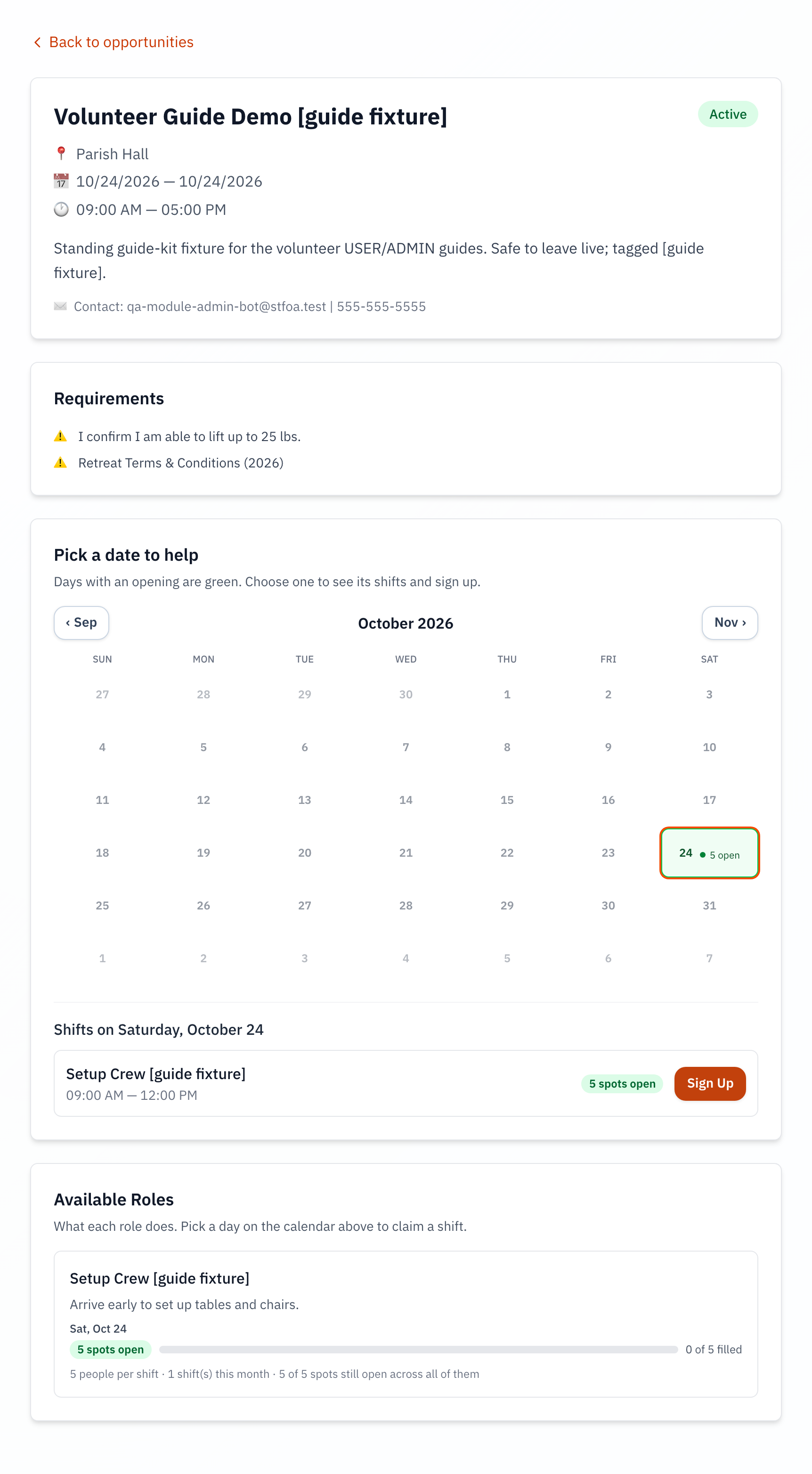
The top of the page tells you what the opportunity is:
- The title and, if it belongs to one, the ministry running it.
- A status tag (Active, Draft, Cancelled, or Completed).
- The location, the dates it runs, and its times.
- A Recurring tag if it repeats on a schedule.
- A description, and a contact email or phone for the person running it.
Shift times always show in the parish's own time zone, even if your phone or computer is set to a different one.
If your ministry leader builds the schedule, the page shows an Open positions list, not a date picker. Select Take this position on the seat you want. See the guide "Setting Your Ministry Preferences and Swapping Shifts".
2. What to read before you sign up
If the opportunity has any requirements, a Requirements box appears below the header. It lists what you must already have, or agree to, before you can take a shift — a background check, a safe-environment training, a signed waiver — each with a short note if the leader added one.
This box is a preview only. You do not check anything off here. You confirm each one in the sign-up dialog, in Section 4.
3. Choosing a date and a shift
Below Requirements is Pick a date to help — a calendar for one month at a time.
- A green day has an open shift you can still take.
- A red day is full.
- A grey day is already past.
- A day with nothing scheduled has no colour and cannot be selected.
Use the arrows on either side of the month name to move a month at a time — each one names the month it leads to.
It looks for the month that actually has an open shift, so a program that starts later — or one whose early shifts already filled — does not leave you staring at an empty grid.
Select any green day to see its shifts below the calendar. Each shift shows:
| What you see | What it means |
|---|---|
| The role and its time | The role's title, and its start and end time. |
| A capacity tag | How many spots are still open, or Full. |
| Closed (grey) | The shift has already happened. No Sign Up button. |
| Cancelled (red) | The leader cancelled this shift. No Sign Up button. |
| Signed up | First names and last initials of others already on this shift, if the leader turned this on. |
| Sign Up | Opens the confirm dialog for this one shift. Hidden once the shift is closed, cancelled, or full. |
Below the calendar, Available Roles lists every role in this opportunity as a reference: what each one does, how many spots it has left on the day you picked, and a rollup for the whole month. If a role has more than one open date this month, its card carries a Sign up for all N available dates button — one click instead of choosing each date by hand.
Selecting Sign Up on one shift, or Sign up for all N available dates on a role, always replaces anything you had picked before. The confirm dialog only ever shows your most recent choice. Use Clear all at the top of the calendar, or Clear under a role, to empty your pick before you choose again.
If any shifts on this opportunity need someone to fill in for a volunteer who dropped out, a Shifts needing coverage box appears above Available Roles, with a Cover this shift button on each one.
There is no confirm dialog and no notes field — selecting Cover this shift registers you for it immediately. If you cannot make it after all, go to My Schedule to unregister or request a replacement; this page has no undo for it.
4. Confirming your sign-up
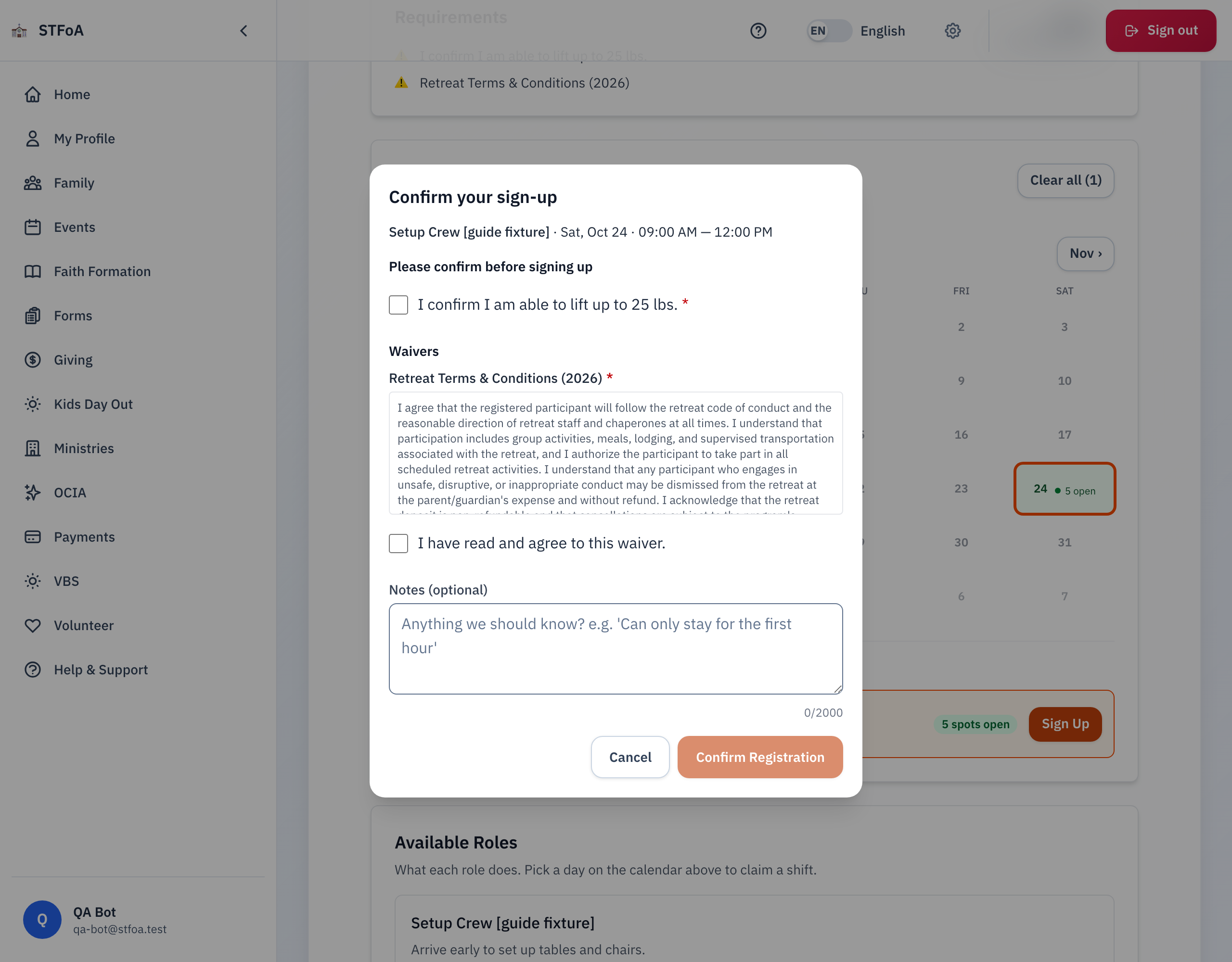
Selecting Sign Up opens Confirm your sign-up, listing the shift or shifts you chose.
- If the opportunity has required boxes to check, tick each one under Please confirm before signing up. A box marked with a red * is required — Confirm Registration stays disabled until every required box is checked.
- If the opportunity has a waiver, its text appears under Waivers. Read it, then check I have read and agree to this waiver.
- Optionally type something under Notes (optional) — up to 2,000 characters, counted as you type.
- Select Confirm Registration (or Register for N slots for more than one shift).
Select Cancel, or press Escape, to close the dialog without signing up. Either one clears your chosen shift, so you will need to select it again if you come back.
If you already hold another shift at the same time, a Time conflict detected notice appears before anything is saved. Select Continue anyway to register for both, or Cancel to go back to the sign-up dialog and change your mind.
Once the parish records your sign-up, a banner tells you what happened to every shift you chose:
- A green Registration confirmed! banner means every shift was reserved.
- An amber banner means some were not — each one says why: it filled up before we could reserve it, it already ended, or it could not be reserved. Any shift that did not go through stays selected, so Sign Up tries it again.

If a red box lists Requirement not met, the parish's own records — not this page — say you have not cleared that requirement yet. Checking the box in the dialog again will not fix it. See Section 5 for who to ask.
5. Quick reference card
The whole thing, in four lines
- Open the opportunity, read what it needs, and pick a green day on the calendar.
- Select Sign Up on a shift, or Sign up for all N available dates on a role.
- In the dialog, check every required box, accept any waiver, and select Confirm Registration.
- Read the result banner — a shift that did not go through stays selected so you can try it again.
When to stop and ask
- A Requirement not met box appears and you believe you already cleared it.
- A shift you know should be open shows Full or Closed.
- Sign-up fails with a message about your account, even though you are already signed in.
Parish office — ask for the ministry leader who posted the opportunity, or the person who invited you.
Two things worth knowing before you click
- Cover this shift has no confirm dialog — it signs you up the moment you select it.
- Selecting a new shift always replaces your last pick, never adds to it.
Thank you for giving your time. Every shift you take is one the parish does not have to find another way to cover.