Finding a Parish Form to Fill Out
St. Francis of Assisi Catholic Church · FormsHow to find an open parish form, fill it out, and check on one you already sent in.
You are signed in to the parish portal. You do not need any special role for this page — every signed-in member sees the same Forms page.
The parish keeps every open form on one page, so you always know where to look. A form leaves this page on its own the moment its deadline passes — nobody has to remember to take it down by hand.
What you will do, in one sentence
Open a form from the list, fill it out, and come back here to check its status.
Last verified against the staging system on 2026-10-20. Screens shown are the staging system (an isolated copy). The forms and submissions shown are invented training records. Prepared 20 October 2026.
1. Where to find your forms
Sign in to the parish portal. Every signed-in member sees a Forms link in the sidebar — you do not need a special role to see it.
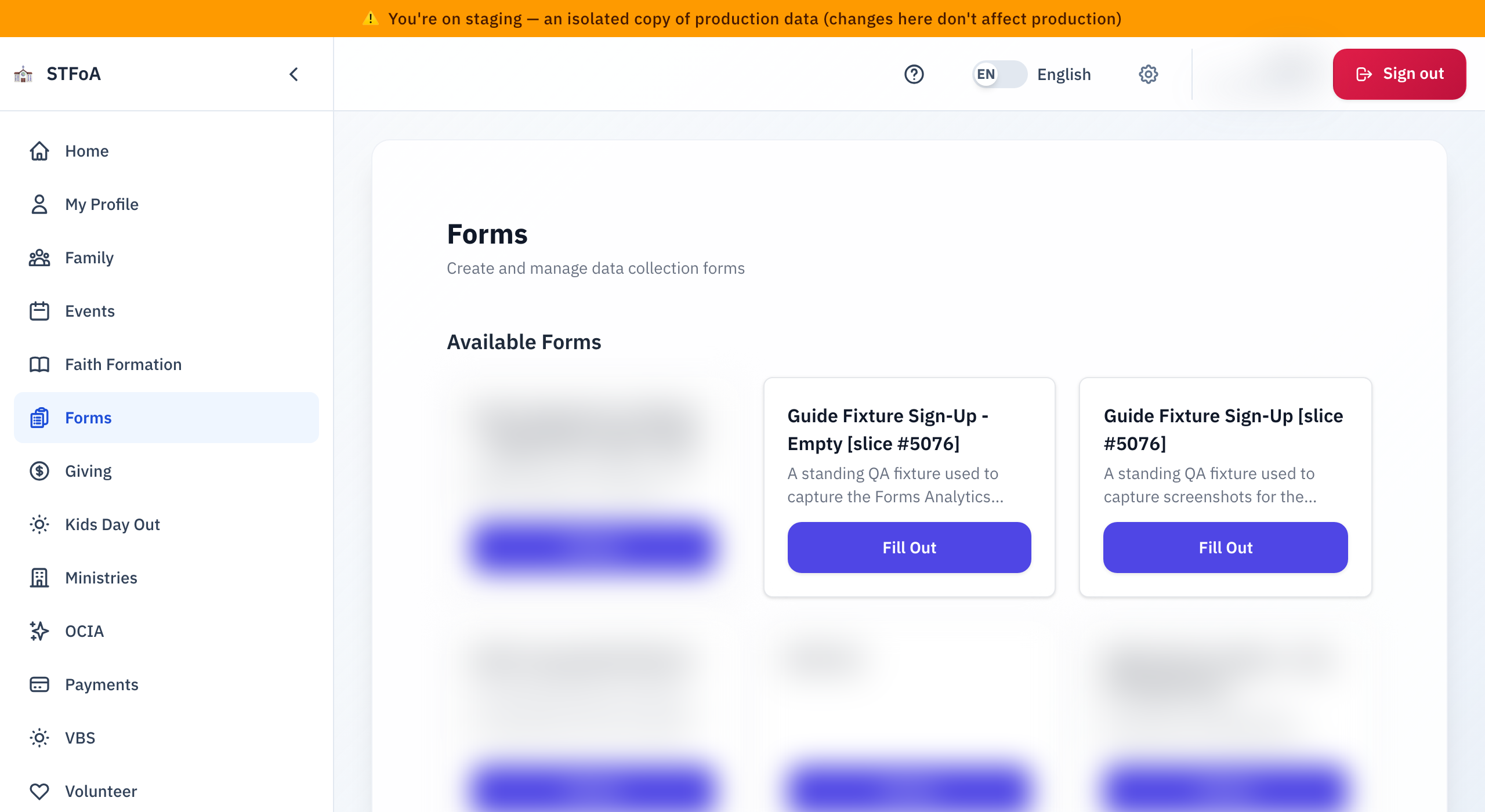
Click Forms. The page has two parts, one below the other: Available Forms at the top, and My Submissions underneath.
2. Choosing a form to fill out
The page groups the open forms under headings. A heading is the form's category, such as Retreats. A form with no category goes under the heading of the ministry that owns it. Other forms go under Other forms. Each group shows how many forms it holds. When the page lists more than eight forms, a Search forms box appears above the groups. Type a word from a title or description to narrow the list.
Each open form is a card. A card shows:
- The form's title.
- A short description, when the form has one.
- A Fee badge, when the form asks for a payment.
- Open until <date>, when the form has a closing date.
- A Fill Out button.
If you read the parish pages in Spanish, the titles, descriptions and category headings show in Spanish when the parish has entered them.
- Read the cards to find the form you want.
- Click Fill Out.
- The form opens. What it asks you next depends on that particular form.
Once a form's closing date passes, it drops off this list the next time you load the page. You do not need to check back before then — a form you missed is simply gone from here, not hiding somewhere else.
If nothing is open right now, the page says No forms are currently available.
Available Forms can show an error message instead of the cards, with a Retry link next to it. Click Retry. If the same error keeps coming back, ask the parish office — it is not something you did wrong.
3. Checking a form you already sent in
Scroll down to My Submissions. Every form you have sent in appears here as one row:
- The form's title.
- Submitted <date> — the day you sent it in.
- A status on the right: Submitted, Paid, Pending Payment, or Withdrawn.
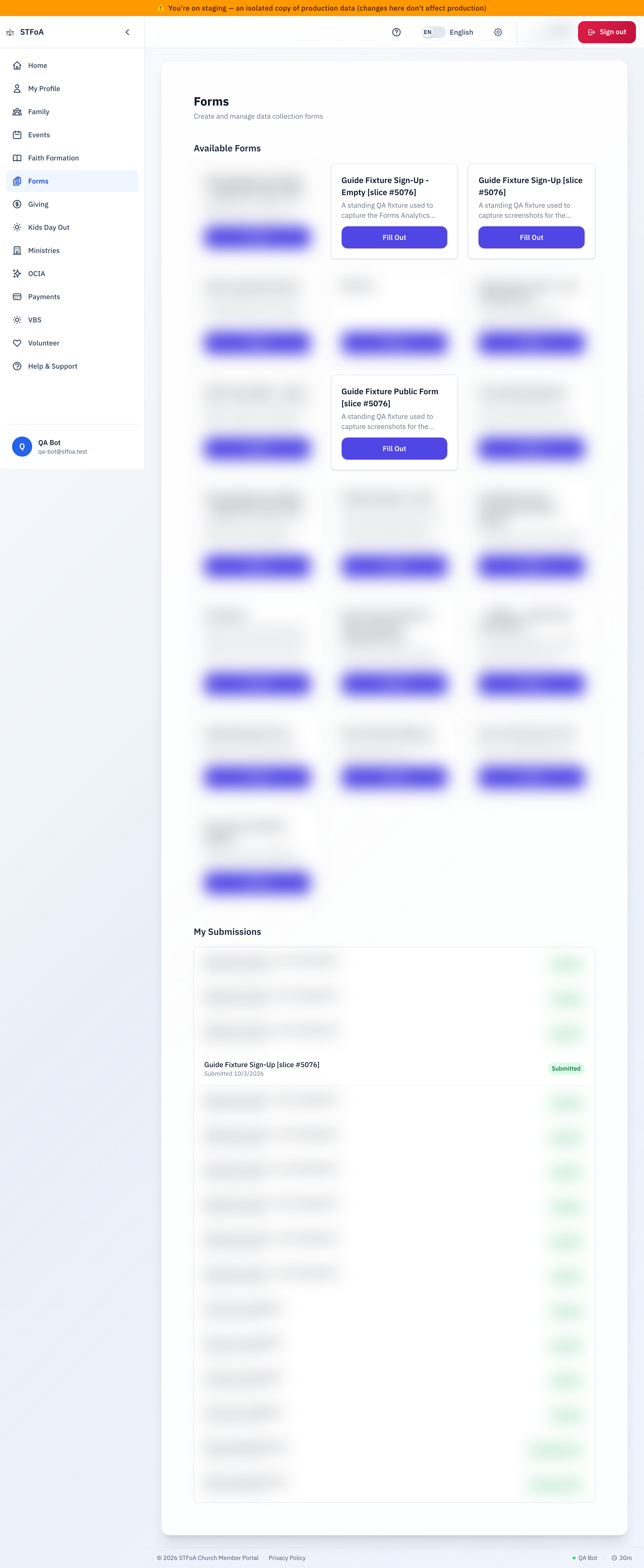
If a submission is still waiting on a payment, its status may read as the words "pending_payment" instead of "Pending Payment." Both mean the same thing: the payment step is not done yet.
This list only shows you the status. It does not let you open, resubmit, or withdraw a submission from here.
If you have not sent in a form yet, the page says You haven't submitted any forms yet.
4. Quick reference card
The whole thing, in three lines
- Sign in and click Forms — every open form is a card in Available Forms.
- Click Fill Out on the form you want. A form disappears from the list on its own once its deadline passes.
- Scroll down to My Submissions to check the status of a form you already sent in.
When to stop and ask
- Available Forms shows an error, and Retry does not fix it.
- A form you filled out never shows up in My Submissions.
- A status in My Submissions looks wrong.
Parish office — ask for the person who manages your parish forms.
Two things to remember
- A form leaves Available Forms on its own once it closes. You never need to remove one yourself.
- My Submissions only shows a status. It is not where you resubmit or withdraw a form.
Thank you for taking a moment to fill this out. It helps the parish serve you and your family better.