Getting Back into Your Account When You Can't Sign In
St. Francis of Assisi Catholic Church · Account AccessHow to get back into your account when you can't sign in, using an email or phone number you still control.
Use this if you can't sign in — you forgot your password, or the email or phone number the parish has on file no longer works. Anyone can start this from the sign-in page. You do not need any special access.
Your account holds your family's contact details, giving history, and sacrament records. Before we let anyone set a new password, we check that you control an email address or phone number, and sometimes a couple of details already on your parish record. This keeps your account safe, even if someone else knows your name.
What you will do, in one sentence
Prove you control an email address or phone number, answer a few questions if we ask, and set a new password.
Last verified against the staging system on 2026-10-20. Screens shown are the staging system (an isolated copy). This flow never shows another person's name or contact details — the picture shows only the first screen, which holds no records. Prepared 20 October 2026.
1. Where to start
Look for Can't access your account? near the bottom of the sign-in page. Select Recover access.
- Choose Email or Text message.
- Enter your address in Email address, or your number in Mobile number. It does not have to match what the parish has on file.
- Complete the security check.
- Select Send code.
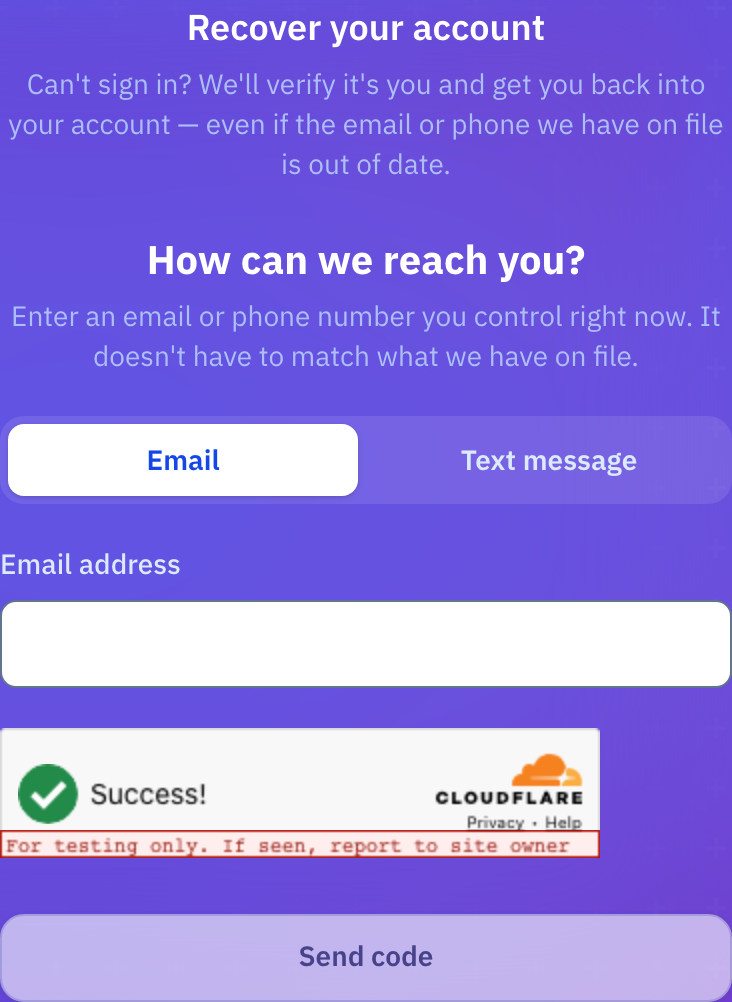
We show the same message whether or not that email or phone number matches a parish record. This protects everyone's privacy, including yours.
2. Verifying it's you
We send a 6-digit code to the email or phone number you entered.
- Open the message and find the 6-digit code.
- Enter it in 6-digit code.
- Select Verify.
Enter the code soon after it arrives. After 10 minutes, or after 5 wrong tries, the code stops working. Go back to the sign-in page and start over.
If nothing arrives, wait for the timer under the code field, then select Resend code.
A code is not always enough on its own. When we still need to confirm it's you, we ask a few more questions.
- Enter your Last name, Date of birth, and Home ZIP code.
- Choose one more detail — Use a child's first name or Use my street number — and fill it in.
- Complete the security check.
- Select Continue.
Every wrong try looks the same — we never say which detail missed. After a few tries, we turn off the automatic check for 24 hours and ask the parish office to confirm your identity instead.
3. Setting a new password
Once we confirm it's you, choose a new password.
We ask you to add one first. Enter an email address, then enter the confirmation code we send to it. Your account signs in with an email address, so it needs one on file.
- Enter your new password in New password. Use at least 8 characters, with an upper-case letter, a lower-case letter, and a number.
- Enter it again in Confirm new password.
- Select Save and sign in.
There is no extra confirmation screen. As soon as you save your password, you are signed in and taken to the home page.
4. If the parish office has to help you
Sometimes we can't confirm your identity on our own — the details didn't match closely enough, or the automatic check reached its limit. When that happens, we start a help request for you automatically.
- Note the number after Reference:.
- Select Contact the parish office. This opens a help request that already carries that reference number.
- Or select Back to sign in if you would rather come back to this later.
Your help request carries the reference number from this screen, so staff can find your case without you re-explaining anything. Keep the number in case you follow up by phone.
5. Quick reference card
The whole thing, in four lines
- From the sign-in page, select Recover access.
- Enter an email or phone you control, then enter the 6-digit code we send you.
- Answer a few questions if we ask.
- Set a new password. You are signed in right away.
When to stop and ask
- No code ever arrives, even after you select Resend code.
- The identity questions won't accept answers you are sure are correct.
- You reach the "We need to verify with the parish office" screen and need help right away.
Parish office — ask for the person who handles account access.
Two things to know
- This page never says whether an email or phone is on file — the same message covers both cases.
- Every wrong answer counts the same way. Take your time and answer carefully.
Thank you for taking a moment to verify it's you. It's what keeps every family's information safe.