Changing Your Password and Signing Out Other Devices
St. Francis of Assisi Catholic Church · Account SettingsHow to change your account password, add a passkey, and sign out of every device from Account Settings.
You have a parish account with a sign-in password. Use this guide to change that password, add a passkey if your device offers one, and sign out of every device you have used.
Your password protects your family's registration, giving, and Faith Formation records. Knowing how to change it, and how to sign out a device you no longer use, keeps those records safe if a phone or computer is lost, shared, or sold.
What you will do, in one sentence
Open the gear icon, then Security, to change your password, add a passkey, or sign out of every device you've used.
Last verified against the staging system on 2026-10-17. Screens shown are the staging system (an isolated copy of production). The account shown is an invented QA test fixture, not a real parishioner. Prepared 17 October 2026.
1. Where to go
Every setting in this guide lives on one page: Account Settings → Security.
- Sign in to your parish account.
- Select the gear icon in the top right of any page.
- The Security tab opens first. If you land on a different tab, select Security.
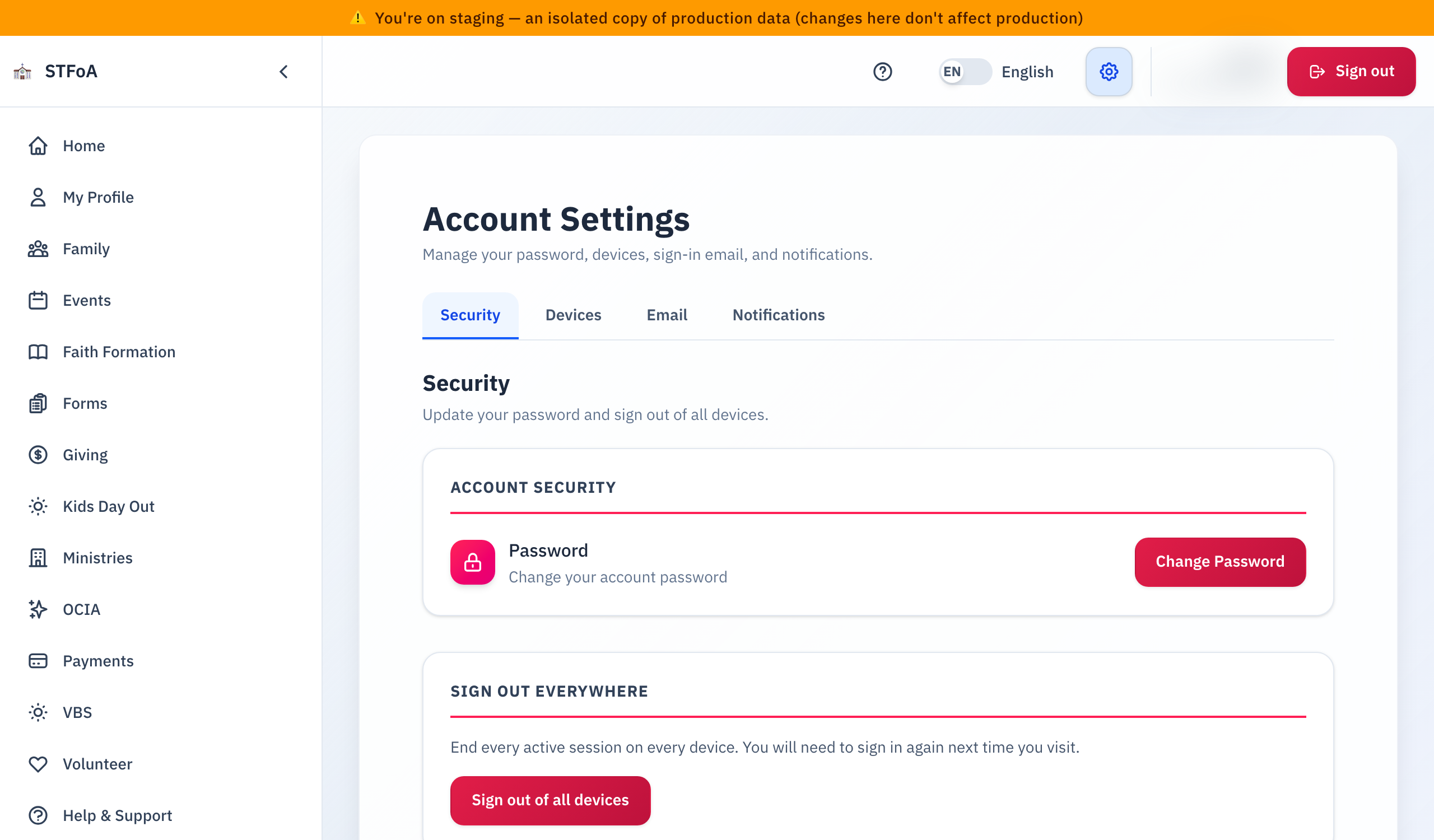
Sign out of all devices, in this guide, ends every session everywhere, right now. The separate Devices tab only lists devices where you checked Remember me when you signed in, and lets you remove one at a time. They do not show the same list.
2. Changing your password
- On the Account Security card, select Change Password.
- Enter your Current Password.
- Enter a New Password. As you type, a checklist below the box shows which rules you have met:
- At least 8 characters
- One uppercase letter
- One lowercase letter
- One number
- One special character
- Enter the same new password again in Confirm New Password.
- Select Update Password.
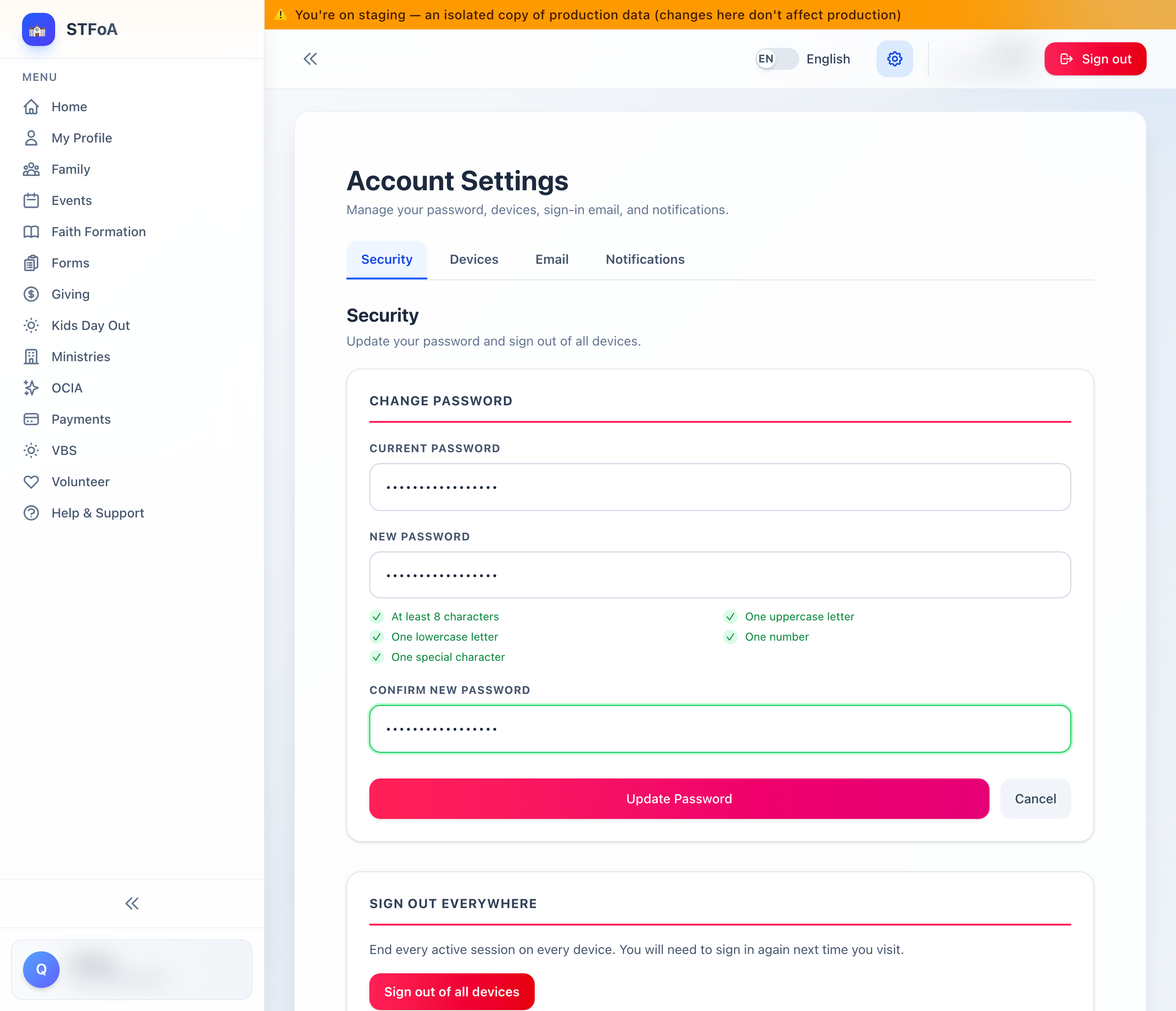
Update Password stays gray until your current password is filled in, every rule on the checklist is met, and both new-password boxes match.
If you signed in a while ago, a box titled Confirm your identity may appear instead of a saved change. This can happen even if you are still signed in — the parish asks for a fresh confirmation before it changes something as sensitive as your password.
Enter your password again, or select Email me a code instead to get a one-time code by email. Once you confirm, select Update Password again — the app does not resubmit for you. Your typed passwords stay in the boxes, so you do not need to retype them.
The moment your password changes, every device is signed out — this one too. After a few seconds you are sent back to the sign-in page. Sign back in with your new password.
3. Adding a passkey
A passkey lets you sign in with your fingerprint, your face, or a security key, instead of typing a password.
The Passkeys card only appears when your device supports it and the parish has turned passkeys on. If you do not see it, use your password to sign in instead.
- On the Passkeys card, optionally enter a Passkey name (up to 100 characters) — for example, "My iPhone".
- Select Add a passkey.
- Follow your device's own prompt — Touch ID, Face ID, Windows Hello, or a security key.
- A green message reads Passkey added successfully.
If you cancel your device's prompt, nothing happens — no error message appears. Select Add a passkey again whenever you want to try.
The Passkeys card also lists the passkeys on your account. Each row shows the passkey name and the date you added it. If you have none, the card reads You have no passkeys yet.
To remove a passkey:
- Find the passkey in the list.
- Select Remove.
- Confirm the question that appears. You can no longer sign in with that passkey.
- A green message reads Passkey removed.
If a red message reads Couldn't remove the passkey. Please try again., select Remove again.
When the portal offers a passkey
The portal can also offer a passkey without a visit to this page. It does this in two places:
- After you sign in with a password or a one-time code.
- On the home page, in a banner under the greeting.
The portal follows these rules on each device:
- It offers a passkey only if your device can use one.
- It never offers a passkey on a device that already has one.
- Maybe later (or Not now on the home page) hides the offer for 7 days. Then the offer can return.
- Don't ask me again stops the offer on that device.
- Adding a passkey stops the offer on that device.
You can always add a passkey from this page, whatever you chose before.
4. Signing out of every device
Use this when a device is lost, shared, or you just want a clean slate.
- On the Sign out everywhere card, select Sign out of all devices.
- A green message reads All devices were signed out.
A green message reads All devices were signed out. in place of the button.
Every session ends, including the one in front of you. The next thing you do on the site asks you to sign in again.
If a red message appears instead — Could not sign out all devices. Please try again. — select Sign out of all devices again.
5. Quick reference card
The whole thing, in five lines
- Select the gear icon, then Security, to reach this page.
- Select Change Password, fill in all three boxes, and meet every rule on the checklist.
- If a Confirm your identity box appears, confirm, then select Update Password again.
- Add or remove a passkey on the Passkeys card, if you see one — it may not appear on every device.
- Sign out of all devices ends every session immediately, including this one.
When to stop and ask
- The Confirm your identity box asks for something you don't have.
- Every rule on the password checklist is met, but Update Password stays gray.
- Remove on the Passkeys card shows a red message again and again.
Parish office — ask for the person who gave you this account.
Two rules
- Always enter your current password to change it — the form asks every time.
- Only select Sign out of all devices when you mean to end every session right now, including this one.
Thank you for keeping your account secure. A strong password, and the habit of signing out devices you no longer use, protect your family's records.