Signing In to the Parish Portal
St. Francis of Assisi Catholic Church · Member PortalHow to sign in to your account with your email address.
This guide is for anyone signing in to the parish portal — parishioners, registered guests, and any family member who shares a household email address.
The portal never confirms or denies whether an email address has an account. Asking for your email first — before your password or a code — keeps that answer private for every parishioner.
What you will do, in one sentence
Enter your email address, then your password or a one-time code, to reach your account.
Last verified against the staging system on 2026-10-20. Screens shown are the staging system (an isolated copy). The email addresses and names shown are invented QA fixtures, not real parishioners. Prepared 20 October 2026.
1. Where to sign in
Open the parish portal. If you are not already signed in, you land on the sign-in screen — the heading reads Welcome Back.
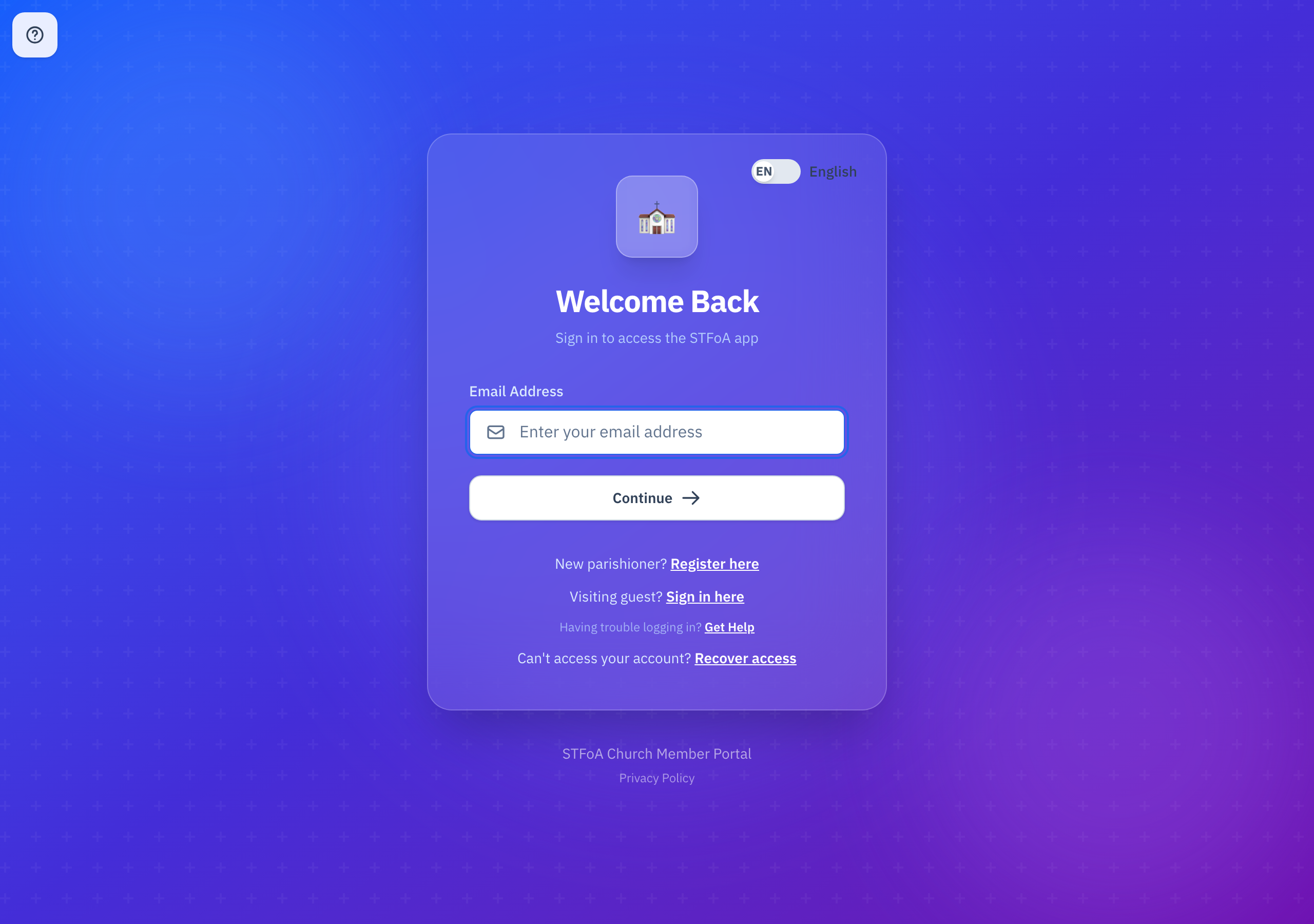
- Type your email address into Email Address.
- Select Continue.
Selecting Continue takes you to the next step whether or not that email has an account on the portal. This is on purpose — it keeps anyone else from learning who does and does not have a parish account. If the email turns out to have no account, you find that out only when you try to sign in.
Below the sign-in form, four links are always there:
- New parishioner? Register here — starts a new parish registration.
- Visiting guest? Sign in here — the sign-in path for a one-time or short-term guest account.
- Having trouble logging in? Get Help — opens a help request.
- Already registered? Recover your account — a self-service way back into your account, covered in its own guide.
2. Signing in with your password
After Continue, the screen shows your email address (with a Change link if you typed it wrong) and a password field.
- Type your password into Password. Select the eye icon to show or hide it while you type.
- Check Remember me on this device if this is your own device. It keeps you signed in for 14 days here, even after you close the browser. The box remembers your last choice on this device. Never check it on a shared or public computer.
- Select Sign in.
On a phone or computer with a fingerprint reader, face unlock, or a PIN, you may also see Use a passkey instead. Select it and follow your device's own prompt — no password needed. The passkey step also shows Remember me on this device. It works the same way as on the password screen.
Selecting Forgot your password? opens a reset request screen with your email address already filled in. Select Send Reset Link to email yourself a reset link, if that address has an account. Either way, the screen shows the same confirmation, for the same reason Continue always moves forward.
If sign-in does not go through, the screen explains why:
| What the screen says | What it means | What to do |
|---|---|---|
| "Your parish account has been deactivated." | Someone at the parish turned off your account. | Contact the parish office. You do not need to register again or reset your password. |
| "Your guest registration is not complete." | Your guest sign-up was never finished. | Select the link in the message to finish Guest Registration. |
| "We couldn't verify your account right now." | The portal cannot reach the service that checks your account. This is temporary. | Wait a moment, then try again. |
Typing the wrong password too many times locks the account for a while — see If you're locked out, below.
When many people sign in with a password from one network at the same time, for example on the parish Wi-Fi, the portal can ask you to wait a minute. Wait, then try again, or select Email me a code instead. A one-time code is not affected.
3. Signing in with a one-time code
Instead of a password, you can sign in with a one-time code sent to your email address. This is the only way guest accounts sign in — they have no password.
- On the password screen, select Email me a code instead.
- Select Send Code.
- Check your email for the code.
- Type the code into Enter Code.
- Select Verify & Sign in.
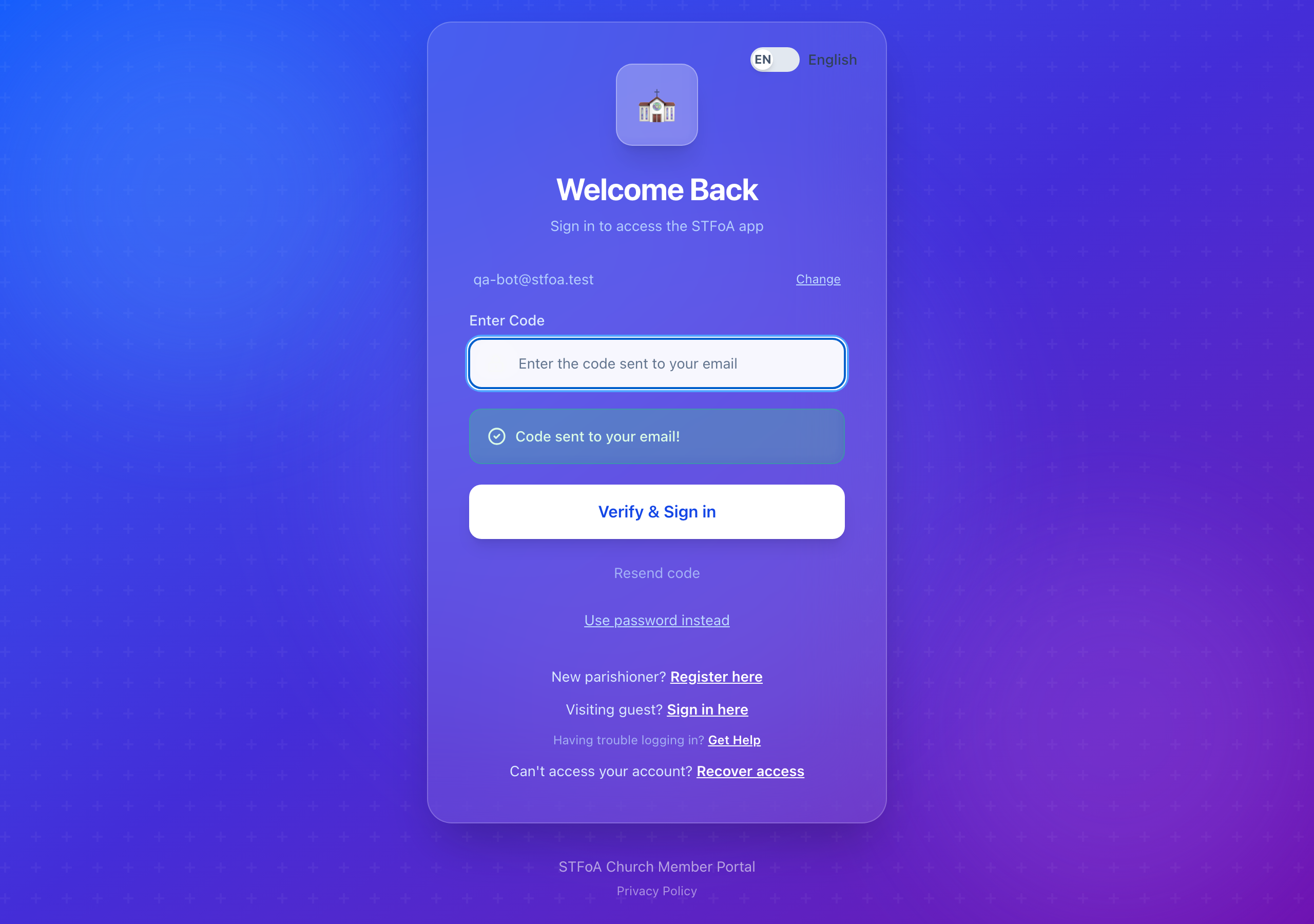
You can select Resend code if it does not arrive, but you must wait about 30 seconds between requests, and the portal sends at most 8 codes to one address in an hour. If you hit that limit, wait before asking for another.
Select Use password instead at any point to go back to the password screen. Select Change next to your email address to start over with a different address.
4. If more than one family member shares this email
Some households register more than one family member under the same email address. Once your password or code is accepted, the portal may ask Who's logging in? before it signs you in.
- Read the names on screen. Each one is a family member registered with this email address.
- Select your own name.
Selecting a name signs in as that person. If your name is missing, or a name you do not recognize is on the list, do not guess — go back and contact the parish office instead.
Select ← Back to login to return to the email screen without choosing anyone.
5. If you're locked out
Five unsuccessful sign-in attempts in a few minutes lock the account. A red banner appears at the top of the sign-in card with a countdown.
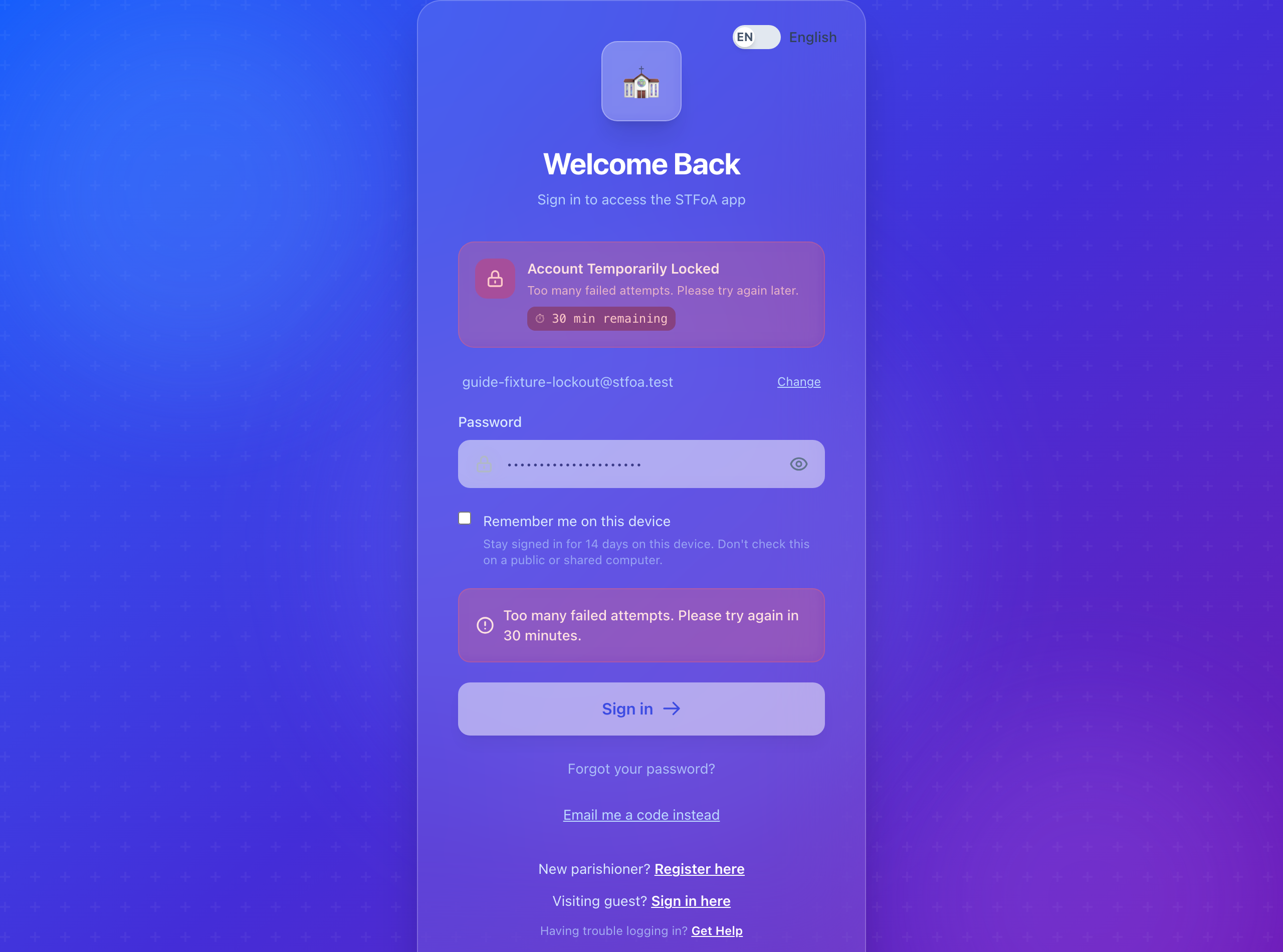
The first lockout lasts at least 15 minutes. If it happens again, the wait doubles each time, up to a maximum of one hour.
- Wait for the countdown to finish, then try again — or
- Select Forgot your password?, then Send Reset Link, and set a new password through the emailed link.
Setting a new password through the emailed reset link lets you sign in right away with it — you do not need to wait out the countdown first. The reset link itself also arrives immediately, even while you are still locked out.
This lockout applies to password sign-in. A one-time code that does not work does not lock your account the same way — request a fresh code instead.
6. What can go wrong
"Sign-out did not finish. Please try again."
You selected Sign out, and the portal could not end your session on the server. The portal does not show you as signed out, because your session may still be open.
- Select Sign out again.
- If the same message returns, close the browser tab. Do not leave a shared device until the message is gone.
- If it still fails, contact your parish office.
7. Quick reference card
The whole thing, in five lines
- Type your email address and select Continue — every email behaves the same way at this step.
- Sign in with your password, or select Email me a code instead.
- If more than one family member shares this email, pick your own name.
- Five wrong sign-ins lock the account for a while — wait it out, or ask for help.
- Forgot your password?, Get Help, and Recover your account are always at the bottom of the screen.
When to stop and ask
- You are locked out and cannot wait, or the countdown keeps resetting.
- The screen says your account is deactivated.
- The Who's logging in? screen does not list you, or lists someone who should not be there.
- A one-time code or a password reset email never arrives.
Parish office — contact them if you cannot sign in at all.
Two rules
- Never share your password or a one-time code with anyone, including parish staff.
- Only check Remember me on this device on your own device, never a shared or public one.
Thank you for keeping your account secure — a private password protects your whole family's information.