Submitting a Help Request
St. Francis of Assisi Catholic Church · Help & SupportHow to fill out and send a help request to the parish office, whether you have signed in or not.
Anyone who needs help with the parish portal or their account. You do not have to be signed in to use this form.
The category and description you choose route your request to the right person on staff, and the tracking number lets you check on it later without waiting for a reply email.
What you will do, in one sentence
Fill out the form, describe your issue, and send it — you get a tracking number to check on it later.
Last verified against the staging system on 2026-10-20. Screens shown are the staging system (an isolated copy). The name, email, and request text shown are invented training data, not a real parishioner. Prepared 20 October 2026.
1. Where to go
You do not need a parish portal account to send a help request.
- Not signed in? On the sign-in page, near the bottom, select Get Help next to Having trouble logging in?
- Already signed in? Open the sidebar and select Help & Support.
Both paths lead to the same form.
Already sent a request before? Near the top of the form, a box reads Already submitted a request? with a Track it here link. Select it instead of filling out this form again.
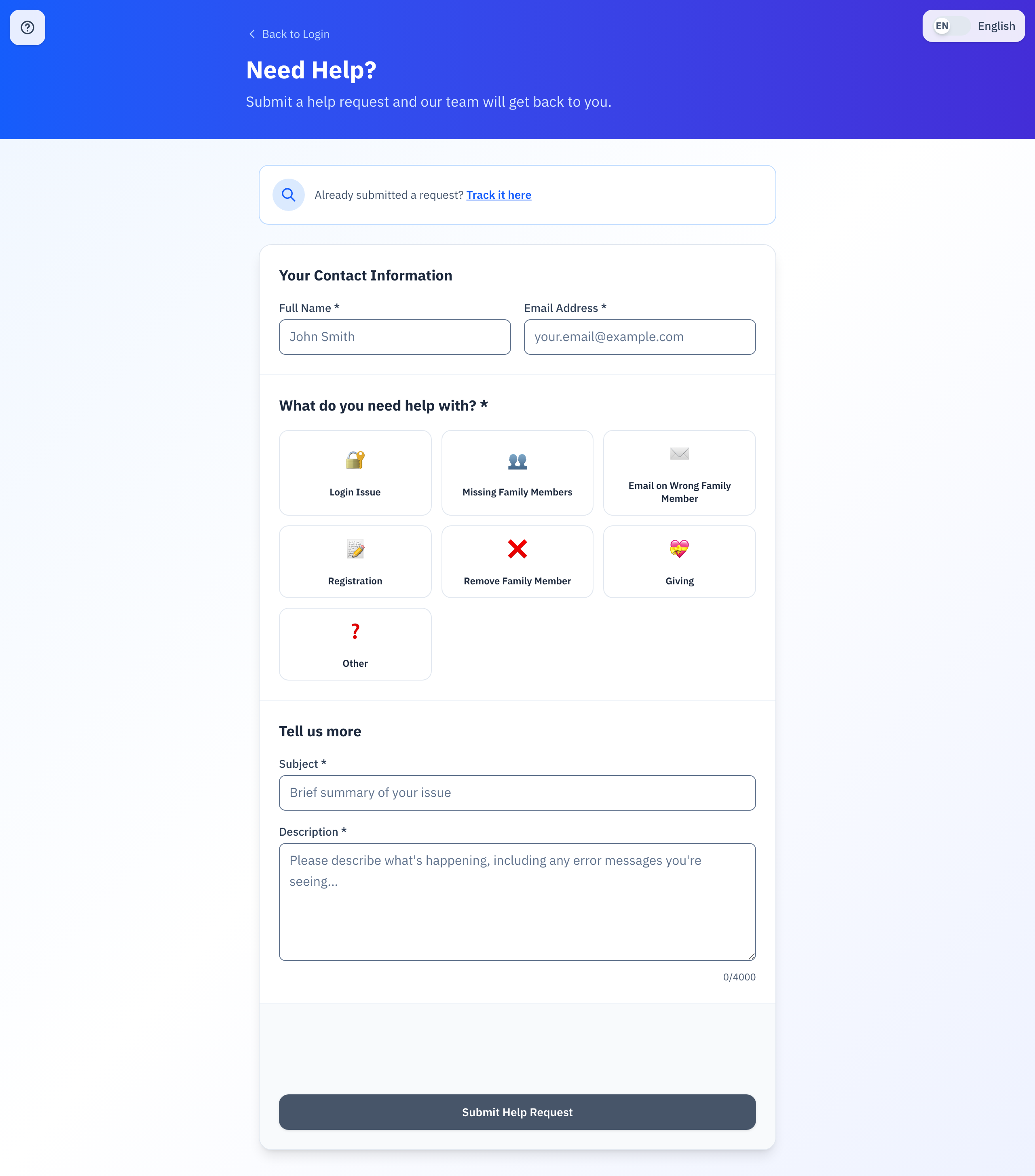
You can send a request without signing in. If you are signed in, your name and email address are already filled in for you, and there is no Back to Login link — everything else on the form is the same.
2. Filling out the form
The form has three parts.
Your Contact Information
- Full Name — up to 100 characters.
- Email Address — the address the parish should reply to.
What do you need help with?
Select one category. Use the arrow keys to move between them if you prefer the keyboard.
- 🔐 Login Issue
- 👥 Missing Family Members
- ✉️ Email on Wrong Family Member
- 📝 Registration
- ❌ Remove Family Member
- 💝 Giving
- ❓ Other
Tell us more
- Subject — a short summary, up to 200 characters.
- Description — what is happening, including any error message you see. Up to 4,000 characters. A running count shows under the box.
Last, complete the short security check above the button, then select Submit Help Request.
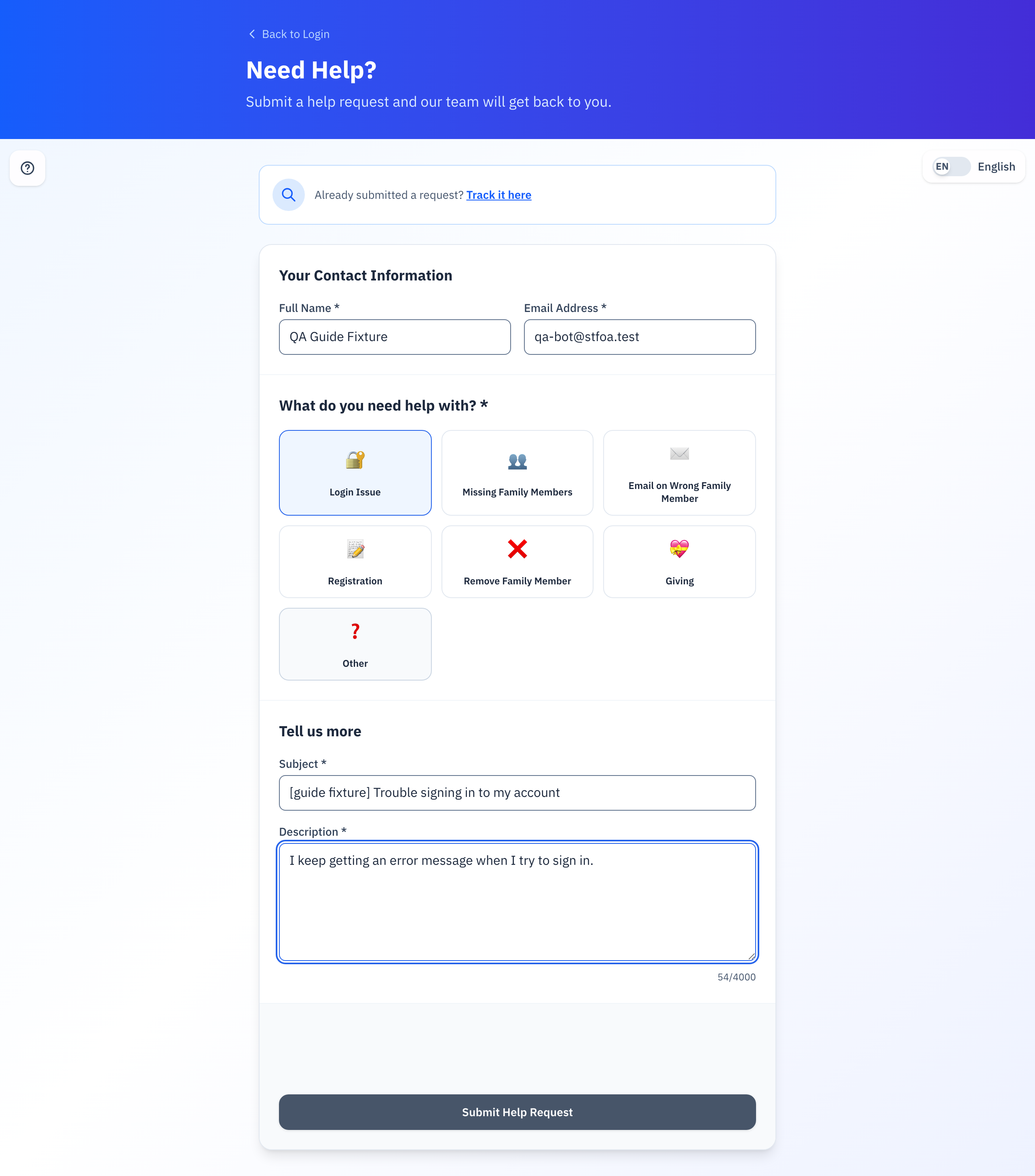
Full Name, Email Address, a category, Subject, and Description all need something in them. Leave one blank and select Submit Help Request, and the page shows what is missing under that field instead of sending anything.
If a link elsewhere on the site brought you here, your category or subject may already be filled in. Read it over and change anything before you send the request.
3. After you submit — your tracking number
Once every field is filled in, the security check is complete, and you select Submit Help Request, the page changes to a confirmation screen.
The confirmation screen shows:
- Request Submitted!, with a message that the parish will respond as soon as possible.
- Your Tracking Number, in a blue box, with a note to save it.
- A Track My Request button, and either View My Requests (if you are signed in) or Back to Login (if you are not).
The parish also emails you this same tracking number, but email can be delayed or land in a spam filter. Copy or write down the number on this screen so you are not stuck waiting on the email to check your request later.
Select Track My Request any time afterward to see whether the parish has replied.
4. Quick reference card
The whole thing, in five lines
- Get to the form from Get Help on the sign-in page, or Help & Support in the sidebar if you are signed in.
- Fill in your name, email, a category, a subject, and a description.
- Complete the security check, then select Submit Help Request.
- Copy the tracking number the confirmation screen shows you.
- Select Track My Request any time to check for a reply.
When to stop and ask
- The form will not send and keeps showing the same error.
- You never hear back and it has been several days.
- You lost your tracking number and the confirmation email never arrived.
Parish office — call or email the parish office and describe what you were trying to do.
Two rules
- Save your tracking number before you leave the confirmation screen.
- Pick the category that matches your issue best — it decides who on staff sees your request first.
Thank you for letting us know. Every request you send helps the parish office get you the right answer faster.