Checking on a Help Request You Already Sent
St. Francis of Assisi Catholic Church · Help & SupportHow to look up a help request you already sent, read the parish's reply, and send a follow-up.
You already sent a help request to the parish office and have a tracking number. You do not need to sign in to the parish portal to use this page.
Your tracking number and email together prove the request is yours. That lets you check on it and reply without signing in, while keeping it private from anyone else who might guess the tracking number alone.
What you will do, in one sentence
Enter your tracking number and email to see your request's status, read any reply from the parish, and send a follow-up.
Last verified against the staging system on 2026-10-20. Screens shown are the staging system (an isolated copy). The help request shown is an invented training record. Prepared 20 October 2026.
1. Where to go
You reach this page in one of three ways:
- Right after you submit a request, the confirmation screen shows a Track My Request link.
- The parish emails you a receipt the moment you submit, and again every time staff reply. Each email has a button that opens this page with your tracking number already filled in.
- From the Need Help? page, select Track it here if you already have a tracking number.
If the email link also carries your email address, the page looks up your request right away — you do not need to type anything. Either way, your email address never stays in the page's address bar: the app removes it right after the lookup, so it never sits in your browser history.
If you are not signed in to the parish portal, a back arrow at the top of the page returns you to the sign-in screen.
2. Looking up your request
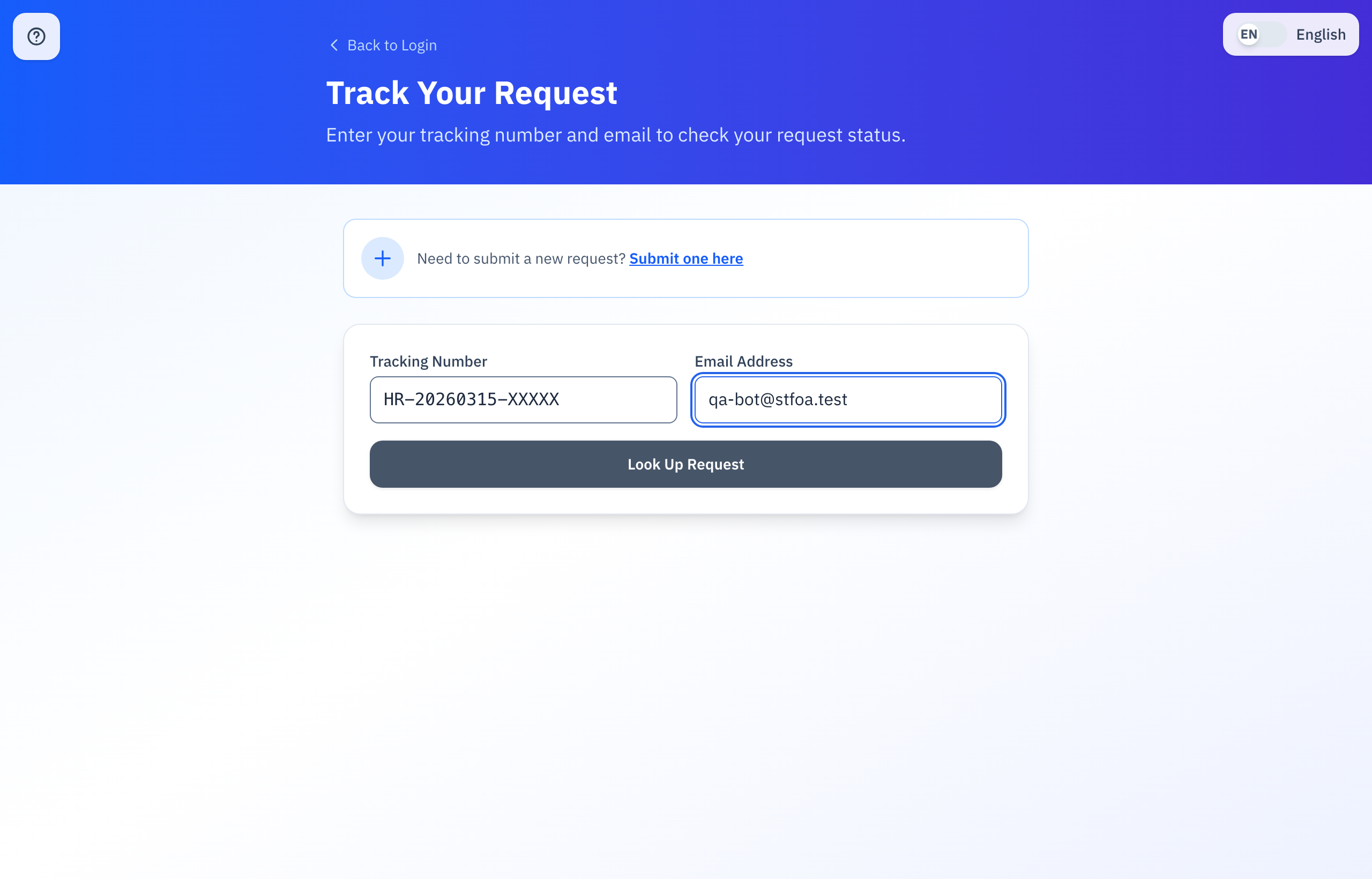
- Enter your Tracking Number. It looks like
HR-20260315-XXXXX. Letters you type are capitalized automatically. - Enter the Email Address you used when you sent the request.
- Select Look Up Request.
Both fields are required — leave either one blank and the page tells you before it even asks the parish.
If you are signed in to the parish portal, your own help requests are already listed above this form. Select one instead of typing anything, and the page looks it up for you.
If the tracking number and email do not match a request, the page says so and does not tell you which one is wrong — this keeps someone else's request private if they guess a tracking number that is not theirs.
3. Reading the parish's reply and sending a follow-up
Once your request is found, you see:
- Its subject, what it's about, and when you sent it.
- A status: New, In Progress, Awaiting User, Resolved, or Closed.
- The conversation so far, under Updates — every message the parish sent you, and every reply you sent back, each with its own date. A request with no reply yet says so.
If your request was Awaiting User or Resolved, sending a reply here puts it back to New on its own — you do not need to change anything else. The parish is notified as soon as you send it.
Below the conversation, on any request that is not Closed:
- Type your message in the reply box. It holds up to 4,000 characters, and a counter shows how much room you have left.
- Complete the short verification check that appears above the Send Reply button.
- Select Send Reply.
A green message confirms your reply went through, and the conversation above it updates to show it. If something goes wrong — the verification check did not complete, or the message was empty — a message explains what to fix, and you can try again.
Once the parish closes a request, the reply box disappears from this page and there is no way to reopen it here. If you still need help, submit a new request instead of trying to reply to the closed one.
4. Quick reference card
The whole thing, in five lines
- Open the link from your confirmation screen or email, or go to the Track page yourself.
- Enter your tracking number and email, then select Look Up Request.
- Read your status and any reply from the parish under Updates.
- If your request is still open, reply from the box below the conversation.
- A Closed request has no reply box — send a new request if you still need help.
When to stop and ask
- Your tracking number and email are correct, but the page still says it cannot find a match.
- The parish's reply does not answer what you actually asked.
- You need to reach the parish about something urgent and cannot wait for a reply here.
Parish office — call or visit if you need help before a reply arrives.
Two rules
- Keep your tracking number. You need it every time you come back to check on your request.
- Reply from this page, not by emailing the parish office directly, so your message lands on the same request.
Thank you for your patience. Every reply keeps your request moving toward an answer.