Recording Your Attendance With a QR Code
St. Francis of Assisi Catholic Church · Faith FormationHow to scan the meeting QR code, tap Check in, and see that your attendance was recorded.
You are a Faith Formation parent attending a parent meeting or training session. Sign in to your own parish account on the phone you scan with. You do not need any admin role for this page.
A QR scan replaces a paper sign-in sheet. It gives the parish an accurate count of who came to a meeting, without anyone needing to find your name on a clipboard at the door.
What you will do, in one sentence
Point your phone's camera at the meeting's QR code, tap Check in, and the page tells you whether your attendance was recorded.
Last verified against the staging system on 2026-10-09. Screens shown are the staging system (an isolated copy). The meeting shown is an invented training meeting. The signed-in name and email address in the page frame are blurred. Prepared 9 October 2026.
1. Scanning the code
The parish displays a QR code at the meeting for you to scan — printed on a sign, or shown on a screen at the check-in table.
- Open your phone's camera, or a QR scanner app.
- Point it at the meeting's QR code.
- Follow the link your camera shows you.
The link opens this page in your phone's browser. The page shows the meeting name and a Check in button. Your attendance is not recorded until you tap the button.
You must already be signed in to your parish account, on the phone you scan with. If you are signed out, the page cannot record your attendance and shows an error instead. Sign in to the parish portal first, then scan the code again.
Each code is tied to one meeting. It works on the meeting's own day, and the day before or the day after. A code you scan well before or after that window shows as invalid, even though it looks exactly the same.
2. Reading the confirmation
For a moment you see a spinner and the words "Checking your link…". The page then shows one of four screens.
Check in for the meeting
The page names the meeting and its date and time. It says Tap the button to record your attendance.
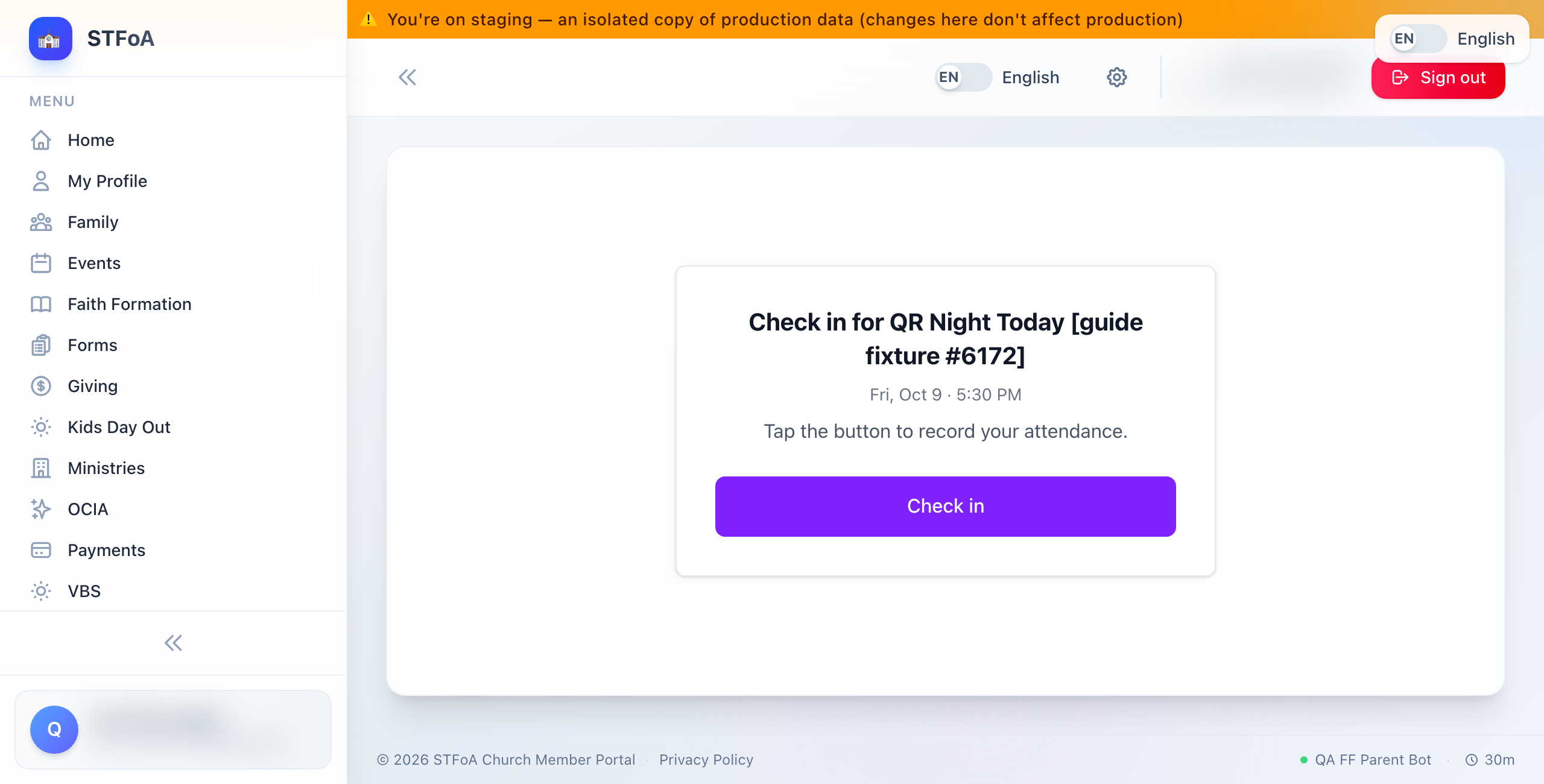
Tap Check in. A link scanner or a mail preview can open the link, but only your tap records your attendance.
Your attendance was recorded
A green box says Attendance Recorded! It tells you that you may close the page.
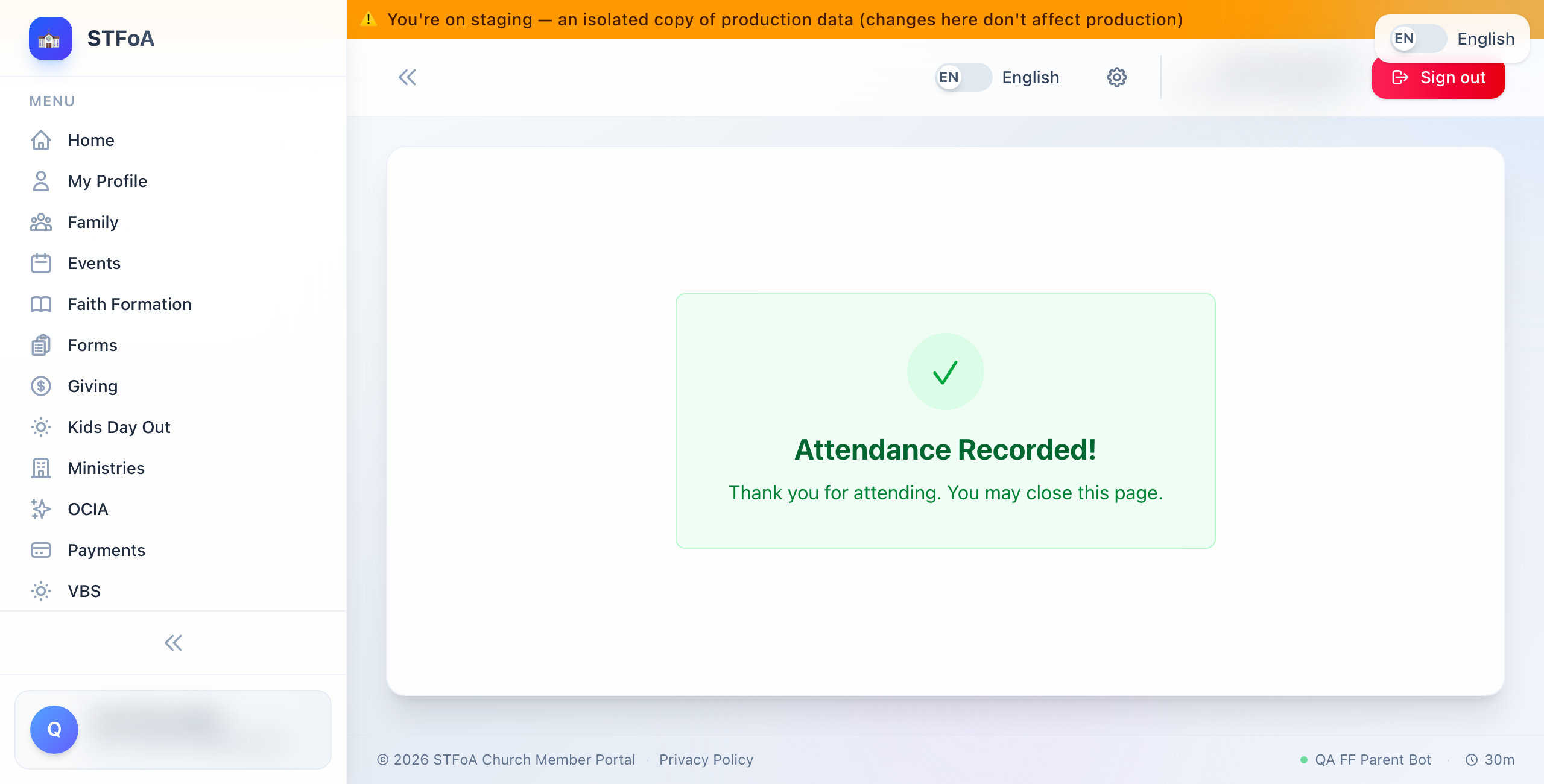
If you scan the same code again, the page shows You Are Already Checked In. Your attendance is recorded once, no matter how many times you scan the code.
Something went wrong
A red box names the problem in plain terms — for example, that the code is invalid or has expired. Select Try Again to reload the page and retry the same code.
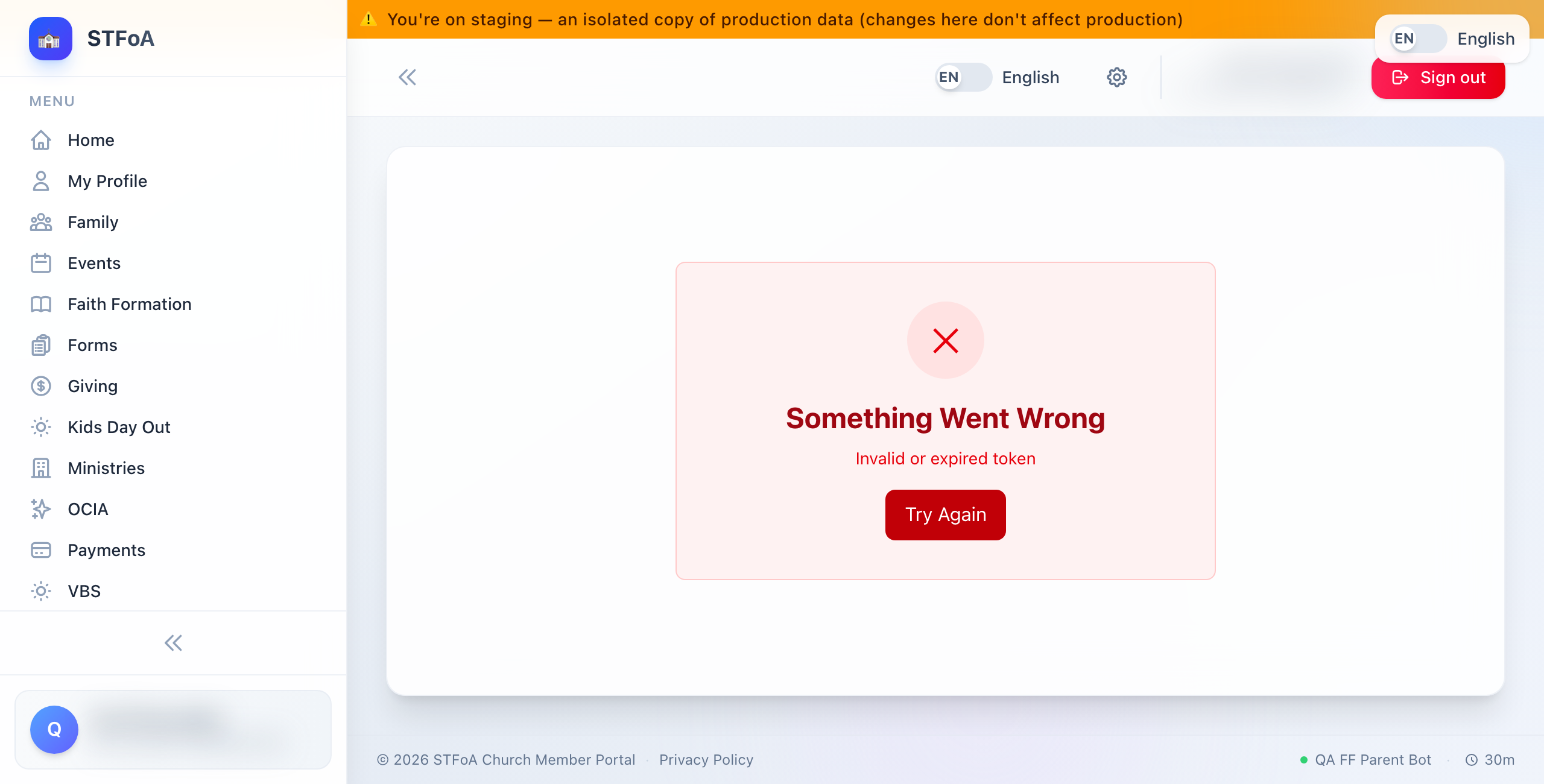
If Try Again does not help, the code may be outside its day window, or for a meeting the parish has since cancelled. Scan the code again from the meeting, or ask the parish office.
The link is missing its code
If the page opens with no code attached — from a bookmark, or a forwarded link with part of it cut off — you see an amber box telling you the link is missing a valid token.
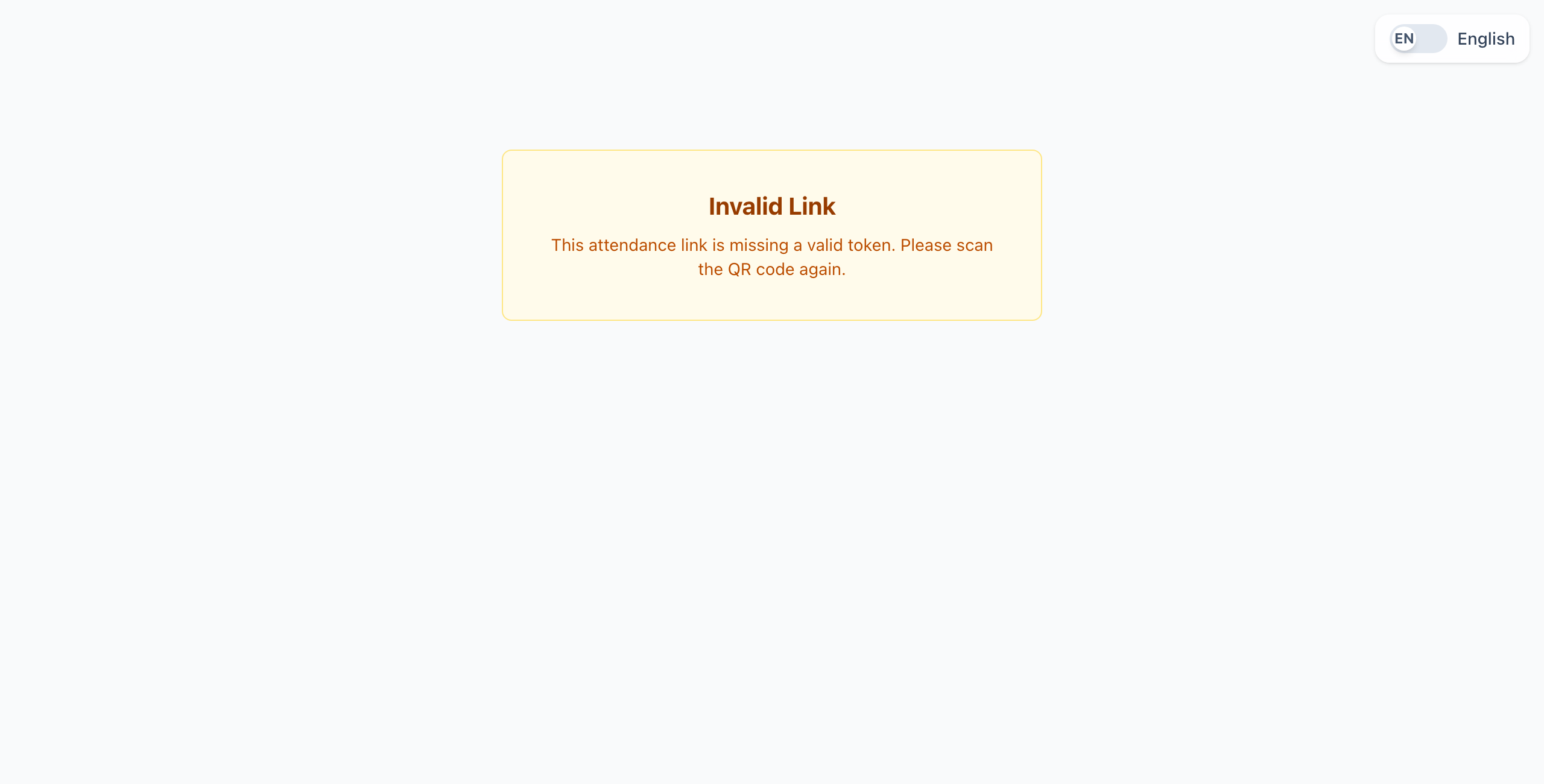
Scan the QR code again rather than reusing a saved link. Each meeting's code is only good for that one meeting, in that one window of days.
3. Quick reference card
The whole thing, in three lines
- Sign in on your phone, then scan the meeting's QR code.
- Tap Check in on the page that opens.
- A green box that reads Attendance Recorded! means it worked. You may close the page.
When to stop and ask
- The page keeps showing an error after you have signed in and tried again.
- You are sure you scanned the right code, on the right day, and it still says invalid.
- You need to confirm your attendance was recorded for a meeting from a past date.
Parish office — ask the person who runs Faith Formation to check the meeting record for you.
Two things to remember
- Scan close to the meeting date — a code that is too old or too new will not work.
- A second scan is safe. It never creates a duplicate and never causes an error.
Thank you for checking in. One scan is all the parish needs to know you were there.