Sending Your Child's Baptism Certificate
St. Francis of Assisi Catholic Church · Faith FormationHow to check whether the parish has your child's baptism certificate on file, and how to send a copy.
Any parent or guardian of a child registered in Faith Formation. You do not need to log in, and you do not need to be in the middle of registering — this page works any time of year.
A child cannot receive First Communion or Confirmation until the parish holds a validated copy of their baptism certificate. Send it as soon as you can to avoid a delay later.
What you will do, in one sentence
Look up your child by Student ID and last name, then upload a photo, scan, or PDF of the baptism certificate.
Last verified against the staging system on 2026-10-20. Screens shown are the staging system (an isolated copy of production). The child shown, "QA FFChildTwo," is an invented training record, not a real family. The red "For testing only" line under the security check belongs to the staging system. The live page does not show it. Prepared 20 October 2026.
1. Where to go
Go to <your parish app address>/faith-formation/baptism-cert in any web browser, on a
computer or a phone. You do not need to log in.
The page title is Faith Formation — Baptism Certificate.
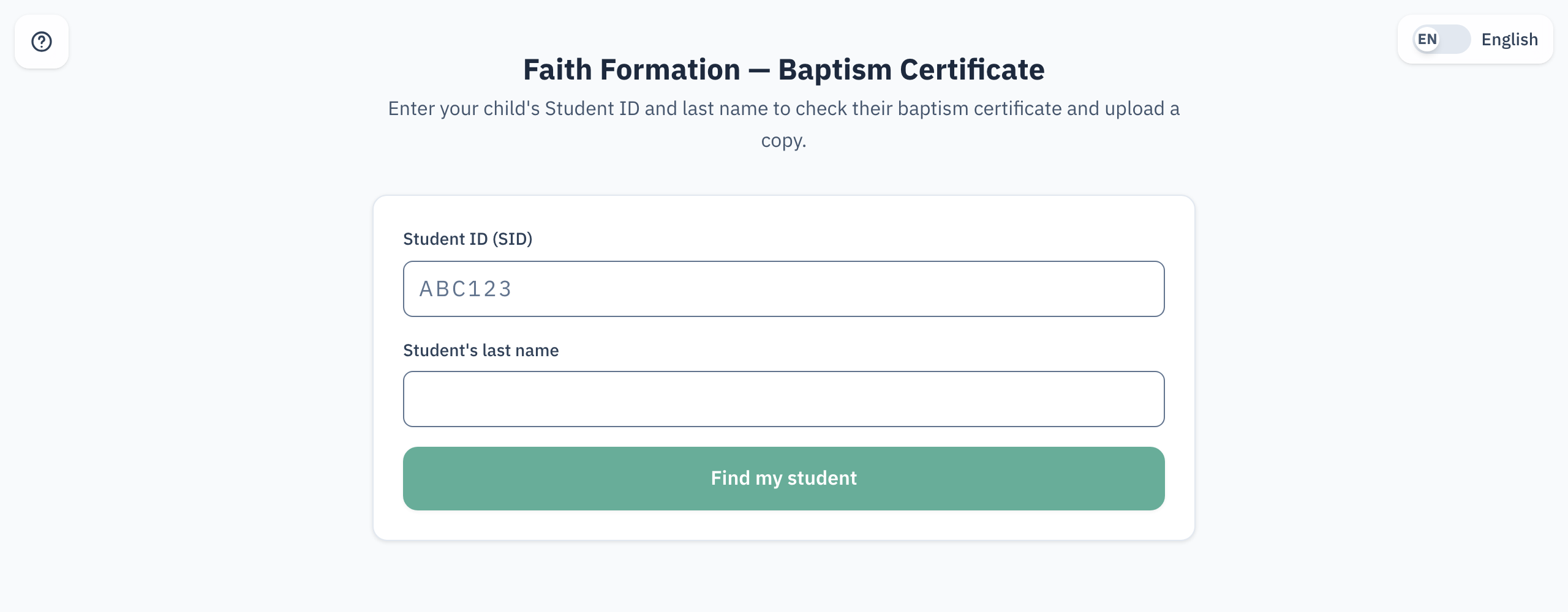
This page works whether or not your family is in the middle of registering for Faith Formation this year. If a certificate is already validated, the page says so and there is nothing more to do.
2. Looking up your child
You need two things: your child's Student ID (SID) and their last name. The
Student ID is on their registration confirmation or any letter from the
Faith Formation office — a short code such as QAFFP3.
- Type the Student ID into the first box. It is not case-sensitive.
- Type your child's last name into the second box.
- Select Find my student.
Check both boxes again, especially the last name — both must match exactly. If it still cannot find your child, contact the parish office at the email address that your parish gave you rather than trying many combinations.
3. Reading the status
Once the parish finds your child, a status card shows one of four states.
| Status | What it means |
|---|---|
| Not on file | The parish has never received a certificate for this child. Upload one. |
| Under review | Staff are checking a certificate the parish already received. No action is needed. |
| Validated | Staff checked and accepted the certificate. Nothing more is needed. |
| Invalid — new copy needed | The parish could not accept the certificate it received. Upload a new, complete copy. |
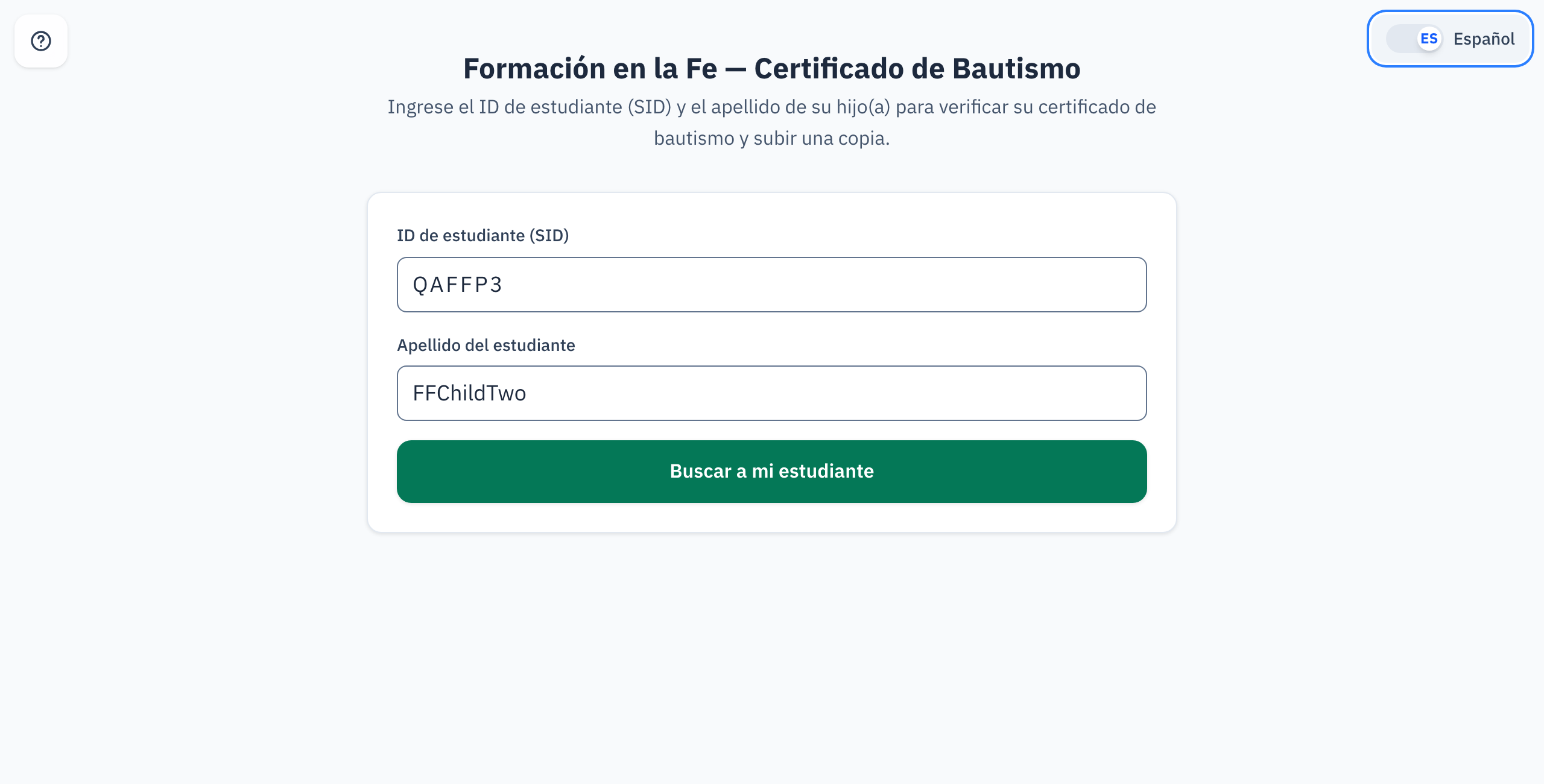
Select Look up another, at the top right of the card, to search for a different child.
If the status shows Validated, there is no upload button and nothing left to do. Send a question to the Faith Formation Office email address that your parish gave you instead.
4. Uploading the certificate
An upload button appears below the status card whenever the status is anything other than Validated.
- Wait for the security check above the button to finish. The button says "Preparing a secure upload" and stays grey until it does.
- Select Upload certificate (or Upload a new certificate if one is already on file).
- Choose a photo, scan, or PDF of the certificate from your phone or computer — up to 10 MB.
- Wait while it uploads. This can take up to 30 seconds while the parish reads the document — keep the page open.
Fit the entire document in the photo, right side up if possible, in good light and in focus. A cut-off corner or a blurred name is the most common reason a certificate cannot be accepted.
5. After you upload
A confirmation message appears once the upload finishes, and the status changes to Under review.
A staff member checks the certificate against parish records. You do not need to do anything else unless the office contacts you asking for a clearer copy. If the status still says "Under review" after a couple of weeks, check back on this page or contact the office.
6. Other ways to send a certificate
This page is not the only place to upload. The same requirement appears in two other places, and any of the three works equally well.
- During registration — the form for a new or returning child includes the same upload step, where the child's information is collected.
- On your family dashboard — once signed in, a baptism certificate card on your dashboard shows the same status and upload button for each of your children.
- From a Milestone 1 form — a First Communion or Confirmation Milestone 1 form shows the same status, and links to this page with the Student ID already filled in. You still type the last name yourself.
You only need to upload once per child — whichever of these places is easiest for you at the time.
7. Quick reference card
The whole job, in five steps
- Go to
<your parish app address>/faith-formation/baptism-cert— no login needed. - Type your child's Student ID and last name, then select Find my student.
- Read the status. If it says Validated, you are done.
- Otherwise, select Upload certificate and choose a clear photo, scan, or PDF of the whole document.
- Wait for the confirmation message. A staff member takes it from there.
When to contact the office instead
- The lookup cannot find your Student ID.
- Your child's status says "Invalid" more than once.
- You do not have a copy of the certificate and need help requesting one from the church where the baptism took place.
Faith Formation Office — use the email address that your parish gave you
Thank you for sending this in. It is one of the last steps before your child's sacrament.