Using Your Faith Formation Family Dashboard
St. Francis of Assisi Catholic Church · Faith FormationWhat each part of your Faith Formation dashboard shows, and what to do when something needs your attention.
You are the parent or guardian of a child registered in Faith Formation. Sign in and this dashboard is already yours — there is nothing to turn on.
You should always be able to see where your child stands and what your family owes without calling the parish office. This page brings that information together in one place.
What you will do, in one sentence
Check a child's enrollment status, see your family's balance, and read what the parish has sent you — all from one page.
Last verified against the staging system on 2026-10-20. Screens shown are the staging system (an isolated copy). The family and children shown belong to the Faith Formation parent test account, not real parishioners. Prepared 20 October 2026.
1. Opening your dashboard
- Sign in to the parish portal.
- Select Faith Formation from the menu.
The dashboard shows one card for each part of the program. You see these cards from top to bottom:
| Card | What it shows |
|---|---|
| Registration | The registration dates, and the Add Children button. |
| My Children | Each child, with status. |
| Attendance | Your overall attendance, and one percentage for each child. |
| Sacrament Preparation | First Communion and First Reconciliation preparation, and the baptism certificate upload. |
| Payments | What you still owe. |
| Parent Meetings | The next parent meeting. Select View All Meetings → for the full list. |
| What We Learned | Session summaries, after class. |
| Volunteer | A link to sign up as a volunteer. |
| Upcoming Events | Parish events, each with an Add to Calendar button. |
| Resources | Contact Us, and baptism certificate and Confirmation links. |
| Notifications | A link to your notification settings. |
Some cards appear only when they apply to your family.
The page checks that you are signed in first. If your session has expired, it sends you back to the sign-in page.
While your information loads, you see grey placeholder boxes for a few seconds. When your child's program year is active, the page shows its name and schedule at the top.
A red box with the message Something went wrong means the page could not load your information. Select Try Again to reload it. If the error keeps happening, contact the parish office.
2. Reading a child's status
The My Children card lists every child you have registered for the current program year.
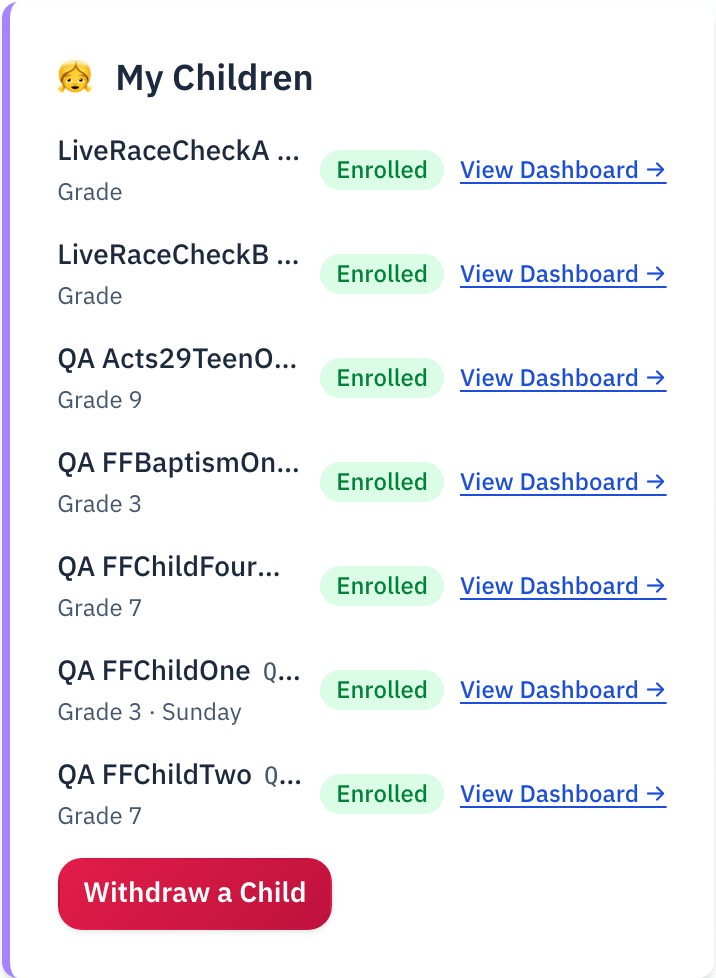
For each child, you see:
- Name, followed by a short Student ID code. The office uses this code for walk-in check-in — you do not need to do anything with it.
- Grade, and the day they attend, when the parish tracks one (for example, "Grade 3 · Sunday").
- A colored status word:
- Enrolled (green) — your child has a confirmed place.
- Waitlisted (amber) — the parish is holding your child for the next opening.
After the check-in desk checks your child in, the child's row shows Today's Pickup Code. The code stays there until your child is checked out. Give the code to the person at the pickup desk. The code is for one class day only, so do not save it for later.
If you have not registered any children yet, the card says so and points you to registration instead.
Select View Dashboard → next to a child's name to see their own page, with more detail on attendance and sacrament preparation.
Withdrawing a child
Below the list, Withdraw a Child starts the withdrawal process. Selecting a child asks you to confirm, in place, before anything changes.
Past payments are never refunded. If the child you withdraw is your only child in the program, any remaining payment plan installments are cancelled. If you have other children still enrolled, your family's payment plan continues for them.
3. Checking your balance
The Payments card on your dashboard shows either Paid in Full (green) or the amount you still owe. When you are on a payment plan, it also shows your next installment amount and date.
Select Payment History to see the full picture:
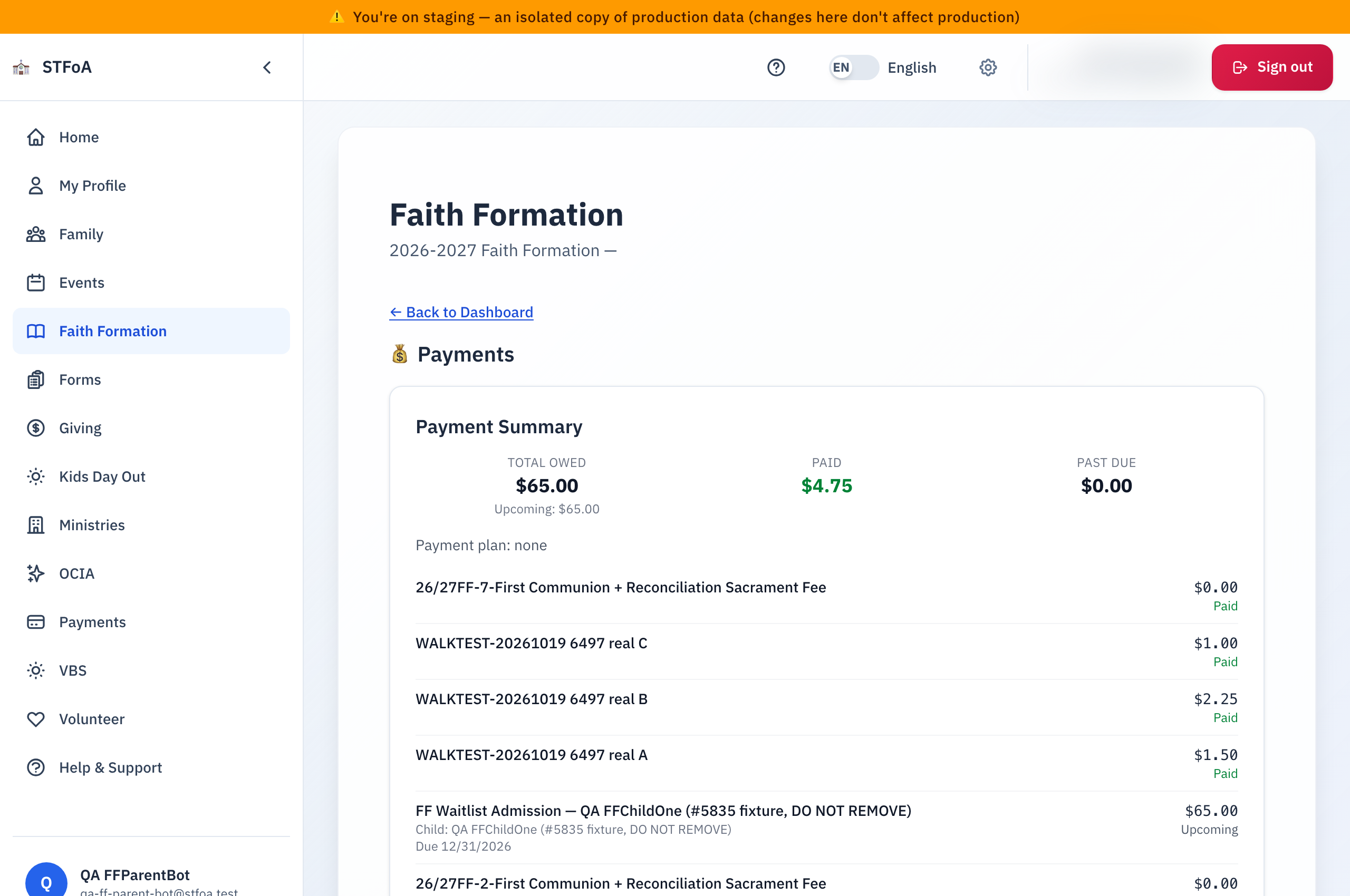
This view shows your Total Due, Paid, and Remaining, with a progress bar. If you are on a payment plan, it also shows how many of your scheduled payments have been made.
If you have more than one child in Faith Formation, one balance and one payment plan cover all of them together — not one balance per child.
When you owe money, a Make a Payment button takes you to the in-app payment page, where you choose to pay in full, start a payment plan, or ask about a scholarship.
If you are already on a payment plan, two more options can appear:
- Pay off the remaining $X — finishes the plan in one payment. Nothing further is charged after that.
- Update the card on this payment plan — swaps the card on file without cancelling the plan. Use this if your card is lost, closed, or reissued.
Selecting either option sends you to a secure Stripe page to enter your card, then brings you back to Faith Formation when you are done.
If your payment plan stopped
A payment plan stops when a scheduled payment does not go through and the card is not charged again. Your family still owes the rest of the plan. When this happens, the Payments card shows one button in place of the others:
- Pay the remaining $X — pays everything that is left in one payment. The amount is what the parish records show you still owe.
- Select Pay the remaining $X.
- Enter your card on the secure Stripe page.
- Wait for the page to bring you back to Faith Formation.
When the payment goes through, your registration is complete and your children are enrolled.
For a few days after a payment does not go through, the card is tried again on its own. During that time you see Update the card on this payment plan, not Pay the remaining $X. Update the card, and the plan continues. Paying a second way at the same time could charge you twice.
If the parish office sends you an email about the balance of your payment plan, its link opens this same dashboard.
4. Reading notifications
The Notifications card on your dashboard links to your notification settings and your message history. Select Manage Preferences → to open it.
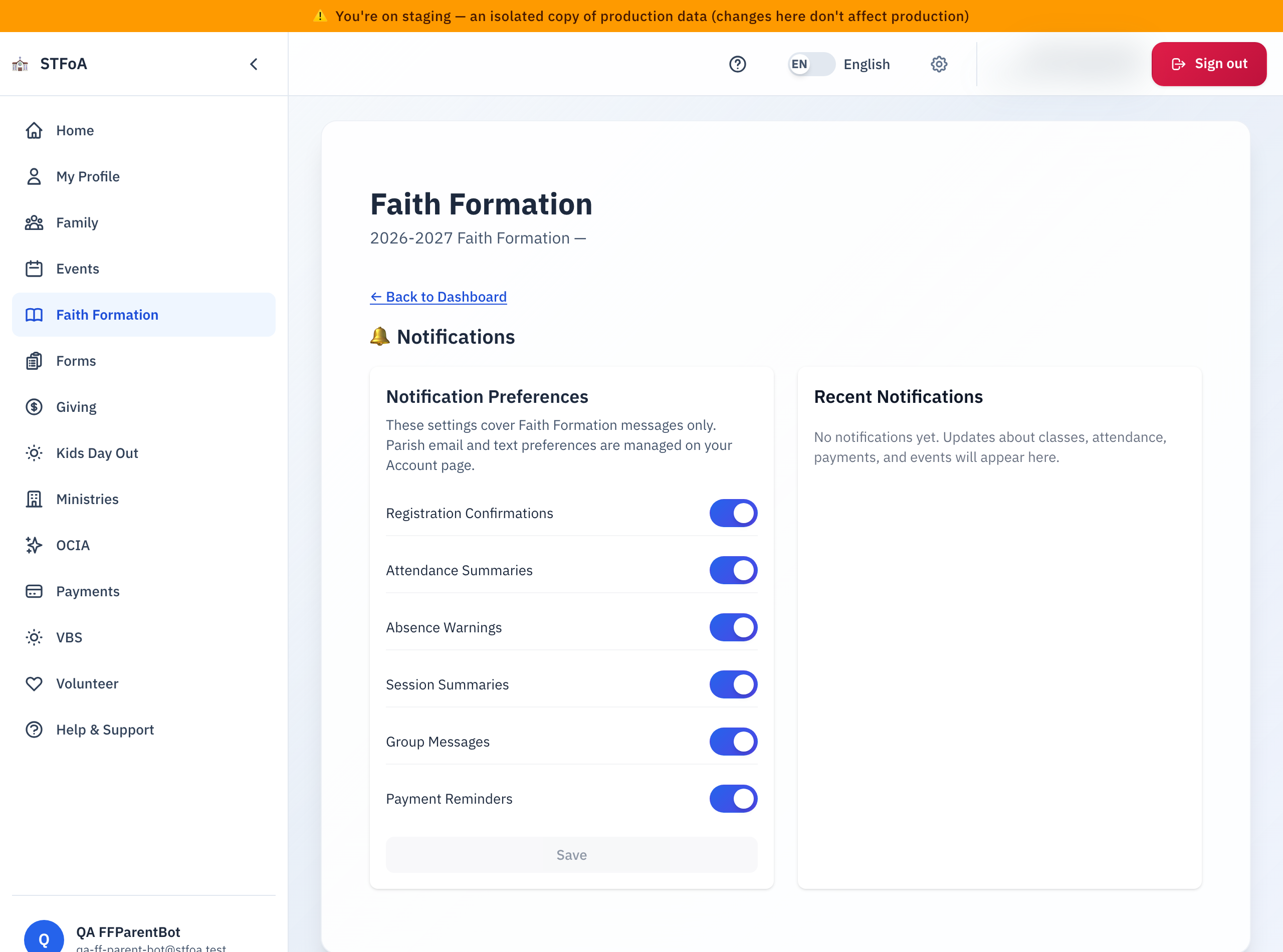
Notification Preferences (left) lets you turn each kind of Faith Formation message on or off:
- Registration Confirmations
- Attendance Summaries
- Absence Warnings
- Session Summaries
- Group Messages
- Payment Reminders
Flip any toggle, then select Save. The Save button stays greyed out until you change something.
Your parish-wide email and text preferences are managed on your Account page, not here.
Recent Notifications (right) lists the messages the parish has already sent you — an icon for email or text, the subject, and when it was sent. Until the parish sends you a message, this list says so.
5. Quick reference card
The whole thing, in four lines
- Open Faith Formation from the menu to see every enrolled or waitlisted child, your balance, and anything new.
- Enrolled means confirmed; Waitlisted means the parish is holding a spot.
- Your balance sits in the Payments card — select Payment History for the full picture.
- New messages sit under Notifications — select Manage Preferences to change what you receive.
When to stop and ask
- Your child's status looks wrong, or a payment you made is not reflected here.
- You want to withdraw a child and are not sure what happens to your family's payment plan.
- Your payment plan stopped and you see no Pay the remaining $X button.
Parish office — ask for the person who handles Faith Formation registration.
Thank you for keeping up with your family's Faith Formation dashboard. It helps the parish serve your children well.