Your Confirmation and First Communion Milestone
St. Francis of Assisi Catholic Church · Faith FormationHow to check your status, submit your forms, and pay the sacrament fee — no login required.
Any candidate, parent, or sponsor preparing for Confirmation or First Communion through the Youth milestone process. You do not need a parish portal account for any step in this guide.
The parish cannot schedule a Confirmation or First Communion until every required form is in and the sacrament fee is settled. This status page is the fastest way to see what is still missing.
What you will do, in one sentence
Look up your status with your Student ID and last name, submit whichever forms still say Not started, and pay the sacrament fee when you are ready.
Last verified against the staging system on 2026-10-19. Screens shown are the staging system (an isolated copy of production) with a sample record, Student ID QAFFP3. Every name in this guide is invented for training. The red "For testing only" line under the security check belongs to the staging system. The live page does not show it. Prepared 19 October 2026.
1. Before you start
Reach this page one of two ways: the parish emails or texts you a direct link, or you scan the QR code posted at the parish office or printed on your welcome letter. Either way, you do not need to sign in.
Your candidate's Student ID (SID) — a short code on the welcome letter or registration confirmation — and the candidate's last name.
If your candidate is preparing for both sacraments the same year, your status page shows two sections, one per sacrament. Each has its own forms and its own fee.
2. Looking up your status
- Open the link the parish sent you, or scan the posted QR code.
- Type the Student ID (SID) exactly as printed.
- Type the candidate's last name.
- Select Show my status.
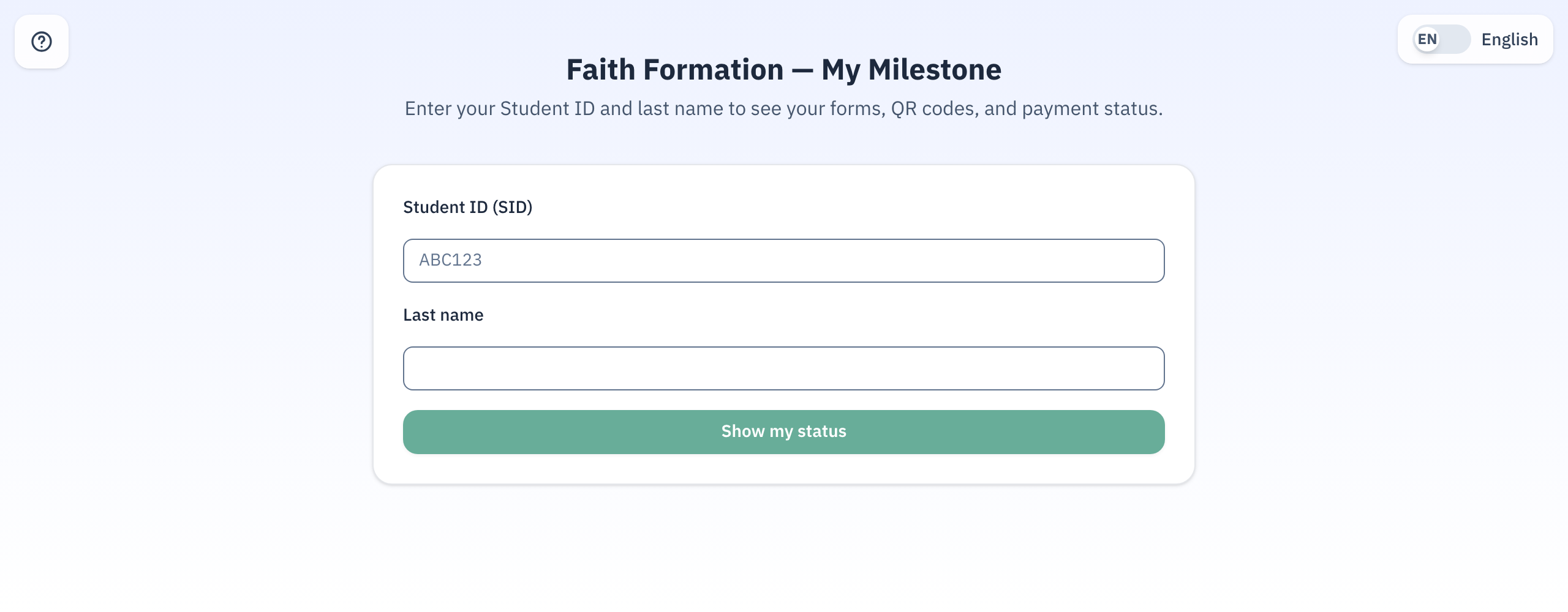
The SID and last name must match together. If you see an error, check the spelling on your welcome letter before you try again.
3. Reading your status page
Everything for your candidate is on one page: a baptism card at the top, then a card per sacrament.
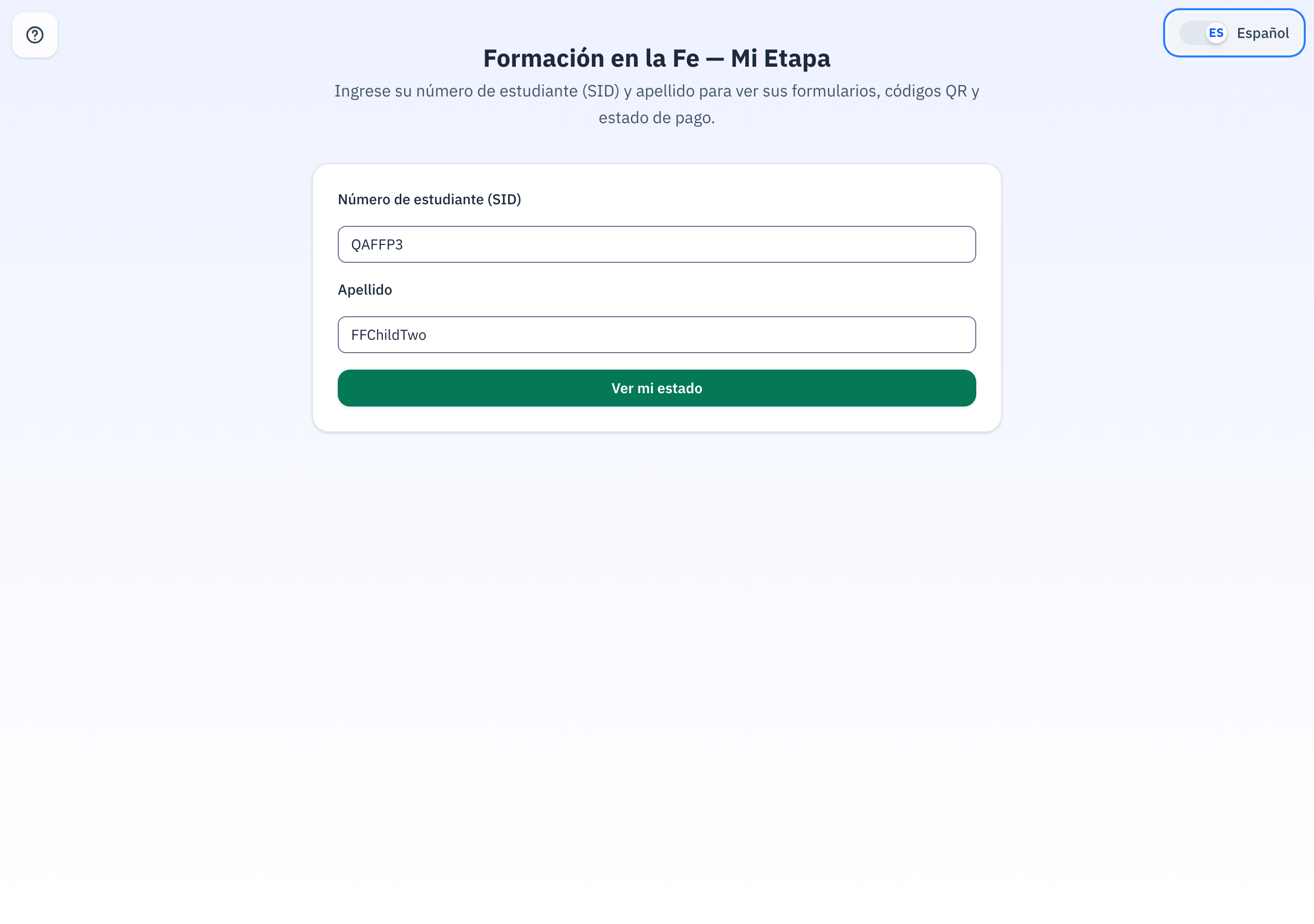
Select Look up another, at the top right, to search for a different candidate.
| Section | What it shows |
|---|---|
| Baptism record | Whether the parish has your baptism certificate on file. Every sacrament here needs it, so it sits at the top. |
| Candidate form | The form the person receiving the sacrament fills out. |
| Parent form | The form a parent or guardian fills out. |
| Sponsor form | Confirmation only — the form your Confirmation sponsor fills out. |
| Sacrament fee | The fee for that sacrament and what is still owed. |
Not started → Submitted — under review → Approved. A form becomes Approved only after the parish office reviews it. Submitting it is not the same as it being approved.
The Sacrament fee card carries its own three words:
| Fee status | What it means |
|---|---|
| Balance due | You still owe the amount on the Balance line. A Pay now button shows. |
| Paid | The fee is settled. There is no Pay now button. |
| Waived | The parish cancelled this fee. Do not pay it. |
4. Submitting the candidate, parent, and sponsor forms
A teen who needs both Confirmation and First Communion fills out ONE set of forms: the Confirmation forms. The status page shows the First Communion fee on its own card, with a note that the Confirmation forms cover it. Do not look for a second set of forms.
- Find the form card you need (Candidate, Parent, or Sponsor).
- Select Open / submit, or scan the small QR code beside it on a phone.
- Fill out the form completely and submit it.
- Return to your status page later to confirm it moved to In progress or Complete.
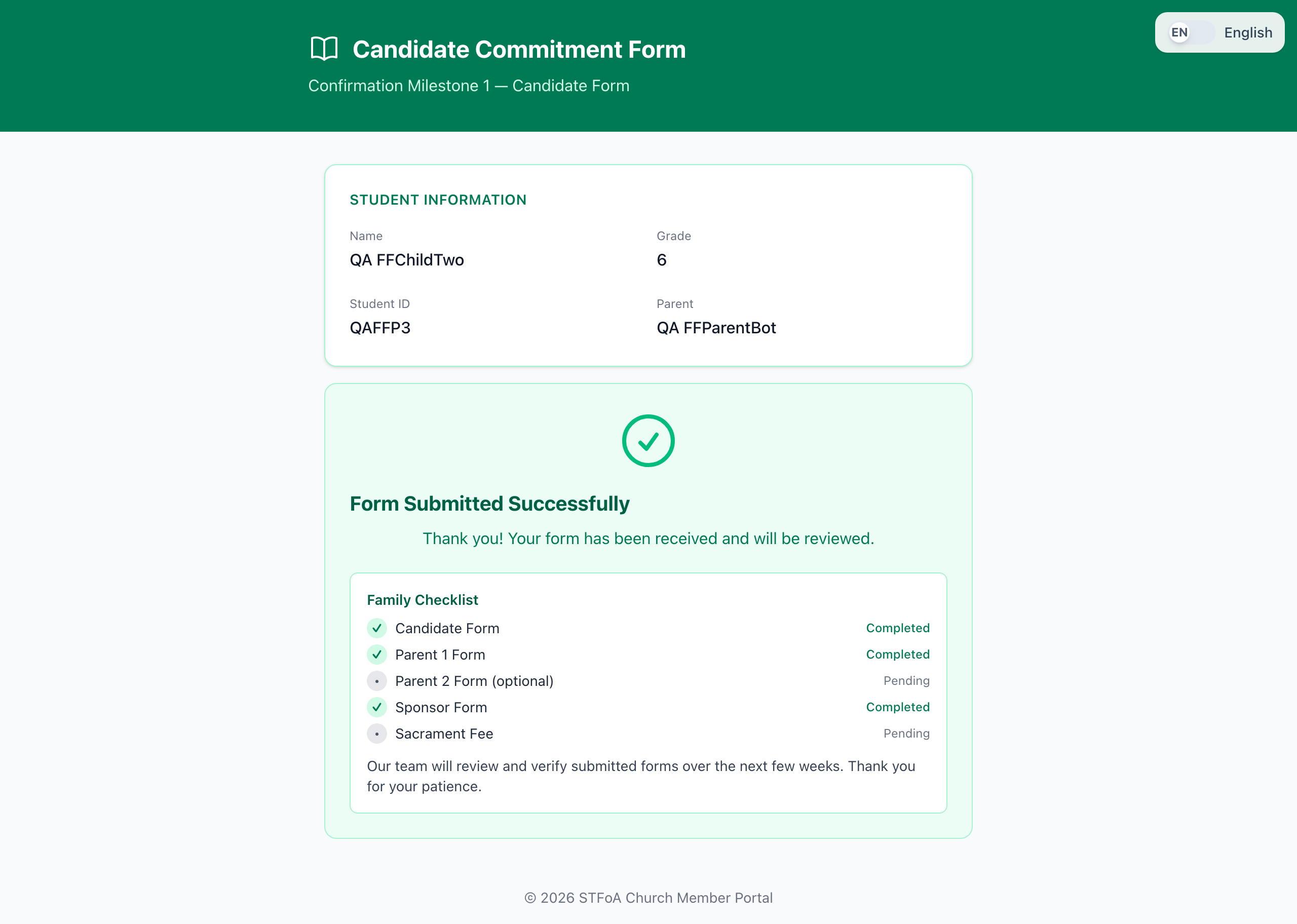
Every form opens the same way: student information at the top, then the form's own questions, then Submit. After you submit, the page shows the same Family Checklist shown above — every form's progress, in one place, so you do not have to return to the status page to see it.
If you do not see a Sponsor card, that is correct for First Communion — only Confirmation requires a sponsor.
One adult in your household must attend the Confirmation Parent Session before the Confirmation Parent form opens. The Parent Session is for the household, not for one child. When one adult completes it, it counts for every child in your household.
If your household has not done that yet, the form shows "Your household still needs the Parent Session." instead of the form itself. Below that note is a link to complete the Parent Session, or a link to the Faith Formation dashboard, where you sign in to book an in-person session.
If an adult attends an in-person Parent Session, it counts at once and the Parent form opens.
If your household completes the online make-up instead, the office reviews it first. Until the office approves it, your status reads "Pending makeup approval" and the Parent form stays closed. You do not need to do anything else; the form opens when the office approves.
If an adult attended and the form still does not open, contact the Faith Formation office. The office can record the session for your household.
This applies to the Confirmation Parent form only — it does not gate the Candidate form, the Sponsor form, or anything on First Communion.
5. Your baptism record
If the baptism card says Not submitted, wait for the security check to
finish, then select Upload certificate and send a photo or scan of the
certificate. The button stays grey until the check passes. This is the same upload used
everywhere else in the parish portal for baptism certificates — see the
Sending Your Child's Baptism Certificate guide for the full walkthrough
of what happens after you send it.
Upload the certificate once. It applies to both the Confirmation and First Communion sections on this same page.
6. Milestone 2 — choosing a saint
Milestone 2 opens only after the parish approves Milestone 1, the sacrament fee is paid, AND the parish hands out your Milestone 2 packet. Until then your status page does not show a Milestone 2 card. That is not an error. The parish will let you know when Milestone 2 opens.
When it opens, the candidate completes the form themselves. The form has two steps, and it asks for the project photo FIRST:
- Open your milestone status page. Enter your Student ID and your last name.
- Find the Milestone 2 card. Select it to open your form.
- Step 1 of 2 — attach a clear photo or scan of your finished project. You cannot continue until you attach a file.
- Select Continue to the questions.
- Step 2 of 2 — type the full name of the saint you have chosen.
- Say why this saint is meaningful to you.
- Under Additional discussion, choose the one answer that is true for you.
- Send the form.
Select Back to change your photo. Your answers stay as you typed them.
Parish staff read the project from the photo you send, so make sure the whole project is in the frame and the writing is easy to read. The form accepts a PDF, a Word file, a PNG or a JPG, up to 10 MB.
If you chose St. Francis of Assisi, St. Clare of Assisi or St. Jude, you must also speak with the Youth Director or the Youth Coordinator before the parish approves Milestone 2. The form asks you to choose one of three answers: you chose one of these saints and have completed the discussion; you chose one of these saints and still need the discussion; or you chose a different saint. Answer honestly — a staff member confirms the discussion separately.
Parish staff check the saint's name and may correct its spelling before they approve it. The corrected spelling is the one the parish keeps.
6a. Milestone 3 and later — answering the questions
Each later milestone opens the same way as Milestone 2. The parish approves the milestone before it, hands out the packet, and prints its label. Until then your status page does not show the card. That is not an error.
- Watch the video, and talk with your parents and your sponsor.
- Open your milestone status page. Enter your Student ID and your last name.
- Find the card for the milestone, for example Confirmation Milestone 3 - The Call. Select Open.
- Answer every question with a star (*). Each answer needs two or three sentences.
- Tick everyone who took part in the discussion.
- Select Submit my answers.
The form shows in the language of the page. Use the language switch at the top to answer in Spanish. If an answer is missing, the form marks the question and keeps everything you typed. After you submit, the card says Submitted, and your parents get an email with a copy of your answers.
7. Paying the sacrament fee
- Find the Sacrament fee card for the sacrament you are paying for.
- Check the Balance line — this is what you owe today.
- Select Pay now, or scan the QR code beside it.
- Complete payment on the secure payment page that opens.
If your candidate is on both tracks this year, Confirmation and First Communion each carry their own fee and their own balance. Paying one does not pay the other.
8. Quick reference card
The whole job, in five steps
- Open your link, or scan the posted QR code.
- Enter the Student ID and last name, then select Show my status.
- Upload the baptism certificate first, if it says Not submitted.
- Open and submit every form that says Not started.
- Pay each sacrament fee that shows a balance due.
When to contact the Faith Formation office
- Your Student ID and last name do not bring up a status page.
- A form or fee still shows as missing after you already submitted or paid it.
- You are not sure which sacrament your candidate is preparing for.
- You do not have a baptism certificate to upload.
Thank you for preparing your candidate for this sacrament — every form completed on time keeps their preparation on schedule.