Attendance — Parents, Kiosk Volunteers, and Class Leaders
St. Francis of Assisi Catholic Church · Faith FormationHow to RSVP and check into a parent meeting — at the door, or before you arrive — run the K-5 kiosk, and mark class attendance as a leader.
Three different people, in three chapters — the parent attending an informational meeting, the kiosk volunteer checking K-5 children in and out of class, and the class leader marking who is present. None of the three needs the admin role.
A generated roster is only useful once families, kiosk volunteers, and leaders actually check in on it. These three screens are how that happens without a separate login for anyone but the parent.
What you will do, in one sentence
Open your own screen — the family dashboard, a kiosk link, or a class link — and check in the person or child it is for.
Last verified against the staging system on 2026-10-11. Screens shown are the staging system (an isolated copy of production), signed in as an invented Faith Formation parent training account. Prepared 11 October 2026.
1. Before you start
- Parents sign in to the parish portal with their own family account and open Faith Formation from the dashboard.
- Kiosk volunteers need no account. The coordinator sends a link for the tablet or laptop at the check-in table; opening it is enough.
- Class leaders need no account either. The coordinator sends a link for that leader's class; it opens straight to the attendance screen for the current session.
Each link is tied to one group. Using the wrong room's link marks children present in the wrong class.
Each class has two different links
A class has two links, and they open two different screens. Ask the coordinator which one is yours before Sunday.
| The link | Where it opens | What you do there |
|---|---|---|
The kiosk link, printed as a QR sheet (/faith-formation/kiosk/…) | The parent kiosk at the classroom door | A parent searches for one child and checks that child in. The same screen checks the child out with the pickup code. |
The leader attendance link, copied from the group card (/faith-formation/attendance/…) | The class leader's roster | The leader marks each child present, excused, or absent, and can also check a child in and out against the same roster row. |
The coordinator decides which screen a class uses, by grade band:
- Pre-K to grade 5 classes use the kiosk at the door for check-in and check-out, and the leader marks the roster as well.
- Middle school and high school classes use the leader roster only. The kiosk finds no middle-school or high-school child, so the leader checks each child in and out from the roster itself (section 4).
The Print check-in sheet button prints the correct link for that class. For a Pre-K to grade 5 class it prints the kiosk link. For a middle-school or high-school class it prints the leader attendance link.
2. Parent: RSVP and check in to a meeting
From the family dashboard, open Faith Formation. The Parent Meetings card lists meetings open to your family's grade band, and links to the full Meetings tab.
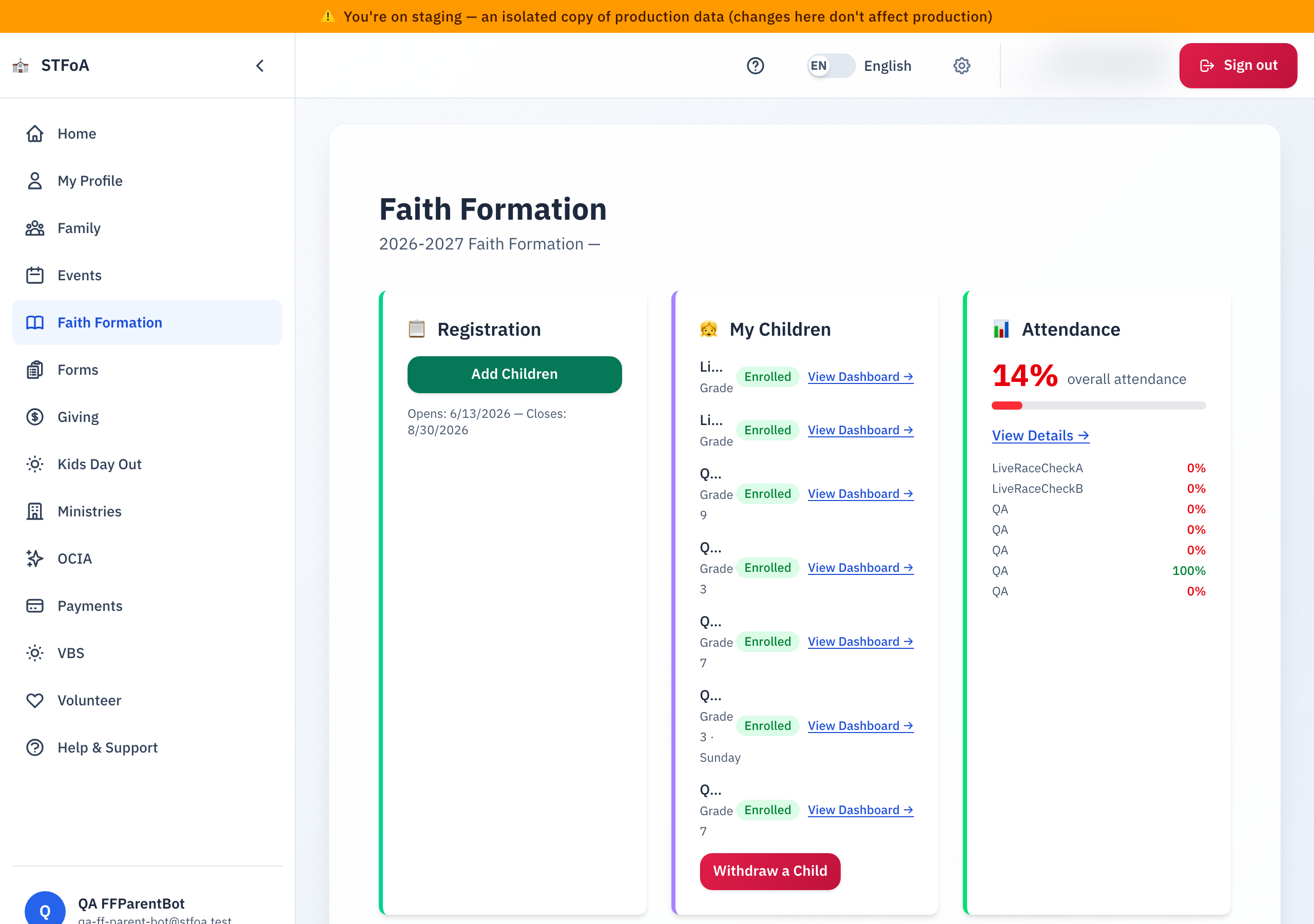
- From the dashboard, open the Faith Formation tile, or select View All Meetings on the Parent Meetings card.
- Meetings open to your family's grade band are listed with their date, time, and location. Select RSVP on the one you plan to attend.
- If the meeting has a capacity limit and is full, the RSVP button is replaced with a waitlist option.
- On the day of the meeting, check in either at the door (the coordinator or a volunteer scans a code) or from the same Meetings tab if a self-check-in link is offered.
- If the meeting is marked Required for Milestone, checking in satisfies that sacrament-prep requirement automatically — no extra step.
Scanning the code asks before it records
Opening the check-in link or scanning the code no longer checks you in on the spot. The page first shows you which meeting it is, with its day and time, and waits for you to confirm.
That order matters. A code stays on a poster after its meeting, and phones follow old links from a text message weeks later — so a page that recorded attendance the instant it loaded could mark you present at a meeting you were not at, or at last month's. Read the day and time on the screen before you confirm; if they are not the meeting you are at, close the page and ask the coordinator rather than confirming.
If the page says it cannot find the meeting, the link has expired or was mistyped. Nothing is recorded, and you can ask at the door.
An RSVP tells the parish you plan to come. Only checking in on the day counts toward a milestone requirement or an attendance record. If your plans change, checking in is what matters — an RSVP with no check-in does not meet a requirement.
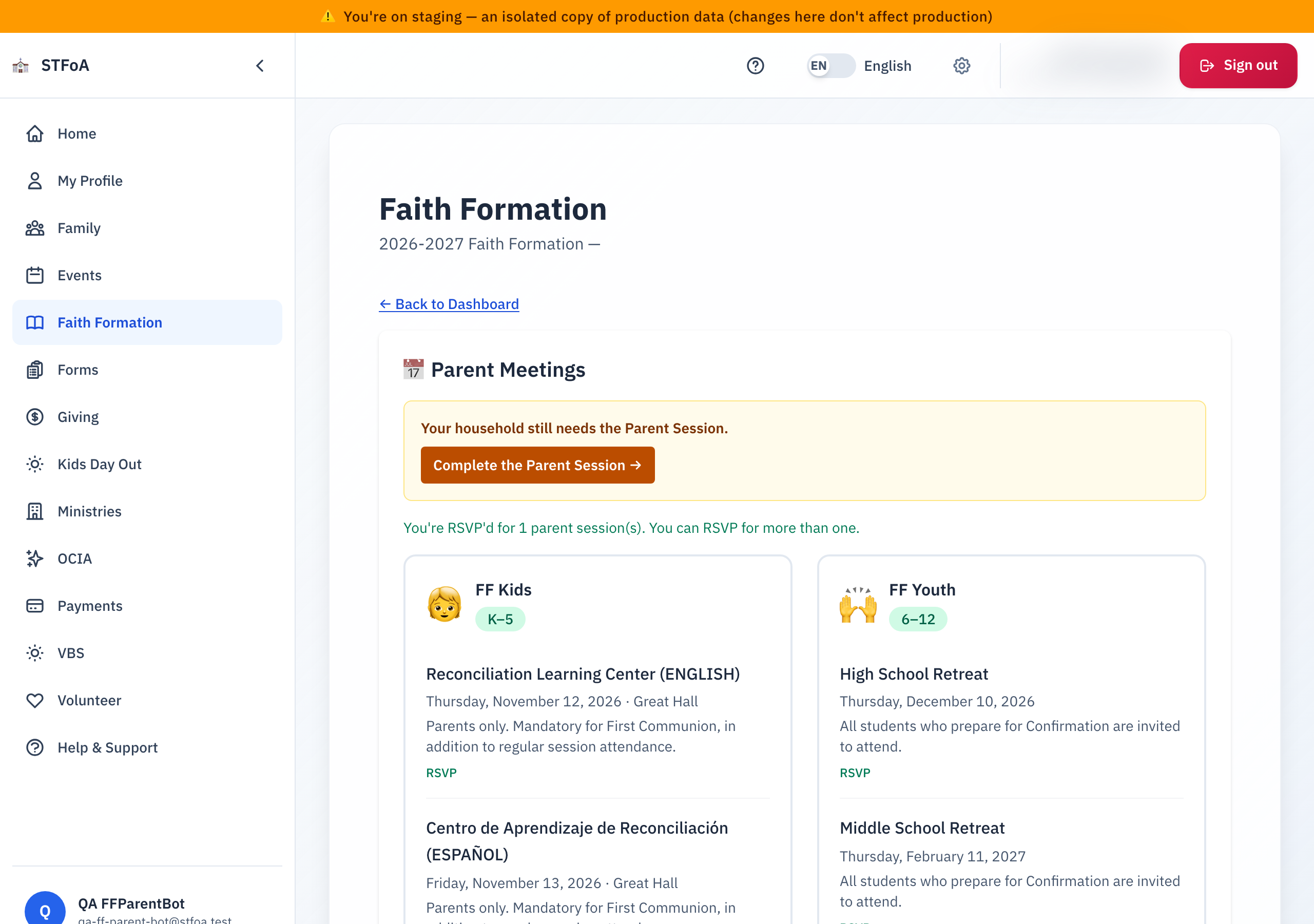
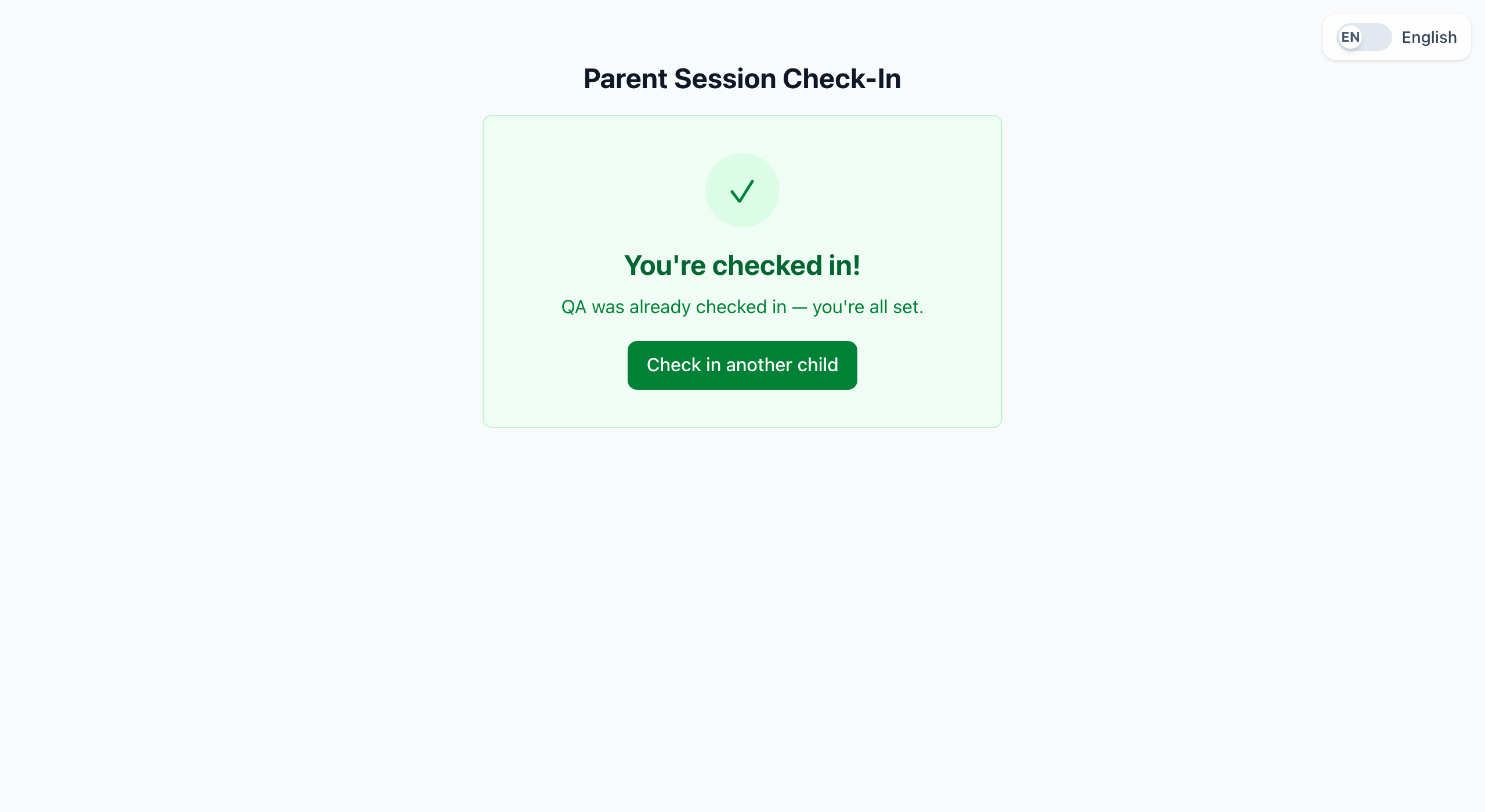
Check in before you arrive
The confirmation you get when you RSVP — by email and by text — carries a
check-in link: stfoa.link/ff-parent-checkin. Tap it before you leave home,
type your mobile number and your last name, pass the quick human check, and
you are checked in. One fewer thing to do at the door.
The link is the same one every time, for every meeting, so you can save it and reuse it. It writes nothing until you fill in the form — opening the link by itself never checks you in on its own.
If you missed the Parent Session
The parish would rather you came in person. If you have missed every in-person session this year, the online make-up that used to be here is gone — sign in to the Faith Formation dashboard and complete the Parent Session Commitment form instead. It asks a short question about the session and credits your whole household the same way, in one step.
- One household, once. Either parent may do it, and it counts for the whole family. You do not do it again for a second child.
- If you are not sure whether your household already owes this, contact the Faith Formation office — they can tell you what is on file for your family.
3. Kiosk volunteer: checking children in and out
The link the coordinator gives you opens straight to the kiosk screen — no sign-in. If attendance has not been generated yet for today's class (Admin Guide, section 3), the kiosk says so and will not let you check anyone in.
Checking a Child In or Out at the Class Kiosk covers every kiosk message, the combined-class case, and the staff-PIN override in full. Read it if you run the kiosk every week.
Checking a child in
- On the tablet or laptop at the door, open the link the coordinator gave you for this room. No sign-in is needed.
- Type the child's name or Student ID into the search box.
- Select the child from the results. The kiosk shows a confirmation card with the child's name and room. It does not show the pickup code.
- Tell the dropping-off parent to keep the pickup code. It is in the welcome email and in the parent portal. They need it to check the child out.
Checking a child out
The kiosk has no Check Out mode. You check a child out from the same search box you used to check them in.
- Type the child's name or Student ID into the search box.
- Select the child. A child who is already checked in today shows a green Check out pill instead of the arrow.
- The kiosk opens a pickup-code box under that child's own row.
- Ask the picking-up adult for the pickup code and type it in.
- Select Verify & Check Out. The kiosk shows a Checked Out! card with the child's name.
The pickup code belongs to the family
- One code covers every child in the family. The parish mints it once and the family keeps it. It is not a different code for each student.
- There is no student-facing code. A child is never given a code.
- The parent finds the code in the welcome email and as Today's Pickup Code on their Faith Formation dashboard. The kiosk never shows it.
- Check each sibling out on that sibling's own row. One check-out never releases the other children.
The code is the proof the kiosk has that the right person is picking up. If the adult cannot produce it, use the Forgot code? override below. Do not release the child on your own judgement.
When the adult forgets the code
The kiosk ships a staff override. Use it only when the pickup code is not available.
- Select Forgot code? under the pickup-code box.
- The kiosk shows the parent names on file, with the last four digits of their phone number. It never shows the code itself.
- Ask the adult to say their own name and those last four digits.
- Type the staff PIN and select Override check out.
The parish office holds one PIN for the whole parish. Never give it to a parent, and never write it where a parent can read it. Verify the adult by name and phone before you use it, because the release cannot be undone once the child leaves. If you do not have the PIN, call the parish office.
The parish tells the family and the staff about every override automatically. You do not need to call anyone yourself.
After about ten seconds of no activity, the kiosk clears the screen and is ready for the next family. You do not need to reset it by hand between children.
The group board's tools drawer always shows Leader attendance link, with its own Generate / Regenerate / Copy link / Print QR, for the class-leader roster in Section 4. A K-5 (Kids) group ALSO shows Parent check-in link — the kiosk link — underneath it. A leader must open the leader link first each day: that is what starts the day's class session. The kiosk alone cannot start it, so a K-5 class needs both links. A Youth (MS/HS) group shows the leader link only; it has no kiosk link to show.
4. Class leader: marking attendance
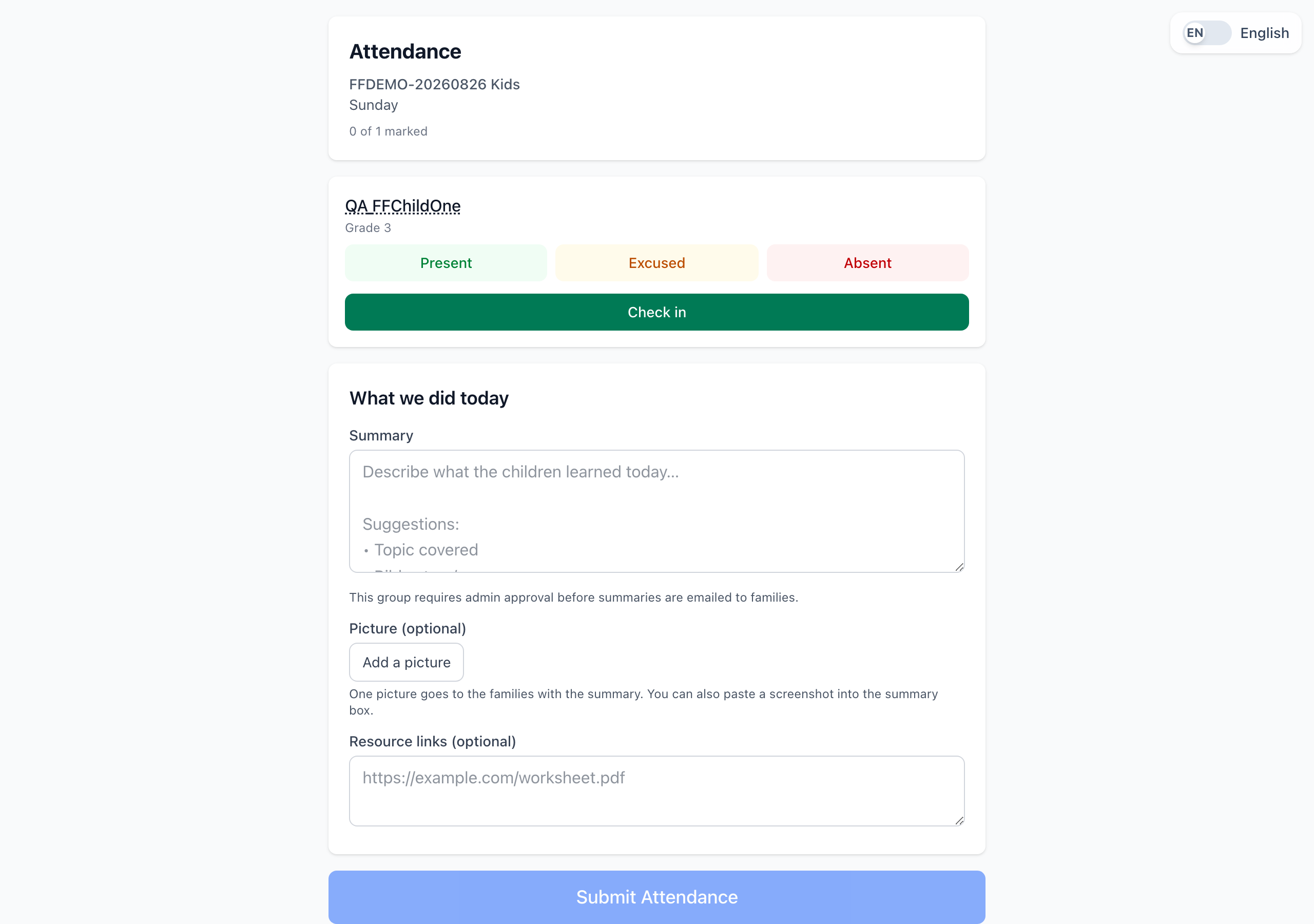
Nothing on this screen saves as you tap it. The page keeps your marks in the browser until you press Submit Attendance at the bottom. Close the page, reload it, or let the tablet sleep before you press it, and the whole class's attendance is lost.
The button stays grey until every child on the roster carries a mark. While one child is unmarked, the page says "Please mark attendance for all children before submitting."
A real class's roster shows real children's names the moment it opens, and loading it writes to the attendance record — the nightly code walk deliberately skips this screen for the identical reason. The picture above is "FFDEMO-20260826 Kids," a QA-only training class with one QA training child.
- Open the link the coordinator gave you for your class. It opens directly to the current session's roster. Above the roster, an amber box titled Staff override PIN shows the PIN for your class. Use it only to check a child out when the parent has no pickup code. It works for this class only. Do not share it with parents. If the box says the PIN is not available, ask the Faith Formation office. The picture above does not show this box yet. The coordinator must have generated attendance for the day first (see the Admin Guide, section 3), or the roster will be empty.
- Mark each child Present, Absent, or Excused. Mark every child, including the ones the kiosk checked in.
- For a Pre-K to grade 5 class, the roster shows Checked in and Picked up times beside a child the kiosk handled. Use them to see who a parent already collected.
- Write the session summary if your class keeps one. The parish office approves it before parents read it. To add a picture, select Add a picture under the summary. You can attach one picture, or paste a screenshot into the summary box. The phone makes a smaller copy before it uploads, and the parish removes all camera data (such as the GPS position) from the picture. The office sees the picture when it approves the summary, and families get it with the summary.
- Press Submit Attendance. Wait for the page to confirm it.
Attendance has not been generated for today's date yet. Ask the coordinator to generate it (Admin Guide, section 3) rather than trying to add children yourself — the leader screen cannot create a roster, only mark one that already exists.
Your class staff PIN
The roster page shows a Staff override PIN box near the top. The PIN works for your class only. Use it only to check a child out when the parent has no pickup code. Do not share it with parents. If the box says "The PIN is not available now. Ask the Faith Formation office.", ask the office.
Checking a child in or out from the roster
Every child's row also carries its own Check in and Check out button, next to Present, Excused, and Absent. A middle school or high school class has no kiosk, so the roster is the only way to check a child in or out. A Pre-K to grade 5 class can use it too, for a child the kiosk did not check in.
- Select Check in on the child's row. The row shows a pickup code.
- Give the pickup code to the adult who dropped the child off. The parish gives one code to the whole family, the same code the kiosk uses.
- When the family returns, select Check out on the same row.
- Type the family's pickup code and select Verify & Check Out. Spaces, dashes and small letters do not matter: "abc def" is the same code as "ABCDEF".
The roster tells you why a check-out failed, not only that it failed.
| The roster says | What it means | What you do |
|---|---|---|
| "That pickup code is not correct. Please try again." | The code itself is wrong. | Ask the family to check the code and try again. |
| "This child has not been checked in yet, so they cannot be checked out." | The code is correct, but nobody checked this child in today. | Check the child in first, then check them out. |
| "That code is correct, but this child is in another classroom today. Please check with the front desk." | The code is correct, but the child checked in somewhere else. | Send the family to the front desk. Do not use the staff PIN to work around this. |
| "That code is not for this child. Make sure that you opened the correct child, then try again." | The code belongs to a different child in this class. Nobody was checked out. | Open the row of the child the adult came for, and type the code there. |
Only the first row means the code is actually wrong. The other rows mean the code is fine — do not tell the family to re-enter it.
| The roster says | What you do |
|---|---|
| "This leader link has expired or was replaced. Ask the Faith Formation office for the new link, then open it again." | Ask the parish office for the new leader link, then open it. |
| "There were too many tries in a short time. Wait a few minutes, then try again." | Wait a few minutes. Then try again. |
| "The app could not reach the server. Check the internet connection, then try again." | Check the Wi-Fi or mobile data on your device. Then try again. |
If the family does not have the pickup code, select Forgot code? under the code box.
- The roster shows the parent names on file, with the last four digits of their phone number. It never shows the code itself.
- Ask the adult to say their own name and those last four digits.
- Type the staff PIN and select Override check out.
Never give the staff PIN to a parent, and never write it where a parent can read it. Verify the adult by name and phone before you use it, because the release cannot be undone once the child leaves.
Calling a child's parent
Tap the child's name on the roster. A small window shows the name and the phone number of each parent on file. Tap a phone number to call it. Tap Close to go back to the roster.
The window shows phone numbers from 30 minutes before class starts until 1 hour after class ends. At any other time it tells you so and shows no number. It never shows an email address or a home address.
A visiting student who is not on your roster
A middle school or high school leader roster carries a Student not listed here? panel below the class list. Use it for a student who showed up in the wrong room, or who is not on any roster today.
- Type the student's Student ID (SID) and select the lookup button.
- Read the student's name, grade, and current group assignments.
- Select Move to <your class> and Mark Present. This moves the student onto your roster and marks them present in one step.
If the student already belongs to another class, the panel says "This student belongs to another class. Send them to the Welcome Table." Do not move that student yourself.
This panel does not appear on a Pre-K to grade 5 roster. Those classes run through the kiosk, and a K-5 leader who needs to add a visiting child does so at the kiosk instead.
5. Quick reference card
| You are… | Do this |
|---|---|
| A parent | Family dashboard → Faith Formation → Meetings → RSVP, then check in on the day (at the door, or with the link in your confirmation). |
| A kiosk volunteer | Open your room's kiosk link → search the child → check them in → search the same child again and type the family's pickup code to check them out. |
| A class leader | Open your class's leader attendance link → mark every child Present / Absent / Excused → check children in and out from the roster if your class has no kiosk → press Submit Attendance. |
Three things staff get wrong
- The pickup code is the family's, not the student's. One code covers every sibling, and no child is ever given a code.
- The staff PIN is a parish secret. It releases a child without a code, and a parent never receives it.
- Leader marks save only on Submit Attendance, and the button needs every child marked.
- A refused check-out is not always a wrong code. Read the message — it also covers a child who was never checked in, or who checked in at another classroom.
When to stop and ask
- An adult cannot produce a pickup code and you do not have the staff PIN.
- A leader's roster is empty on a day class is meeting.
- A parent's RSVP does not appear, or a check-in does not register.
Faith Formation Office — ask for the coordinator who set up your link.