Registering Your Child for Faith Formation
St. Francis of Assisi Catholic Church · Faith FormationHow to complete your child's Faith Formation registration, from your contact information through payment.
You are a parent or guardian who wants to enroll one or more children in Faith Formation for the upcoming program year.
Faith Formation staff use what you enter here to place your child in the right class, know who to call in an emergency, and see which sacraments your child has already received. Keeping this information on your family record — not only in this one form — keeps it the same across every parish program.
What you will do, in one sentence
Confirm your contact information, choose your children, sign the waivers, and pay (or ask for financial assistance) to finish enrolling them.
Last verified against the staging system on 2026-10-10. Screens shown are the staging system (an isolated copy). The family and children shown are invented training records. Prepared October 10, 2026.
1. Starting registration
- Sign in, then go to the Faith Formation registration page.
- Read the Program Information card — the program dates, and when registration opens and closes.
- Read the session list. Sessions are grouped by grade: K–5th Grade (Kids), 6th–8th Grade (Youth), 9th–12th Grade (Youth), and GLA — God Loves All (Special Needs).
- Read Faith Formation Fees for the registration fee per child and any sacrament-preparation fee.
- Select Continue to Registration.
The top of every step shows Step N of 8 and a progress bar. Select the back arrow to go to the step before.
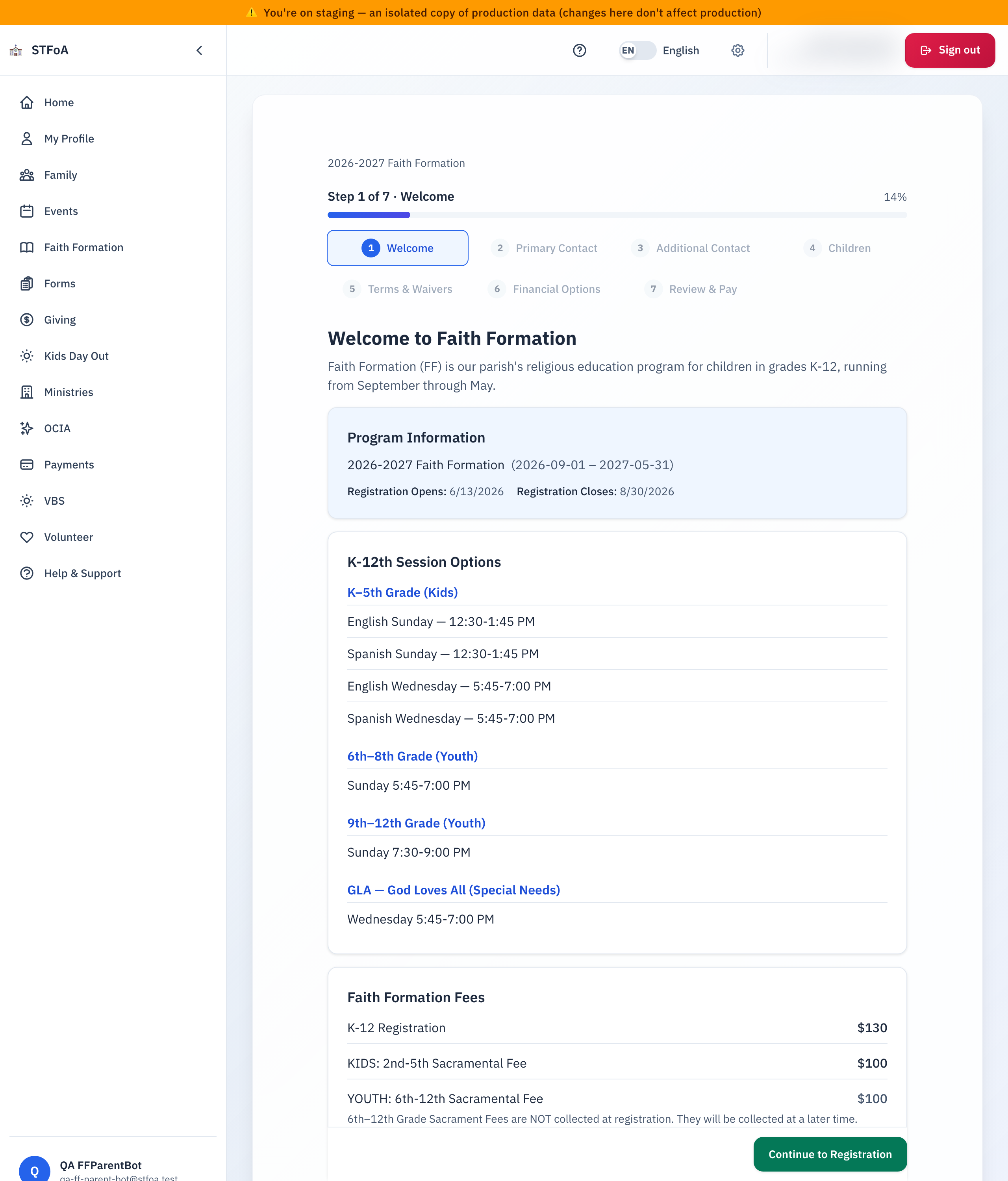
Financial assistance is available. You request it later, on the payment step — you do not need to decide now.
Every time you select Continue or Back, or Save for later, Faith Formation saves your answers so far. There is no separate Save button. Save for later also saves your answers. If you close the page and come back later, you pick up where you left off.
If your account has no parish record yet, the page asks you to complete Parish Registration before you can enroll a child in Faith Formation. Finish that first, then come back here.
If no program year is open for registration, the page says so and there is nothing else to do until the parish opens the next one.
2. Entering contact information
Primary contact
- If your family already has adults on file, choose your name from Select Primary Contact.
- Choose your Relationship to the child(ren) being registered.
- Enter your Email Address, Cell Phone, and address.
Once you choose yourself, your name, email, phone, and address come from your family record. You cannot edit them on this screen — a note under each field links to the Family page instead. A field that is truly blank on your family record opens up so you can type it here. Faith Formation saves what you type back to your family record, so you are not asked again next season.

If your chosen contact has no email of their own, Faith Formation uses another registered parent or guardian's email for family communications instead, and says so on screen.
Emergency contact
Your emergency contact belongs to your own family record, so it appears right below your primary contact information.
- If it is already complete, it shows read-only with a ↻ Refresh button (pulls the latest from your family record) and an Edit on Family page link.
- If any piece is missing — almost always the relationship — type the missing piece right here. Faith Formation saves it to your family record once it is complete.
Choose someone other than the primary or additional contact you are registering with — a grandparent, other relative, or friend. The Continue button stays disabled until you do.
Additional parent or guardian (optional)
- Choose an adult from Select an additional parent or guardian from your family, or choose None.
- If you choose someone, also choose their Relationship to the child(ren) being registered — required only when someone is selected.
This person receives the same private family information you do, so the step says so plainly. If an adult in your family is missing from the list for an unclear reason, a note names them and tells you to contact the parish office to correct the family record. If the person you want is not in your family at all, add them on the Family page first, then come back.
3. Adding your children
Every child you enroll must already be a member of your family record. Pick children from the list, or add a new one without leaving this page.
- Returning children from last year appear first, collapsed, with their suggested grade for the coming year. Select Edit to open the full form, or leave the checkbox as-is to keep them enrolled.
- Under Add a child from your family not previously enrolled, select Enroll next to any family member not already on the list.
- If the child is not in your family yet, select + Add a new child to your family, fill in their name, date of birth, gender, email, and any allergies, and save. Faith Formation adds them to your family record and enrolls them in the same step.
For each child you enroll:
- Grade — the choices are limited to grades your child is age-eligible for as of September 1. If the choices look wrong, correct the date of birth on the Family page.
- Session — grades K–5 choose their own session; grade 6 and up are assigned automatically.
- GLA (God Loves All) — check this box for a child who needs special- needs support. It locks the session to GLA and opens a short intake form about school, diagnosis, communication, and behavior.
- Emergency Contact for this child — required for every child. Select Copy from primary parent to reuse your own emergency contact's name and phone (you still choose the relationship to this specific child).
Baptism and other sacraments
- Answer Has your child been baptized? A baptism in any Christian church counts — it does not need to have been Catholic.
- If baptized and a certificate is needed, upload it (PDF, PNG, JPG, or Word). If one is already on file and validated, you see a green checkmark instead. A certificate under review or not yet valid shows its current status.
- Answer whether your child has received First Reconciliation and First Communion (First Communion only appears once you answer Reconciliation). If you answer Yes and the parish has no record of it, a note invites you to add it on the Family page — this never blocks you from continuing.
- For grades 2–5, check Enroll in First Reconciliation and First Holy Communion Preparation if your child still needs one or both. For grades 6–7 who still need a sacrament, preparation instead happens through take-home Milestone packets during Youth Night — the page explains this in place of the checkbox.
- If you enroll a child in preparation (or your Youth is preparing for a sacrament), choose a Sacrament Parent Session to attend — required only once the parish has posted sessions for your child's age group.
- Grades 8–12 answer Has your child been Confirmed? Confirmation preparation for those still needing it also runs through Milestone packets, not a checkbox here.
Answering No blocks that child from Faith Formation registration. The page asks you to contact the parish about OCIA and directs you to remove the child (or deselect them, if returning) before you can continue with the rest of your family.
A baptism certificate you just chose is held in the browser until you submit the whole registration. Once it shows Saved, it is safely stored and survives a refresh. Before that, refreshing or navigating away clears the file and you will need to choose it again.
4. Volunteering (optional)
- Read the Safe Environment notice — every leader must be Safe Environment cleared.
- If more than one adult is on your family record, choose Who is volunteering?
- Check one or more leader areas — Kids (K–5th) Leader, Youth (6th–12th) Leader, or Office Helper — or check Not interested at this time.
- Read the Volunteer Commitment dates and the Faith Formation Leader Expectations. Both come from what the parish office has posted, so they always match the current program year.
- Add any notes on your availability (optional).
You must choose at least one leader area, or check Not interested at this time, before you can continue. Choosing a leader area does not enroll you automatically — the parish follows up by email based on your interest.
5. Signing waivers
- Read each waiver. Longer waivers scroll in their own box, and some link to the full document.
- Check I accept on every waiver marked required.
- Type your full legal name into Electronic Signature.
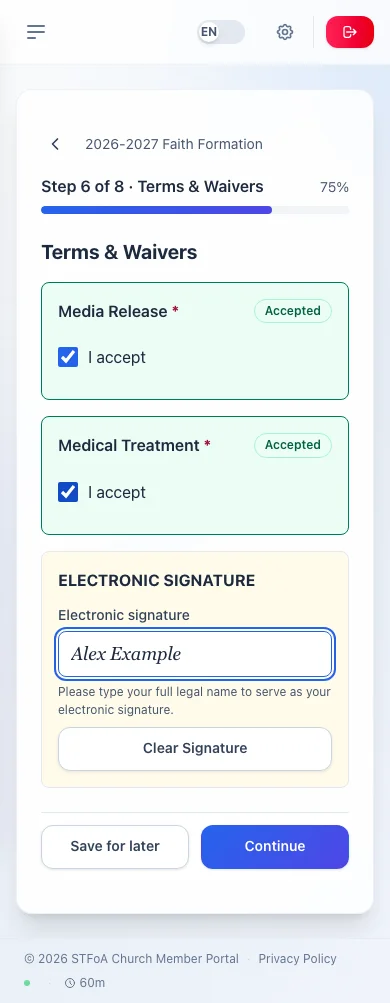
Continue stays disabled until every required waiver is accepted and your signature is entered.
6. Reviewing and paying
Fee breakdown and payment method
- Read the Fee Breakdown — the registration fee per child, any sibling discount, sacrament-preparation fees, and a mid-year discount if the program year is already underway.
- If you have a discount code, enter it and select Apply.
- Choose how to pay: Full Payment, the 4-Month Payment Plan (the first installment charges now, the rest charge automatically each month), or Request Financial Assistance.
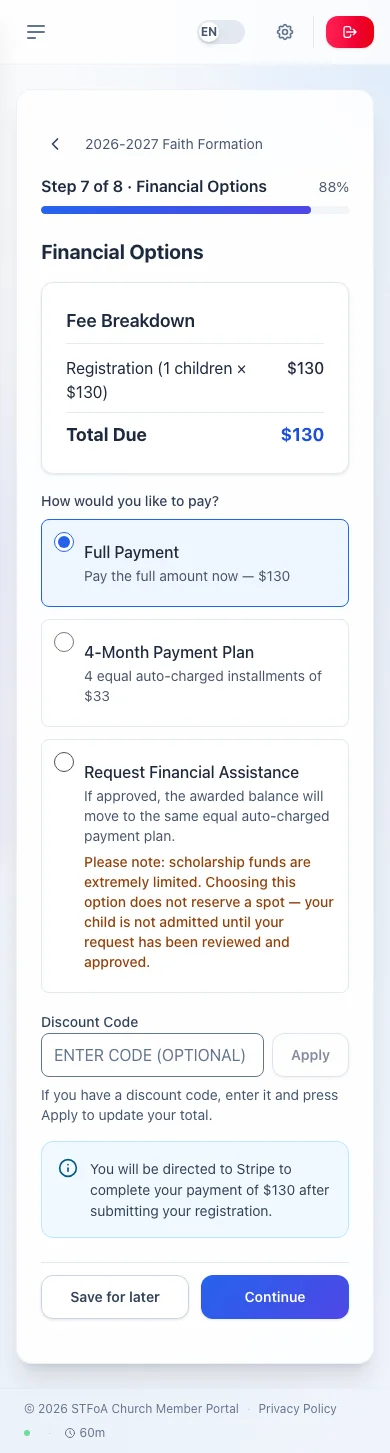
Scholarship funds are limited. Your child is not enrolled until the parish reviews and approves your request. Tell the parish why you are requesting assistance in the box that appears.
If every child is GLA-only, the page shows No payment required instead of a fee breakdown — GLA registrations are fee-exempt pending admin review.
Review & Pay
- Check each section — Family Information, Children, Payment Summary, and Terms & Waivers. Select Edit next to any section to go back and change it.
- Select Submit Registration (or Join the Waitlist, if the parish has closed registration but is still accepting waitlist requests — you pay nothing and are not enrolled until a place opens).
If you owe a balance, submitting takes you straight to a payment page to finish paying by card. A scholarship request, a GLA-only registration, or a registration with nothing owed shows a confirmation right away instead — either way, a confirmation email and a confirmation number follow.
If a certificate could not be attached, the confirmation screen says so in red and links straight to a page where you can upload it again. Your child cannot be prepared for the sacrament until the parish has it.
7. Quick reference card
The whole thing, in six lines
- Confirm your contact information — pick yourself from the family list, or type in whatever is missing.
- Add an emergency contact who is not one of the registering parents.
- Choose or add each child, and answer their baptism and sacrament questions.
- Say whether you want to volunteer.
- Accept the required waivers and sign.
- Review, choose how to pay, and submit.
When to stop and ask
- A family member, or a child, that you cannot find in any picker.
- A baptism certificate that will not upload after more than one try.
- A financial-assistance request you need to check on.
Parish office — ask for the person who handles Faith Formation registration.
Two things to remember
- Your progress saves automatically — you can always come back later.
- Nothing here overwrites your family record without telling you first.
Thank you for enrolling your family in Faith Formation. We look forward to seeing your children this year.