Joining a Ministry from a QR Code
St. Francis of Assisi Catholic Church · MinistryHow a visitor scans a ministry's QR code and joins on the spot.
You scanned a ministry's QR code, or tapped its join link from a bulletin, a poster, or a text message. You do not need any special role — anyone with a parish account can join a ministry this way.
A ministry leader can put one QR code on a table, a poster, or a bulletin insert. Anyone who scans it lands on that exact ministry and can join in a few taps. The parish learns who is interested without a paper sign-up sheet.
What you will do, in one sentence
Scan the code, sign in if you are asked to, and tap Join This Ministry.
Last verified against the staging system on 2026-10-20. Screens shown are the staging system (an isolated copy of production). The ministry and the account shown are QA test fixtures, not a real ministry or parishioner. Prepared 20 October 2026.
1. What you see when you open the link
For a moment the page shows a spinner and Loading ministry... — then the ministry's own page appears.
Every version of this page starts the same way: the ministry's photo (if it has one), its name, and its category, such as Youth or Music. Below that, you see:
- A short description of the ministry, if the leader wrote one.
- When and where it meets, if the leader set that. The page shows the meeting schedule and the meeting location on separate lines.
- Its Leaders, if it has any.
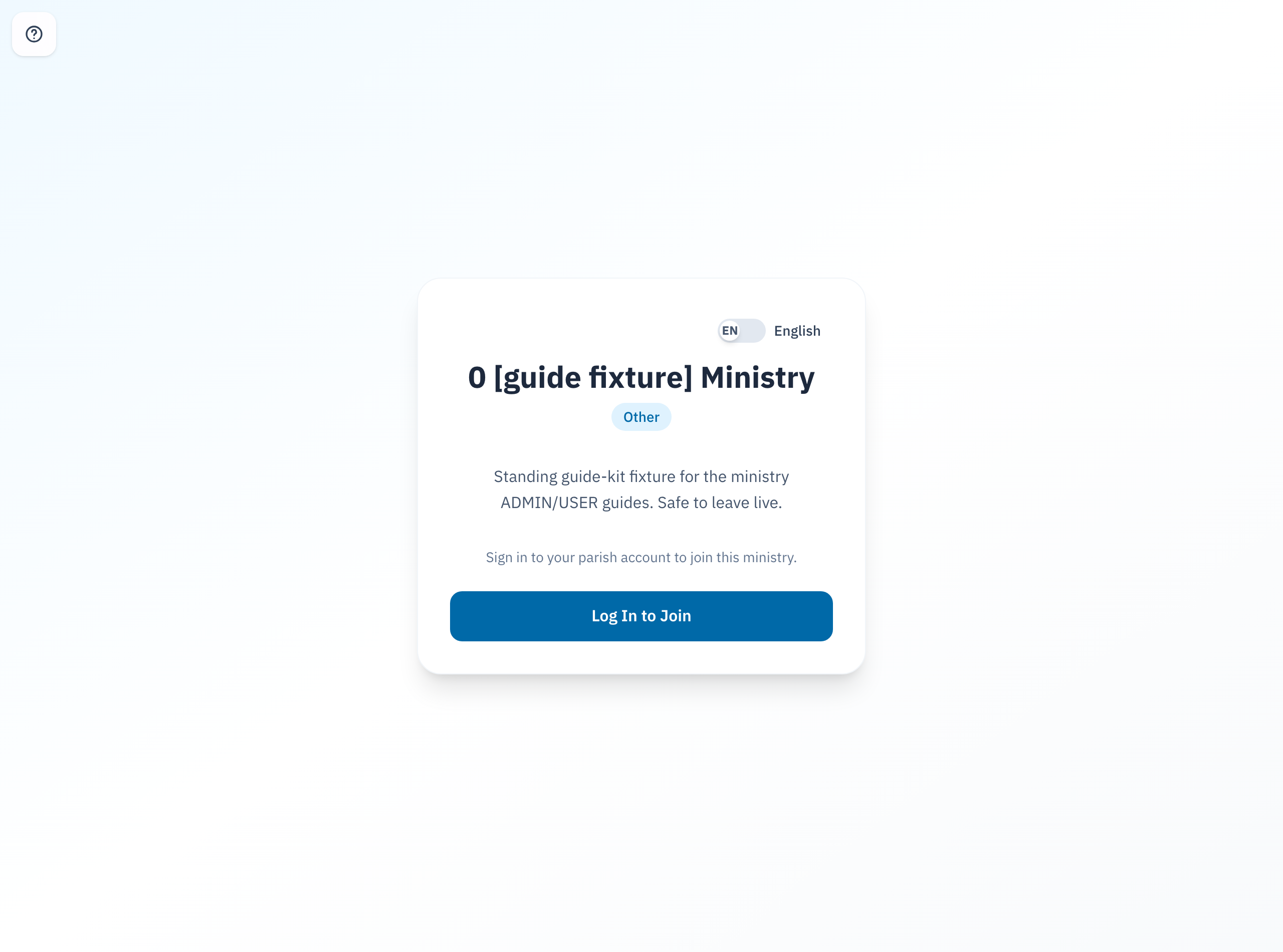
A language button sits at the top of the card. Tap it to read the page in Spanish or English.
A QR code that points at a ministry that no longer exists shows an error message instead of the ministry's page. Tap Ministries to browse the current list, or ask whoever gave you the link for a fresh one.
2. Signing in first, if you need to
If you are not signed in, the page shows Sign in to your parish account to join this ministry and one button: Log In to Join.
- Tap Log In to Join.
- Sign in with your parish account, the same way you always do.
You do not land on your home page after you sign in. You land back on this exact ministry's page, ready to join.
Once you are signed in, the page shows either the Join This Ministry button or, if you already belong, a confirmation that you are already a member — see the next section either way.
3. Joining, or seeing that you already belong
Signed in, and not yet a member, you see the same ministry information as before, now with a Join This Ministry button in place of the sign-in prompt.
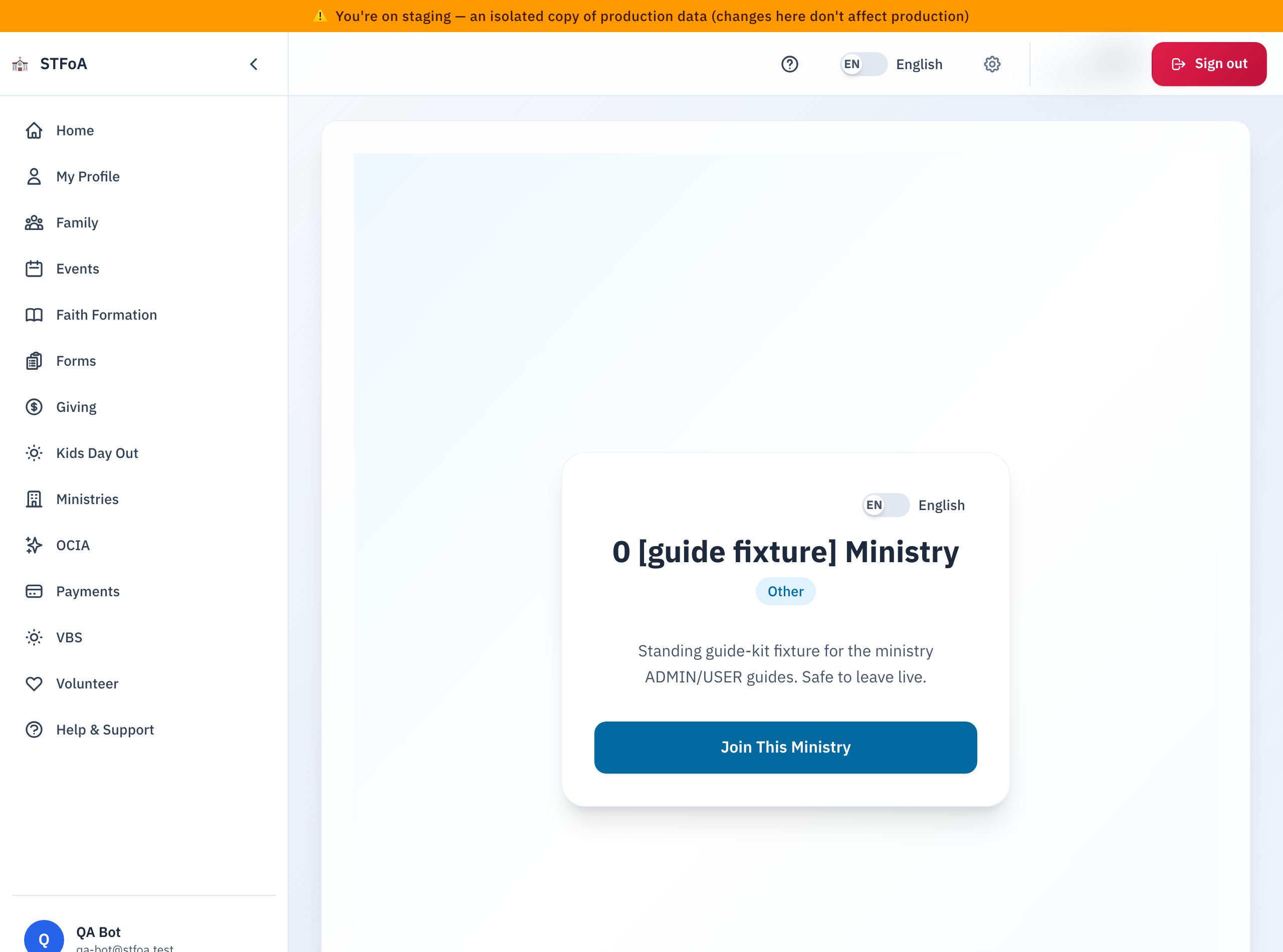
- Tap Join This Ministry.
- The button changes to Joining... for a moment.
- A checkmark appears with Welcome aboard! and a note that you joined.
You do not get a confirmation email or text when you join. The checkmark on this page is your confirmation. A ministry leader may reach out separately once they see you on the roster.
If you tap the same link again later — or tap Join This Ministry a second time by mistake — you see the same checkmark, but in blue, with You're already a member! instead. Nothing is created twice.
Either screen gives you two ways forward:
| Button | Where it takes you |
|---|---|
| View Ministry | The ministry's own page, with its full details. |
| Ministries | The full list of parish ministries, to browse more. |
4. If the ministry does not take new members
Some ministries close their doors to new members for a season, or cap how many people can join. Either way, you find out before you join, not after.
The ministry is closed. If a ministry stops taking new members, the page skips the sign-in prompt and the Join button entirely. You see its name and a note: This ministry is not currently accepting new members.
The ministry filled up while you looked. A few ministries cap their membership. If the ministry reaches that cap in the moment between when you opened the link and when you tapped Join This Ministry, you see a message instead of the checkmark: This ministry has reached its capacity.
Either way, tap Ministries to find one that is open.
5. Quick reference card
The whole thing, in four lines
- Open the link. If you are not signed in, tap Log In to Join — you come right back here.
- Tap Join This Ministry.
- A green checkmark means you're in. A blue one means you already were.
- If the ministry is closed or full, tap Ministries to find another one.
When to stop and ask
- The link shows an error instead of a ministry.
- You joined, but the ministry's leader never followed up.
- You don't have a parish account yet, and need one to sign in.
Parish office — ask for the person who gave you the QR code or the join link.
Thank you for joining in. A ministry leader will be glad to see you on the roster.